內容簡介
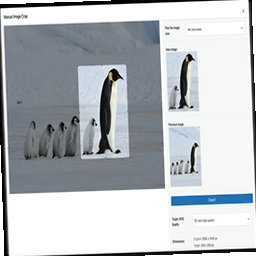
這是一個在WordPress中快速簡單地裁剪任意上傳的圖片的方法。不再需要複雜的圖像編輯器,以及那些沒有頭的人或者視角錯誤的產品照片。選擇縮略圖,編輯裁剪區域,最後保存新的縮略圖像。
該外掛程式不會創建任何新的文件或文件夾,它僅會覆寫原始縮略圖文件來儲存新的裁剪區域,因此它不會影響主題的設計 🙂
功能特點
該外掛程式會自動使用所有通過函數add_image_size創建的圖像,即使它們是硬裁剪或等比例的。更多信息請參閱https://codex.wordpress.org/Function_Reference/add_image_size#Crop_Mode。
在媒體列表中,拍攝編輯器的快捷連結。
在特色圖片小工具中提供拍攝編輯器的連結。
在媒體管理器中的文件詳細資料中提供拍攝編輯器按鈕。
(感謝:https://software-lupe.de/review/ttt-crop-thumbnails-auf-mass/)
使用方法
選擇圖像,打開圖像編輯器,然後單擊拍攝編輯器按鈕。
選擇所需的圖像大小,進行裁剪。
建議
如果您是開發人員,需要重建縮略圖,我們建議使用此外掛程式:https://wordpress.org/plugins/ajax-thumbnail-rebuild/,它可以幫助您逐一進行重建。
重要提示:請注意,重建縮略圖將覆蓋使用TTT Crop外掛程式裁剪的縮略圖。
Hacks
只需將此代碼復制並粘貼到您的functions.php中
從編輯器中移除大小
add_filter( 'tttcrop_image_sizes', 'custom_tttcrop_image_sizes');
function custom_tttcrop_image_sizes( $sizes ) {
unset( $sizes['thumbnail'] );
unset( $sizes['large'] );
return $sizes;
}
?>
為特定文章類型從編輯器中移除縮略圖大小
function custom_tttcrop_image_sizes_CPT($sizes) {
foreach ($sizes as $key => $values) {
if ($key == 'THUMBNAIL-SIZE1')
$new[ $key ] = $values;
elseif ($key == 'THUMBNAIL-SIZE1')
$new[ $key ] = $values;
}
return $new;
}
將圖像的名稱更改為更人性化的名稱
function local_ttt_crop_human_name($name) {
switch( $name ) {
case 'single-slider';
return '主頁滑動圖片'; break;
case 'widget-thumbnail';
return '小部件小圖片'; break;
default:
return $name; break;
}
}
add_filter('ttt_crop_human_name','local_ttt_crop_human_name');
這會更改選擇圖像時在工具提示中顯示的圖像名稱。
外掛標籤
開發者團隊
原文外掛簡介
This is an easy and fast way to crop any uploaded image in your wordpress. No more complicated graphical editors, photos of people without head or products with wrong view. Select a thumbnail, edit the crop area and save the new thumbnail image.
This plugin doesn’t create any new file or folder, when it saves the new crop area it rewrites the original thumbnail file, this means it doesn’t affect the theme design 🙂
Features
The plugin automatically use all images created with the function add_image_size even if they are hard cropped or proportional. More info in https://codex.wordpress.org/Function_Reference/add_image_size#Crop_Mode
“Crop Editor” quick link in media list.
“Crop Editor” link in featured image widget.
“Crop Editor” button inside file details in media manager.
(Thanks to: https://software-lupe.de/review/ttt-crop-thumbnails-auf-mass/)
How to use it
Select an image, open the image editor and click on the Crop Editor button.
Choose the image size you want and crop it.
Recomendations
If you are a developer and you need to rebuild the thumbnails we recommend use this plugin: https://wordpress.org/plugins/ajax-thumbnail-rebuild/ it helps you to do it one at a time.
IMPORTANT: Notice that rebuilding thumbnails will overwrite the thumbnails cropped with the TTT Crop plugin.
Hacks
Just copy&paste this code into your functions.php
Remove sizes from the editor
add_filter( 'tttcrop_image_sizes', 'custom_tttcrop_image_sizes');
function custom_tttcrop_image_sizes( $sizes ) {
unset( $sizes['thumbnail'] );
unset( $sizes['large'] );
return $sizes;
}
?>
Remove thumbnails sizes from the editor for an specific post type
function custom_tttcrop_image_sizes_CPT($sizes) {
foreach ($sizes as $key => $values) {
if ($key == 'THUMBNAIL-SIZE1')
$new[ $key ] = $values;
elseif ($key == 'THUMBNAIL-SIZE1')
$new[ $key ] = $values;
}
return $new;
}
Change the name of the image to human friendly names
function local_ttt_crop_human_name($name) {
switch( $name ) {
case 'single-slider';
return 'Home slider image'; break;
case 'widget-thumbnail';
return 'Widget small image'; break;
default:
return $name; break;
}
}
add_filter('ttt_crop_human_name','local_ttt_crop_human_name');
This will change the name of the image inside the tooltip when it is selected.