外掛標籤
開發者團隊
② 後台搜尋「PocketBooking – Manage Appointments on the Go」→ 直接安裝(推薦)
原文外掛簡介
Plugin Website | Live Demo | Support
PocketBooking is a professional, high-performance appointment scheduling system for WordPress. Ideal for salons, clinics, consultants, and service-based businesses.
📱 Smartphone app (PWA): 💎 (Pro) Transform your booking system into a native smartphone app. Features include app installation, push notifications, offline functionality, custom branding (app name, icon, colors), and lightning-fast performance. QR code for easy installation on iOS and Android.
🖥️ Frontend: Responsive multi-step booking form with real-time availability check, service selection, staff assignment, and smart time management.
⚙️ Backend: Comprehensive booking management with filtering, sorting, status changes, manual bookings, CSV export, and direct guest communication.
🕒 Opening hours: Flexible weekly hours, holidays, special opening hours 💎 (Pro), and excluded days. Special hours automatically override regular hours.
📧 Emails: Confirmation, reminder, and cancellation emails in 9 languages (DE, EN, US, IT, ES, FR, PL, RU, SV) with placeholders, customizable sender, and automatic language selection.
❌ Cancellations: Self-cancellation by guests 💎 (Pro) via email link with configurable minimum number of hours before the appointment and automatic notification.
💳 Payment, Invoice & Discount: 💎 (Pro) Accept online payments for bookings, automatically generate PDF invoices, and offer discount codes to your customers. Available as a Pro add-on.
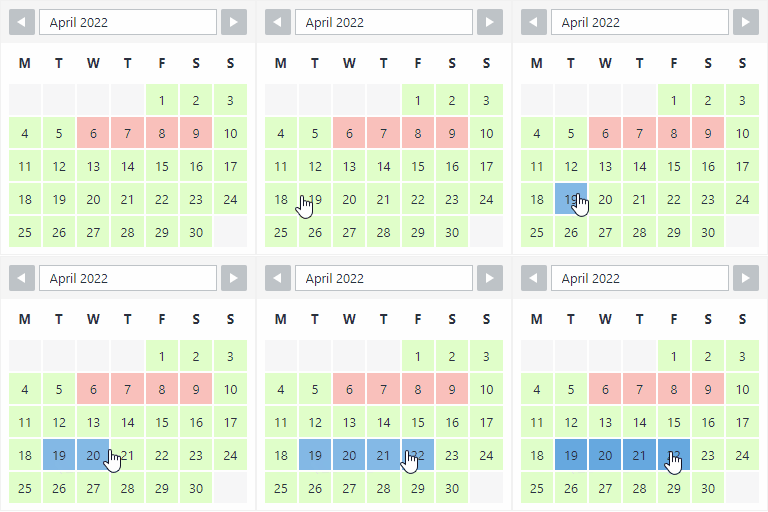
📅 Calendar: Visual calendar view of all bookings with monthly, weekly, and daily views. Dynamic time slots automatically adjust to configured opening hours. Pop-up for managing bookings 💎 (Pro) and iCal feed subscription 💎 (Pro) for Google Calendar, Apple Calendar, Outlook, and Thunderbird.
🎨 Design: Customizable colors (background, text, buttons, tile color) and corner radius with live preview 💎 (Pro) directly in the backend.
🧩 Drag & Drop Form Builder: 💎 (Pro) Design your booking form visually. Add custom fields, rearrange them by drag & drop, and match the form perfectly to your workflow.
🏷️ Service Categories: 💎 (Pro) Organize services into groups and categories for a cleaner booking form and better customer navigation.
📆 Per-Service Availability: 💎 (Pro) Restrict individual services to specific weekdays or fixed dates. Offer staff-based consultations alongside date-only courses or rentals, all managed in one system.
⏱️ Booking Options & Rental Mode: 💎 (Pro) Add duration variants (1 h, 2 h, 3 h) to any service with individual prices. Enable “No employee required” for rentals, house viewings, or equipment loans independently of your staff.
✉️ HTML Email Templates: 💎 (Pro) Send beautifully formatted HTML confirmation emails with your own company logo for a professional and branded customer experience.
🌍 Internationalization: Full translation support for backend, frontend, emails, calendar, and all UI elements. Supports 9 languages: German, English (US, UK), Italian, Spanish, French, Polish, Russian, and Swedish.
🔒 Security and performance: Nonce verification, input sanitization, SQL injection protection, XSS protection, and optimized AJAX handlers.
Plugin Website | Live Demo | Support
Usage
Setup Wizard
After activation, the setup wizard will automatically appear to help you configure your booking system. The wizard guides you through 6 steps:
Basic Information:
Enter company name
Configure notification email address
Enable/disable email notifications
Opening Hours:
Activate weekdays for reservations
Set opening hours for each day
Configure time interval
Service:
Create your first service
Set service name, duration, and buffer time
Staff:
Add your first staff member
Set name, email, phone, and profile photo
Configure individual working hours (optional)
Language:
Select the desired language for frontend and backend
All texts will be automatically translated
Complete:
Review your settings
Access the dashboard to manage bookings
You can restart the setup wizard at any time by going to PocketBooking > Settings > “General” tab > “Setup Wizard” section and clicking “Reset Setup Wizard”.
Getting Started
Configure General Settings:
Go to PocketBooking > Settings > “General” tab
Enter company name
Configure email address for notifications
Set maximum number of people and stay duration
Configure minimum advance time
Appointment Reminders: Enable/disable automatic reminder emails and set how many hours before the appointment they should be sent (1-168 hours)
Set Up Opening Hours:
“Opening Hours” tab > “Regular Weekly Opening Hours”
Activate desired weekdays
Set opening hours (start and end) for each day
Configure time interval (default: 30 minutes)
Add Services:
Go to PocketBooking > Services
Click on a service to edit or add a new one
Set service name, duration, and buffer time
Assign staff members who can perform this service
Add Staff Members:
Go to PocketBooking > Staff
Click on a staff member to edit or add a new one
Set name, email, phone, and profile photo
Configure individual working hours (optional)
Assign services this staff member can perform
Add Holidays:
“Opening Hours” tab > “Holidays & Special Opening Hours”
Select a date in the calendar
Click “Configure Selected Date”
Choose “Close entire day” or “Special opening hours”
Save settings
Customize Email Templates:
“Emails” tab
Select desired language
Customize subject and message for each email type:
Confirmation emails (sent when a booking is created)
Reminder emails (sent X hours before the appointment)
Cancellation emails (sent when a booking is cancelled)
Status change notifications
Use placeholders for dynamic content
Each booking automatically includes a cancellation link that guests can use to cancel their appointment
Customize Design:
“Design” tab
Select background color for the form
Adjust text, button, and tile background colors
Set corner radius for form (0-50 pixels)
Set corner radius for tiles (date/service/employee/time cards) separately (0-50 pixels)
Customize form section headers (date, service, employee, time, contact) for each language with language-specific defaults
Select Language:
“Language” tab
Select desired language for frontend and backend
All texts are automatically translated
Embed Form:
Create a new page or edit an existing one
Add the shortcode [pocketbooking-form]
Publish the page
Managing Bookings
Dashboard:
– Go to PocketBooking > Dashboard
– View overview statistics for today and this week
– See booking status breakdown (Confirmed, Pending, Cancelled)
– Quick access to common actions (New Booking, Settings, etc.)
– Display of the shortcode for embedding the booking form
– Automatically shown after completing the setup wizard
Booking List:
– Go to PocketBooking > Bookings
– Use filters to display specific bookings (All, Pending, Today, Upcoming, Past, Cancelled)
– Quick Search: Use the search field to find bookings by name, email, phone, service, or staff member
– Sort by various criteria
– Click on a booking to view details and change status
– Edit or delete bookings directly from the modal
– Bulk Actions: On “Past” and “Cancelled” tabs, select multiple bookings with checkboxes and delete them all at once with a single confirmation
Services Management:
– Go to PocketBooking > Services
– Quick Search: Find services by name, category, or description
– Switch between table and card views
– Click on a service to edit details or add a new one
Staff Management:
– Go to PocketBooking > Staff
– Quick Search: Find staff members by name, email, or phone
– Switch between table and card views
– Click on a staff member to edit details or add a new one
Add Manual Booking:
– Go to PocketBooking > New Booking
– Fill in all fields
– Select service, staff member, date and time
– Optional: Send email confirmation to guest
– Click “Create Booking”
Calendar View:
– Go to PocketBooking > Calendar
– View all bookings in a calendar format
– Filter by service and staff member
– Subscribe to calendar feed (iCal/ICS)
Statistics:
– Go to PocketBooking > Statistics
– View booking statistics and cancellation rates
CSV Export:
– Go to PocketBooking > Bookings
– Optionally select a filter
– Click “Export CSV”
– The file will be downloaded
Support
For support, questions, or feedback, please visit https://mobile-refuel.de
Credits
Developed by Maxim Ristow / maksim85 for Mobile-Refuel.