內容簡介
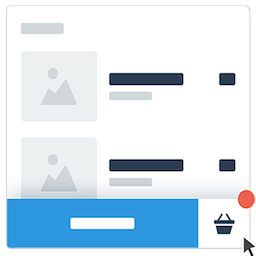
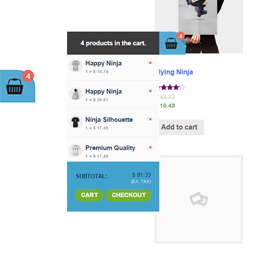
「Floating Cart Product For Woocommerce」是一個外掛,當使用者加入商品至購物車時,購物車會在網頁側邊顯示。
「Floating Cart Product For Woocommerce」的特色:
簡易設定
於所有頁面顯示購物車籃
顯示購物車清單及數量調整框
啟用/停用手機版優惠券欄位
啟用購物車籃
客製化「檢視購物車」、「結帳」及「繼續購物」按鈕
啟用/停用開啟購物車的觸發器
刪除購物車商品選項
自訂購物車籠、關閉按鈕的顏色及隱藏/顯示
自訂刪除按鈕的顏色
自訂免運費通知的顏色及隱藏/顯示
自訂套用優惠券貼紙的顏色
客製化優惠券、商品滑動列及按鈕標題
相容於行動裝置
計算woocommerce商品數量
客製化「側邊購物車」的標題字型大小、商品名稱大小及字型顏色
啟用/停用手機版
客製化「購物籃」、「結帳」及「繼續購物」超連結
於小彈窗內增加、減少商品數量
籃子計數器的位置及顏色
側邊購物車位置左/右
側邊購物車中的數量輸入框
籃子計數器型式為「商品數量」或「所有商品數量的總和」
啟用/停用購物車圖示
客製化頁腳按鈕,包括按鈕的背景、文字顏色、邊距及行列樣式
支援WPML
🌟 文件 | 🌟 取得高級版 | 🌟 示範 | 🌟 支援
「Floating Cart Product For Woocommerce」高級版的特色:
啟用/停用電腦版及行動版的商品滑動列
檢視運費、折扣、稅金及購物車所有商品金額總計
電腦版及行動版購物車商品滑動列
啟用/停用購物車圖示
當購物車內無商品時,隱藏購物車籃
購物車及結帳頁面中隱藏購物車圖示
透過頁面ID隱藏特定頁面上的購物車籃
貢獻及翻譯
「Floating Cart Product For Woocommerce」已翻譯成多種語言包括中文、荷蘭文、俄文及西班牙文等。請幫忙將您所在地區的語言加入本外掛的翻譯中,點擊這裡協助我們。 或透過點擊這裡協助撰寫程式碼。
外掛標籤
開發者團隊
② 後台搜尋「Floating Cart Product For WooCommerce」→ 直接安裝(推薦)
原文外掛簡介
Floating Cart Product For WooCommerce is a powerful WooCommerce side cart plugin that shows customers a beautiful floating slide-out cart panel — without ever leaving the current page.
The moment a customer clicks “Add to Cart”, the floating cart slides open and displays all cart items, quantities, totals, and a direct checkout button. No page redirects. No disrupted browsing. Just a smooth, fast cart experience that keeps customers shopping and dramatically reduces cart abandonment.
📄 Documentation | 🛒 Live Demo | ⭐ Pro Version | 💬 Support
💡 WHY YOUR STORE NEEDS A FLOATING CART
The default WooCommerce “Add to Cart” flow redirects customers away from the product they were browsing. Every redirect is an opportunity to lose a sale. A floating side cart fixes this entirely — the cart opens as an overlay, customers review it and keep shopping, and conversions go up.
Stores using a slide-out cart consistently see higher average order values because customers continue browsing and adding items instead of being forced into the checkout funnel too early.
🔑 FREE VERSION FEATURES
Display Pages & Basket Visibility
* Show the floating cart basket on individually selected pages: Home, Shop, Single Product, Cart, Checkout, Product Category, and Product Tag pages
* Always show or always hide the cart basket using the basket visibility toggle
* Automatically hide the basket icon when the cart is empty
* Show or hide the floating cart independently on mobile devices
* Choose cart item sort order: oldest first (ascending) or newest first (descending)
Side Cart Behaviour
* Auto-open the side cart immediately when a product is added to cart
* Auto-close the side cart automatically after 3 seconds
* Custom Class Trigger — add the CSS class fcpfw_trigger to any HTML element to make it open the floating cart on click
Cart Header
* Show or hide the cart icon in the side cart header
* Show or hide the close/back icon in the side cart header
Cart Item Display
* Per-item toggle controls to show or hide: Product Image, Product Name, Product Price, Line Total, Variations, Link to Product, Delete Button, and Quantity Box
* Customers can increase and decrease quantities directly inside the floating cart
* Remove products from the cart with a single click
* Show or hide the item count badge on the basket icon
* Count badge type: total sum of all item quantities, or number of distinct products in cart
Coupon Field
* Built-in coupon input field inside the floating cart (desktop)
* Enable or disable the coupon field on mobile devices independently
* Toast notifications for all coupon states: coupon applied, coupon removed, invalid coupon, already applied, and empty field error
Cart Footer Totals & Buttons
* Subtotal displayed in the cart footer
* Show or hide the View Cart button
* Show or hide the Checkout button
* Show or hide the Continue Shopping button
Custom URLs
* Override the default WooCommerce page links with your own custom URLs for: Continue Shopping, Empty Cart, Cart page, and Checkout page
Product Recommendations
* Product source selector: choose between Related Products or manually Selected Products as the source for recommendations
Cart Layout Styling
* Set the sidebar width in pixels (recommended 320–450px)
* Choose sidebar height: Full screen height or Auto (content height)
* Choose which side the cart opens from: Right or Left
* Header font size (px) and header font colour
* Choose from multiple cart icon and close icon styles
Cart Item Styling
* Product title font size and colour inside the cart
Delete Button Styling
* Choose from multiple delete icon styles
Coupon Field Styling
* Choose from multiple coupon icon styles
* Apply button text colour and background colour
Footer Button Styling
* Choose from four footer button row layouts: Stack (1 per row), Cart & Checkout on top with Continue below, Cart on top with Checkout & Continue below, or all three in one row
* Footer button background colour, text colour, and gap between buttons
Cart Basket Styling
* Choose from 6 basket icon styles
* Basket shape: Square or Round
* Basket vertical position: Top or Bottom
* Count badge position: Top Left, Top Right, Bottom Left, or Bottom Right
* Basket background colour
* Count badge background colour, text colour, and font size
* Basket icon size in pixels
* Vertical and horizontal offset for precise basket positioning
Translations
* Cart Title (shown at top of side cart)
* QTY Label (e.g. “Qty” or “Amount”)
* Empty Cart Message
* Coupon Section Title, Input Placeholder text, Apply Button text
* All coupon toast messages: Field Empty error, Already Applied, Invalid Coupon, Coupon Applied, Coupon Removed
* Subtotal Label
* View Cart Button text
* Checkout Button text
* Continue Shopping Button text
🚀 PRO VERSION FEATURES
Upgrade to Floating Cart Product For WooCommerce Pro to unlock the settings that are disabled in the free version’s admin panel.
👉 Get the Pro Version
General Tab — Display Pages
Show on All Pages — Enable the floating cart basket across every page of your site with a single toggle. In pro version you can enable or disable this option. disabling this option unlocks page wise selection where you can enable the floating cart to a specific set of pages.
General Tab — Cart Header
Free Shipping Bar — Display a progress bar inside the cart header showing customers how close they are to qualifying for free shipping. Motivates customers to add more items to reach the free shipping threshold.
Threshold Message — Customise the text shown in the free shipping bar while the customer has not yet reached the threshold (e.g. “Add £{amount} more for free shipping!”).
Reached Message — Customise the text shown in the free shipping bar once the customer has qualified for free shipping (e.g. “You’ve unlocked free shipping! 🎉”).
General Tab — Cart Footer Totals
Shipping Total — Show a shipping cost line in the cart footer totals so customers can see their estimated shipping before proceeding to checkout.
Discount Amount — Show the discount amount saved by applied coupons or sale prices as a line in the cart footer totals.
Tax Total — Show the tax amount as a separate line in the cart footer totals.
Grand Total — Show the full grand total (subtotal + shipping + tax − discounts) in the cart footer totals section.
General Tab — Product Recommendations
Enable on Desktop — Show the product recommendations section inside the floating cart on desktop devices.
Enable on Mobile — Show the product recommendations section inside the floating cart on mobile devices.
Display Style — Choose how the recommendations are presented: as an Inline Slider within the cart body, or as a dedicated Side Cart Section with its own panel area.
Select Products — When the product source is set to “Selected Products”, manually search for and pick specific products to feature in the recommendations section. In the free version this product picker is visible but locked; Pro makes it fully functional.
General Tab — Cart Basket
Show Cart Icon — Show or hide the cart icon displayed inside the basket button itself.
Show on Cart/Checkout Page — Control whether the floating cart basket is visible on the WooCommerce Cart and Checkout pages independently.
Hide on Page IDs — Enter a comma-separated list of WordPress page IDs on which the cart basket should be hidden. Useful for suppressing the basket on landing pages, thank-you pages, or other custom pages.
Custom Styles Tab — Cart Layout
Empty Cart Display — Choose what is shown when the cart is empty: either display all cart details (header, footer, buttons) in an empty state, or hide all cart details and show only a minimal empty message.
Custom Styles Tab — Header Styles
Free Shipping Text Color — Set a custom colour for the text inside the free shipping progress bar displayed in the cart header.
Translations Tab — Product Slider Buttons
Add to Cart Button — Customise the label on the “Add to Cart” button shown inside the product recommendations slider.
View Options Button — Customise the label on the “View Options” button shown for variable products inside the product recommendations slider.
Translations Tab — Cart Footer Labels
Shipping Label — Customise the label shown next to the shipping cost line in the cart footer (e.g. “Shipping”, “Delivery”).
Tax Label — Customise the label shown next to the tax line in the cart footer (e.g. “Tax”, “VAT”, “GST”).
Discount Label — Customise the label shown next to the discount line in the cart footer (e.g. “Discount”, “You Save”).
Total Label — Customise the label shown next to the grand total in the cart footer (e.g. “Total”, “Order Total”).
⚙️ HOW IT WORKS
Install and activate the plugin — WooCommerce must be installed and active.
Go to Floating Cart in the WordPress admin sidebar.
Use the General tab to configure display pages, cart behaviour, item visibility, footer options, basket settings, and custom links.
Use the Custom Styles tab to set colours, fonts, icon styles, widths, and layout options.
Use the Translations tab to customise all customer-facing text labels.
Save — the floating cart is live on your store immediately.