內容簡介
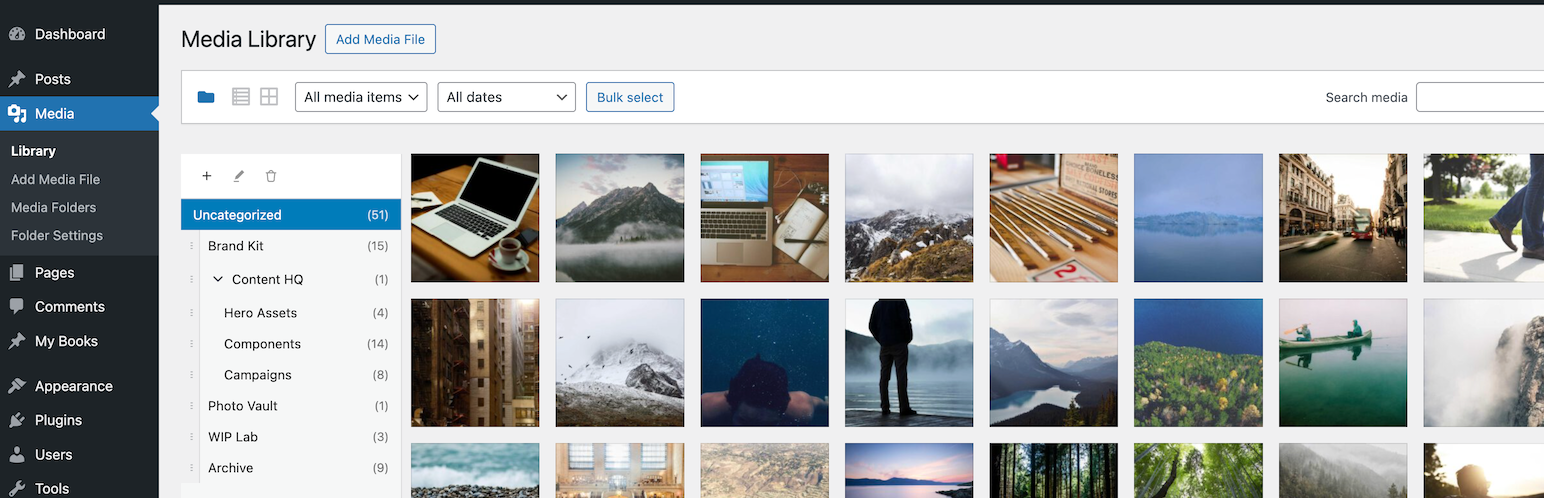
Virtual Media Folders 讓您能在 WordPress 媒體庫中以虛擬資料夾組織媒體檔案,無需移動檔案,保持 URL 不變,提升媒體管理效率。
【主要功能】
• 虛擬資料夾:建立層級資料夾結構以組織媒體
• 拖放功能:輕鬆在資料夾間移動媒體
• 固定側邊欄:在瀏覽媒體時保持資料夾導航可見
• Gutenberg 整合:在區塊編輯器中按資料夾篩選媒體
• 批次操作:一次移動多個媒體項目
• 鍵盤可存取:完整的鍵盤導航支援
外掛標籤
開發者團隊
📦 歷史版本下載
原文外掛簡介
Virtual Media Folders brings virtual folder organization to your WordPress Media Library. Organize your media files into hierarchical folders without moving files on disk—folders are virtual, so your URLs never change.
Features
Virtual Folders – Create hierarchical folder structures to organize media
Drag & Drop – Easily move media between folders with drag and drop
Sticky Sidebar – Folder navigation stays visible while scrolling through media
Gutenberg Integration – Filter media by folder directly in the block editor
Bulk Actions – Move multiple media items at once
Keyboard Accessible – Full keyboard navigation support
Internationalized – Ready for translation (Norwegian Bokmål included)
Free add-ons
Add-On Manager lets you easily install and manage add-ons that extend Virtual Media Folders with powerful new features:
AI Ability – Registers MCP tools for AI agents via the WordPress Abilities API.
AI Organizer – Uses vision-capable AI models to analyze actual image content and automatically organize your media library into virtual folders. This is add-on functionality requiring an API key from a supported AI service provider, or a local LLM.
Editorial Workflow – Role-based folder access, move restrictions, and Inbox workflow.
Folder Exporter – Export folders (or subtrees) as ZIP archives with optional CSV manifests.
Media Cleanup – Tools to identify and clean up unused or duplicate media files.
Migrate – Migrate folder structures from other media folder plugins to Virtual Media Folders.
Rules Engine – Rule-based automatic folder assignment for media uploads, based on metadata, file type, EXIF or IPTC data.
Search – Fast, typo-tolerant search for the WordPress Media Library, powered by the Loupe Search engine.
How It Works
Virtual Media Folders uses a custom taxonomy to assign media to folders. This means:
Your media files stay exactly where they are on the server
URLs never change when you reorganize
Folders can be nested to create hierarchies
Usage
Organizing Media
Go to Media > Library
Click the folder icon to show the sidebar
Use + to create folders
Drag media onto folders to organize / Bulk select media and use the “Move to Folder” action
Click a folder to filter the view
Settings
Go to Media > Folder Settings to configure:
Show “All Media” – Display “All Media” option in sidebar
Show “Uncategorized” – Display folder for unassigned media
Jump to folder after move – Navigate to target folder after moving
Default folder for uploads – Auto-assign new uploads to a folder
Block Editor
When inserting media from a block (Image, Gallery, etc.):
Open the Media Library modal
Use the folder sidebar to filter
Select your media as usual
Documentation
Accessibility – Keyboard navigation and screen reader support
Development – Setup, API reference, hooks, and contributing
MCP Integration – MCP client configuration, upload flow, and AI agent usage using the AI Ability add-on
Add-on Development – Guide to building add-on plugins
Privacy Policy
Virtual Media Folders does not:
Track users
Send data to external servers
Use cookies
Collect any personal information
All data is stored locally in your WordPress database.