內容簡介
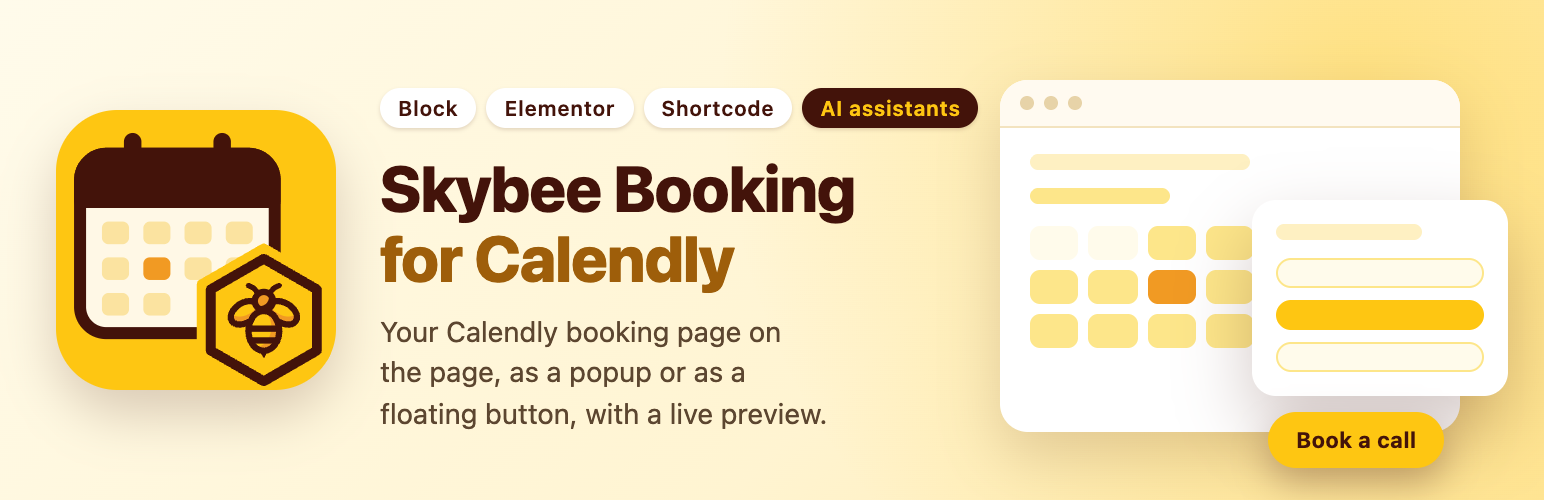
Skybee Booking for Calendly 外掛讓使用者能輕鬆將 Calendly 預約系統整合到 WordPress 網站中,無需 API 金鑰或繁瑣的設置,提供多種顯示方式,適合教練、顧問及小型企業使用。
【主要功能】
• 直接貼上 Calendly 連結,無需額外設置
• 提供三種顯示方式:頁面內、彈出按鈕或浮動按鈕
• 支援 Elementor 小工具及經典編輯器的短碼
• 自動保存 Calendly 連結,簡化使用流程
• 預約日曆自動調整高度,無內部滾動條
外掛標籤
開發者團隊
② 後台搜尋「Skybee Booking for Calendly – Booking Block, Popup & Elementor Widget」→ 直接安裝(推薦)
原文外掛簡介
Paste your Calendly link, see your booking page in the editor, publish. No API key, no shortcode to type, no settings page to fill in before it works.
Skybee Booking for Calendly gives you a Calendly Booking block that shows the real booking calendar in the editor, a Calendly Booking widget for Elementor, and a [calendly_booking] shortcode for the classic editor, widgets, Divi, Bricks and other page builders. Choose how to show it with three pictures: on the page, a button that opens a popup, or a floating button in the corner of every page.
After activation, a Get started page saves your Calendly link once, so every new block and widget starts with it, and creates a page with the block or the Elementor widget already in place.
Made for coaches, consultants, therapists, tutors, freelancers and small businesses whose website exists to get a call booked.
How to add Calendly to WordPress
In Calendly, open your event and choose Share → Copy link. Your profile link works too.
In the WordPress editor, add the Calendly Booking block. Type “calendly” in the block search to find it.
Paste the link and click Show booking page. The calendar appears in the editor.
In the block sidebar, pick On the page, Button that opens a popup or Floating button, adjust the options, and publish.
Using Elementor? Add the Calendly Booking widget, paste the link and pick how to show it.
Using the classic editor or another page builder? Paste the shortcode instead: [calendly_booking url="https://calendly.com/your-name/30min"]. Go to Calendly → Shortcode to build one with your options and copy it.
Features
Paste any Calendly link: an event link or your profile link, with or without extras. Pasted embed code works too.
Three ways to show it: on the page, a button that opens a popup, or a floating button that stays in the corner while the visitor scrolls.
The calendar on the page grows to its own height, so there is no inner scroll bar. Several booking pages on one page each keep their own height.
Plain-word options: hide your name and photo, hide the event details, hide Calendly’s cookie banner, width and position, button text and style.
Colours for the booking page (background, text, buttons and links), applied by Calendly on its paid plans.
Fill in the name and email of visitors who are logged in to your site.
Popups that open by themselves: after a delay, when the visitor is about to leave (exit intent) or after scrolling part of the page. Show them once per visitor, not again after a booking, and with or without a button.
An Elementor widget with the same options, plus a Style tab for the popup button and the floating button.
A shortcode builder: choose your options under Calendly → Shortcode and copy the finished shortcode.
Optional booking tracking: send a booking event to the Google Analytics, Google Tag Manager and Meta Pixel tags already on your site.
Optional thank-you page: send visitors to a page of your choice after they book.
Optional campaign tags: keep utm_source and the other campaign tags for the visit, so a booking on a later page still shows the campaign in Calendly.
Optional “Load booking page on click”: nothing is requested from Calendly until the visitor clicks, which helps with cookie consent and page speed.
Optional AI assistant support: lets Claude, ChatGPT and other assistants add your booking page through WordPress Abilities (WordPress 6.9+).
Calendly’s script loads only on pages where a booking page is shown. The plugin stores no booking data and needs no Calendly API key.
A Get started page that saves your link once and creates a page with the block or widget for you. A settings page with defaults for new booking pages, under its own Calendly menu. No dashboard notices.
Shortcode
[calendly_booking url="https://calendly.com/your-name/30min" mode="popup" button_text="Book a call"]
See the FAQ for the full list of attributes.
Why this plugin exists. Calendly’s own embed code works in a Custom HTML block, but you get no preview in the editor, every option means editing HTML by hand, and page builders need a different approach again. This plugin does that work for you.
External services
This plugin shows booking pages from Calendly (calendly.com), a third-party scheduling service. It does not work without it.
On every page where a booking page is shown, the plugin loads Calendly’s embed script from https://assets.calendly.com/assets/external/widget.js and its stylesheet from https://assets.calendly.com/assets/external/widget.css, and shows the booking page from https://calendly.com/{your-link} in an iframe or a popup. Calendly’s script sends your site’s domain to Calendly with the booking page request. Anything a visitor enters or books is sent to Calendly, not to your WordPress site. Calendly sets its own cookies and shows its own cookie banner inside the booking page; the plugin can hide that banner, but Calendly still uses cookies, so your own cookie notice should cover them.
If Fill in details for logged-in visitors is on (the default), the name and email of a visitor who is logged in to your WordPress site are passed to Calendly so the booking form is filled in for them. Nothing is passed for visitors who are not logged in.
The plugin does not require a Calendly API key and does not contact Calendly from the WordPress admin, except to show the live booking page in the block editor and in Elementor’s editor.
Optional features, all off by default (Calendly → Advanced):
Track bookings. When Calendly reports a completed booking, the plugin sends a calendly_booking event to the Google Analytics (gtag), Google Tag Manager (dataLayer) and Meta Pixel (fbq) tags already on your page. The event carries no booking details and no personal data. The plugin adds no analytics tags of its own; what your own tags send, and to whom, is governed by those services.
Thank-you page. After a completed booking, the visitor is sent to the page you choose on your own site.
Remember campaign tags. utm_* parameters in the page address are kept in the visitor’s browser (sessionStorage, until the tab closes) and passed to Calendly with booking pages on later pages. To catch them on the page the visitor lands on, a few lines of inline JavaScript are added to every page of the site while this option is on.
Load the booking page on click. Booking pages on the page show a placeholder, and nothing is requested from Calendly until the visitor clicks. The choice is remembered in the visitor’s browser for the visit (sessionStorage).
Popups set to “Show only once per visitor” or “Don’t open again after a booking” are remembered in the visitor’s browser (localStorage).
Calendly’s terms: https://calendly.com/legal/customer-terms-conditions
Calendly’s privacy notice: https://calendly.com/legal/privacy-notice