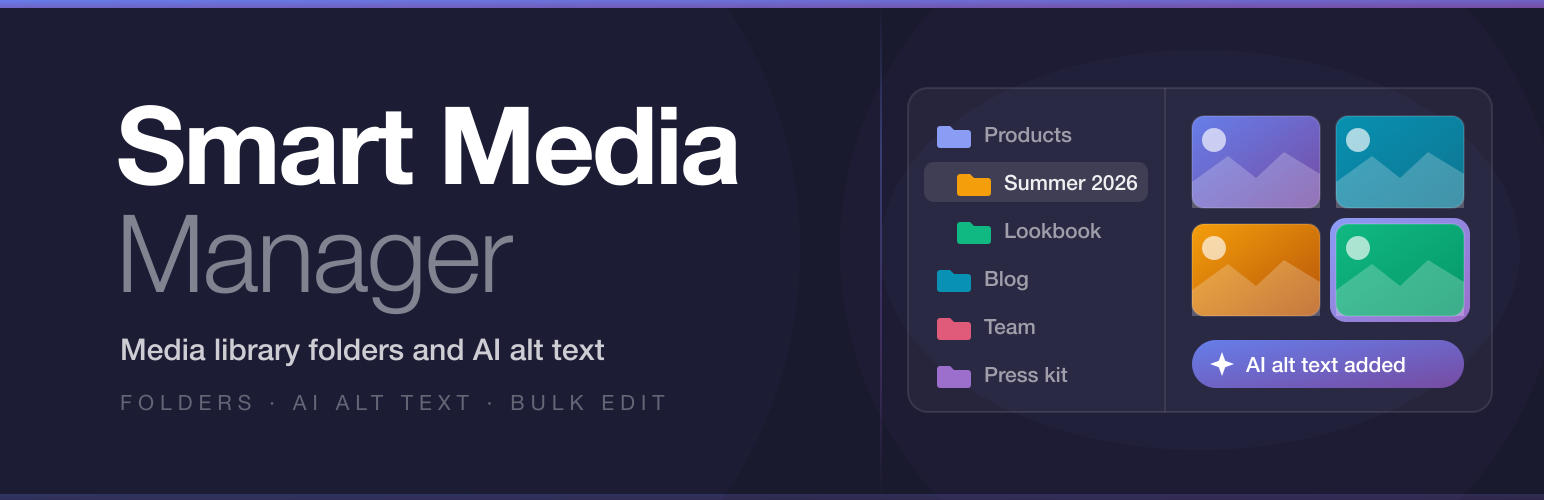
內容簡介
NHR Smart Media Manager 是一款強大的 WordPress 外掛,能夠將媒體庫中的檔案組織成資料夾,並利用 AI 自動生成替代文字。此外掛提供直觀的介面,讓使用者輕鬆管理媒體檔案,提高網站的媒體管理效率。
【主要功能】
• 虛擬資料夾系統:創建嵌套資料夾以組織媒體
• 媒體庫與媒體模態中的資料夾:方便的資料夾樹結構
• 資料夾畫廊區塊:將資料夾轉換為網站上的圖片畫廊
• 匯入與匯出功能:輕鬆轉移資料夾結構
• 現代化網格與列表視圖:可自訂縮圖大小和排序
• 檔案詳細資訊面板:編輯標題、替代文字和描述
外掛標籤
開發者團隊
② 後台搜尋「NHR Smart Media Manager – Media Library Folders & AI Alt Text」→ 直接安裝(推薦)
原文外掛簡介
NHR Smart Media Manager organizes your WordPress media library into folders and writes alt text with AI. It adds a Smart Library page under Media, puts a folder tree in the media modal used by the block editor and page builders, and adds a folder filter to the Media Library. Folders are virtual, so file URLs never change. Any folder can also be shown on your site as an image gallery that updates itself when the folder changes.
Key Features:
Virtual Folder System — Create nested folders to organize your media. Folders are stored as a custom taxonomy and do not move files on disk. Give folders a color, drag them into your own order, and search the folder tree.
Folders in the Media Library and Media Modal — The media modal used by the block editor, featured image picker, and page builders gets a folder tree, and Media → Library (grid and list view) gets a folder dropdown. Files uploaded there go into the selected folder.
Folder Gallery Block — Turn any folder into an image gallery on your site. Add the Folder Gallery block, pick a folder, and the gallery follows it: add, remove, or reorder images in the folder and every gallery using it updates on its own. Also available as a shortcode.
Import and Export — Import folders and file assignments from FileBird, Real Media Library, CatFolders, Folders, Enhanced Media Library, Wicked Folders, Media Library Organizer, Mediamatic, HappyFiles, and WP Media Folder. Export your folder structure as a JSON file and import it on another site.
Modern Grid & List View — Grid or sortable list view with thumbnail size control. Sort by date added, date modified, name, size, uploader, or your own custom order.
Light and Dark Theme — The Smart Library and its settings page follow your system’s light or dark setting, with a toggle in the top bar to choose either one.
File Details Panel — Slide-in panel with editable title, alt text, caption, and description. See where each file is used: post content, featured images, custom fields, page builder data, product galleries, and the site logo.
Files in Several Folders — Keep one file in more than one folder without duplicating it.
Bulk Operations — Select multiple files and move them, add them to a folder, edit their title, alt text, caption, and description together, download them as a ZIP, or move them to the trash.
Trash and Restore — Deleted files go to a Trash view first, where they can be restored or deleted permanently.
Replace File — Upload a new version of a file. The URL and every place the file is used stay the same.
Download as ZIP — Download a selection or a whole folder with its subfolders as one ZIP file.
Smart Search & Filters — Search by title, file name, alt text, and caption. Filter by file type, upload date, and your own uploads at the same time. Shareable URL state.
Missing Alt Text View — See every image without alt text, with a live count.
Unused Files View — Scan the library for files with no reference in post content, featured images, custom fields, page builder data, product galleries, or the site logo. Files used only in theme files or CSS are not detected, so review the list before deleting.
AI Alt Text, Captions, Titles & Descriptions — Generate text for a file with one click, for a selection, or for every image missing alt text, using the WordPress AI connector you configure at Settings → Connectors. Optionally write alt text automatically on upload. Choose the language, preferred model, maximum length, extra instructions, and whether to use the page title and SEO focus keyphrase (Yoast SEO, Rank Math, SEOPress) as context.
Upload Enhancements — Assign files to folders on upload, drag-and-drop files or whole folders from your desktop (subfolders are kept), per-file progress bars, and a default upload folder.
Starred & Recent — Star files and reopen recent ones. Both lists are saved to your user account.
WP-CLI — wp nhrsmm alt --limit=200 generates alt text for images that have none.
AI agent and MCP ready — The plugin registers six abilities with the WordPress Abilities API, so AI agents and MCP clients (through the WordPress MCP Adapter) can list folders and files, find images without alt text, see where a file is used, create a folder, move files and write alt text, titles and captions. Editors and above only. Nothing can be deleted through them.
Multisite — Each site in a network has its own folders and settings.
Keyboard Shortcuts — Full keyboard navigation (Escape, Delete, Ctrl+A, Shift+click range select, Arrow keys).
Folder Gallery: galleries that follow a folder
A normal gallery is a fixed list of images. To add a photo you have to edit every page that shows the gallery. The Folder Gallery block points at a folder instead:
Add the Folder Gallery block in the block editor and choose a folder.
Choose the number of columns, the image size, how many images to show, and whether images link to the file, the attachment page, or nothing.
Upload a new image into the folder, or drag one in, and it appears in the gallery on every page that uses that folder. Remove it from the folder and it leaves the gallery.
Images follow the folder’s custom order when you have set one (sort by Custom Order in Smart Library and drag the files), otherwise newest first.
The gallery is a responsive grid built on the standard WordPress gallery markup: your chosen number of columns on larger screens, at most two on phones.
In the classic editor, widgets, or page builders, use the shortcode: [nhrsmm_gallery folder="12" columns="3" size="medium" link="file" limit="50"]. The folder ID is shown in the Smart Library address bar when the folder is open.
The gallery shows the images directly inside the chosen folder, not those in its subfolders.
External Services
This plugin does not connect to any external service directly.
AI features (alt text and caption generation) are optional. When you trigger them, this plugin reads the image file from your server and passes it to the WordPress core AI Client (wp_ai_client_prompt()). The AI Client then transmits the image data to whichever external AI provider you have installed and configured at Settings → Connectors in your WordPress admin (for example, the official Anthropic or OpenAI connector plugins).
What data is sent: the image file and a short text prompt describing the task (e.g. “write alt text for this image”).
What data is sent: see above. When “Use Page Context” is enabled in the plugin settings, the title of the page the file is attached to and that page’s SEO focus keyphrase are included in the prompt. Any text you enter under “Extra Instructions” is included as well.
When data is sent:
when you click a generate button on an individual file (alt text, caption, title, or description);
when you start a bulk generation for selected images or for all images missing alt text (each image is sent one at a time while the progress window is open);
when you run the wp nhrsmm alt WP-CLI command;
automatically for each newly uploaded image, only if you turn on “Alt Text on Upload” in the plugin settings. This option is off by default.
Where data goes: to the external AI service you configure. This plugin has no control over, and takes no responsibility for, that service’s data handling. Please refer to the connector plugin’s documentation for its privacy policy and terms of service.
No image data is stored by NHR Smart Media Manager beyond what is already in your WordPress media library.
Source Code
Full source code, including JavaScript source files and build tools, is available at:
https://github.com/nhrrob/nhrrob-smart-media-manager
To rebuild the JavaScript assets: npm install && npm run build