內容簡介
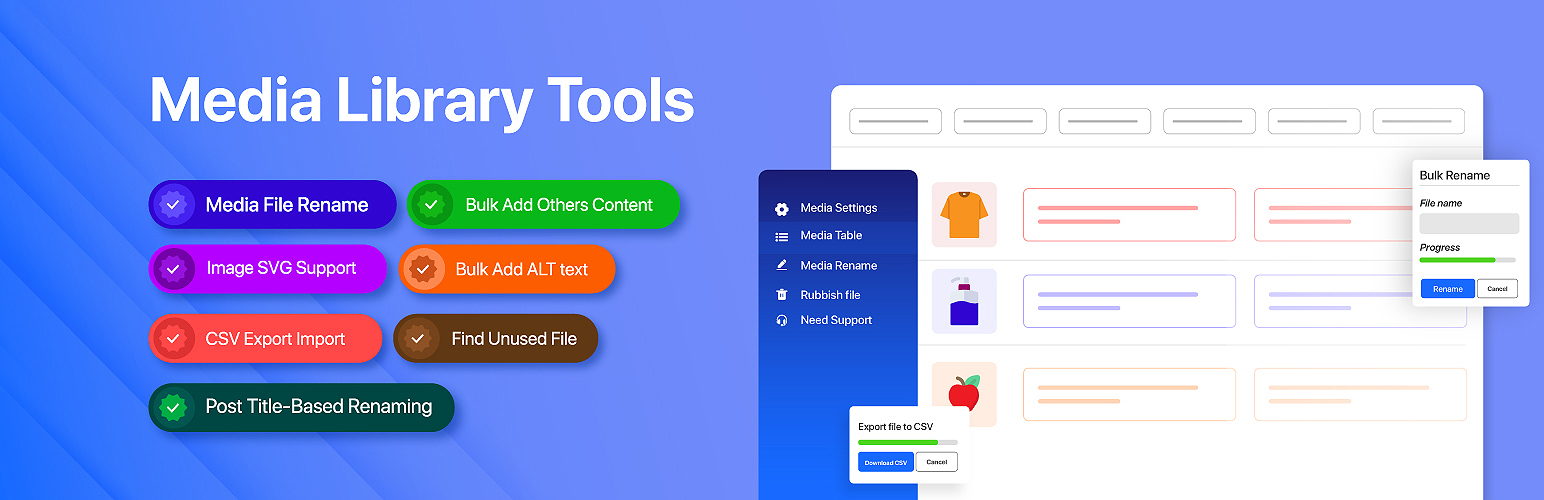
Media Library Tools 是一款功能完整的 WordPress 媒體管理外掛,提供用戶全面控制媒體庫的能力,包括批量匯出、重命名檔案、編輯替代文字、壓縮圖片等,幫助提升網站的 SEO 和性能。
【主要功能】
• 批量匯出媒體庫至 CSV 檔案
• 自動重命名檔案以增強 SEO
• 批量編輯替代文字和描述
• 壓縮 JPEG、PNG 和 WebP 圖片
• 移除重複圖片和無用檔案
• 生成 AI 驅動的元數據
外掛標籤
開發者團隊
② 後台搜尋「Media Library Tools – AI-Powered Rename, Clean & CSV Import/Export」→ 直接安裝(推薦)
📦 歷史版本下載
原文外掛簡介
Media Library Tools is the most complete WordPress media management plugin available. It gives you full control over your media library — export your entire library to CSV, bulk-import metadata updates, rename files for better SEO, bulk edit alt text, compress JPEG, PNG, and WebP images and convert them to modern WebP/AVIF to speed up your site, find and remove duplicate images, clean up orphaned files, track where every image is used, and generate AI-powered metadata using ChatGPT, Gemini, or Claude.
Whether you run a blog, WooCommerce store, or content-heavy site, Media Library Tools helps you keep your media library clean, organized, and SEO-optimized.
👉 Documentation | Get Pro 👈
Why Media Library Tools?
Most WordPress sites accumulate hundreds or thousands of media files over time — poorly named, missing alt text, duplicated across posts, and cluttered with orphaned files that waste disk space. Media Library Tools solves all of this from a single, intuitive admin interface:
SEO — Rename files to keyword-rich slugs, bulk-fill missing alt text, and generate AI-optimized metadata.
Performance — Compress images and generate modern WebP/AVIF copies to cut page weight, and delete duplicate images, rubbish files, and unnecessary image sizes to reduce server storage.
Organization — Group media, track image usage across posts and pages, and filter by any column.
Automation — Auto-rename on upload, auto-compress new uploads, auto-fill metadata from post titles, and inject missing alt text on the frontend.
Free Features
Media Table
View your entire media library in a fast, paginated, and filterable table
Sort by filename, date, alt text, caption, and description
Filter by date range, Group, status, or keyword search
Inline single-item editing — title, alt text, caption, and description
Bulk edit multiple items at once with a single save action
Move selected images to trash or restore them; permanently delete when ready
Copy file URL to clipboard with one click
AI Content Generator
Generate SEO-optimized alt text, title, caption, description, and filename for any media file
Supports three AI providers: ChatGPT (GPT-4o, GPT-5, and more), Google Gemini (2.0 Flash, 1.5 Pro), and Anthropic Claude (Haiku, Sonnet, Opus)
AI considers your site name, tagline, existing metadata, and attached post context for accurate, relevant results
Free plan includes 1 AI suggestion per field
Media File Renamer
Rename individual media files with SEO-friendly slugs directly from the rename table
Bulk rename selected files using a custom name
See the attached post for each file to make informed rename decisions
Inline AI filename suggestions in the rename table
Prefix and suffix apply automatically during bulk rename (Pro)
Duplicate Image Finder
Scan your entire media library for duplicate files using MD5 hash comparison
View duplicate groups with file count, individual file size, and total wasted space
See exactly where each duplicate is used — in posts, pages, featured images, and custom fields
Batch scanning with a visual progress bar — no timeouts on large libraries
Rubbish File Finder (Media Library Cleaner)
Scan your WordPress uploads directory for orphaned files not registered in the media library
Identify leftover files from deleted plugins, failed uploads, or manual file operations
Filter rubbish files by file extension
Mark files as “ignored” to exclude known safe files from future scan results
Re-scan specific directories or clear the full scan history
Automated background scanning via WordPress cron
Image Usage Tracker (Used Where)
Track exactly where every image is used across your WordPress site
Detect images in post content, featured images, Elementor data, and custom meta fields
Batch scan the full site or enable passive frontend tracking to capture usage automatically
Filter media by “Used” vs “Unused” status to find images that can be safely removed
View a per-image breakdown: how many posts use it, which post types, and direct links
Auto Metadata on Upload
Automatically set alt text, caption, and description when a new image is uploaded
Choose between using the image filename or a custom default text as the alt text source
SVG Upload Support
Safely upload SVG files with automatic sanitization — removes XSS vectors, remote references, and other security risks
Proper width and height metadata generation for SVG files
Maximum SVG file size: 500KB (filterable via tsmlt_upload_max_svg_file_size)
Disable Image Sizes
Stop WordPress from generating unnecessary thumbnail sizes and save disk space
Disable default sizes: Thumbnail, Medium, Large, Medium Large (768px), 1536×1536, 2048×2048, and the “Big” scaled size
Works with sizes added by your theme or other plugins
Media Groups
Organize your media library with a custom Groups taxonomy
Assign media to Groups from the media table — per item in Edit Mode, or in bulk via Bulk Edit
Choose whether a bulk assignment adds to, replaces, or removes the selected Groups
Filter media by Group using the dropdown filter
Import and export Group assignments with the groups CSV column
Groups appear as clickable links in the native WordPress media list view
Media Download Shortcode
Add styled download buttons anywhere on your site using a simple shortcode:
[tsmlt_download_button id=’123′ text=’Download Now’ class=’my-btn’ /]
Also supports direct file URLs:
[tsmlt_download_button url=’https://example.com/file.pdf’ text=’Download PDF’ /]
Forces a browser download prompt — works with images, PDFs, documents, audio, video, archives, and more
Compress Images
Compress JPEG, PNG, and WebP images from a dedicated Compress Images page — no external service or API key required
See at a glance how many images your library has, how many are already compressed, and how many remain
Choose a compression level and compress everything that is left in one click — progress is shown in real time
Three compression presets: High Quality (smallest visual change), Balanced (recommended), and Maximum Compression (largest savings)
Uses the image library already installed on your server — ImageMagick where available, otherwise GD
Compress or restore an individual image straight from its row in the Media Table
Results show the before and after size, the percentage saved, and the total disk space reclaimed
Images that are already fully optimised are marked skipped rather than reported as failures — a file is never made larger
Originals are never overwritten directly: each image is compressed to a temporary file that is validated before it replaces the original
Compression runs on the server, so you can close the window and the job keeps going
Free version compresses up to 20 images per run
Convert to WebP/AVIF
Generate modern WebP copies of your JPEG and PNG images to cut page weight
Converted files are saved alongside the originals — image.jpg keeps its place in the media library and image.webp is created next to it
Your original images are never replaced, and the media library keeps one entry per image
Detects what your server can actually produce and disables any format it cannot
Uses the image library already installed on your server — ImageMagick where available, otherwise GD
See how many images are convertible, how many are done, and how many remain
Progress runs on the server, so you can close the window and the job keeps going
Delete or regenerate the generated files at any time
Free version converts up to 20 images per run
Regenerate Thumbnails
Regenerate all registered image thumbnail sizes for every image in your media library in a single click
Automatically detects and deletes orphaned thumbnail files for image sizes that are no longer registered — frees disk space without manual cleanup
Processes images in batches of 10 to avoid server timeouts on large libraries
Real-time progress bar with stats: total images, processed, succeeded, and errors
Stop and restart at any time — the progress bar shows stopped, running, or completed state clearly
Per-image error log with dismiss support so you can identify and track any failed regenerations
After completion, jump directly to the Rubbish File Finder to clean up any remaining orphaned files
Empty Directories Cleanup
Detects empty directories left behind in your WordPress uploads folder after files are deleted or moved
View a full list of empty directories with their relative paths
Delete directories one at a time or remove all empty directories at once with a single click
Prevents confusion from stale folder structures and keeps your uploads directory tidy
Accessible from within the Rubbish Files page
CSV Export
Export Selected media items form “media table” library to a CSV file — IDs, slugs, URLs, titles, alt text, captions, descriptions, and custom meta fields
Select which columns to include before exporting
Documentation
Pro Features
All free features, plus:
CSV Import
Upload a CSV file to bulk-update existing media metadata or create new attachments from external URLs
Supported columns: ID, slug, url, rename_to, title, caption, description, alt_text, post_parent, menu_order, groups, custom_meta:_key
Batch processing with progress tracking — handles large libraries without timeouts
Rename files during import using the rename_to column
Assign media to Groups with the groups column (comma-separated group names; missing groups are created)
Set the attached post and sort order with the post_parent and menu_order columns
Duplicate Merge
Select which copy of a duplicate group to keep, then merge with one click
All references to the deleted copies are automatically updated across:
Post content and excerpts
Featured images
Elementor page builder data
Custom post meta fields
Keeps your site fully functional after cleanup — no broken image references
Rubbish File Pro Actions
Bulk Delete — delete all selected rubbish files with a single confirmation
Single Delete — delete individual rubbish files with confirmation
Restore to Library — import a rubbish file back into the WordPress media library, generating proper thumbnails and metadata
Ignore / Unignore — mark files as safe to keep and exclude them from future scan results
Bulk Rename by Post Title
Rename all selected media files based on their attached post or page title
Prefix and suffix are automatically applied
Bulk Rename by Product SKU
Rename WooCommerce product images using the product’s SKU
Ideal for WooCommerce stores managing large product catalogs
Bulk Rename by Alt Text
Rename media files using their existing alt text as the new filename
Keeps filenames and alt text consistent for stronger SEO alignment
Auto Rename on Upload
Automatically rename uploaded files based on the attached post title
Or set a custom global rename pattern for all uploads
Auto Metadata from Post Title
Automatically set alt text, caption, and description from the attached post title at upload time
No manual editing needed for images uploaded directly to a post
Rename Prefix & Suffix
Prepend and append custom text to every renamed filename
Applies to all bulk rename strategies: by post title, SKU, alt text, and CSV import
Auto Alt Text on Frontend
Automatically inject missing alt text into image tags when WordPress renders frontend pages
Fallback strategy: post title → filename → custom default text
Improves accessibility (WCAG 2.1) and SEO without editing every image manually
Register Custom Image Sizes
Define custom image sizes (width, height, crop) that WordPress generates on every upload
Sizes are prefixed with tsmlt_ to avoid conflicts
Reduce storage waste by generating only the sizes your theme actually uses
Compress Images Pro
Unlimited compression — compress your entire media library instead of 20 images per run
Backup Original Images — keep a pristine copy of every original before it is replaced, stored inside your uploads folder with the same year/month structure
Restore Original Images — put any original back with one click; restores the full-size image and every backed-up thumbnail
Compress Generated Image Sizes — also compress thumbnails, medium, large, and any custom registered image size, for substantially larger savings
Custom Compression Quality — set an exact quality value from 1 to 100 instead of using a preset
Automatic Compression on Upload — newly uploaded images are compressed automatically, after WordPress has finished generating all image sizes
Compression history — see each image’s original size, current size, percentage saved, engine used, quality, and compression date
Backups are never deleted automatically, so a restore stays available for as long as you need it
Convert to WebP/AVIF Pro
AVIF conversion — the smallest modern format, typically 20–30% below WebP
Unlimited conversion — convert your whole library instead of 20 images per run
Convert generated image sizes — also produce thumbnails and custom registered sizes in each format
Custom quality per format — set WebP and AVIF quality independently
Automatic conversion on upload — new uploads get their modern copies straight away
Enhanced AI Features
Send the actual image to the AI provider for visual analysis — get far more accurate alt text and captions
Up to 10 AI suggestions per field to choose from (vs. 1 in the free version)
AI Content Generator – Supported Models
ChatGPT
GPT-5.1, GPT-5 Mini, GPT-4o, GPT-4o Mini, GPT-4.1, and more
Google Gemini
Gemini 2.0 Flash, Gemini 2.0 Flash Lite, Gemini 1.5 Pro, Gemini 1.5 Flash
Anthropic Claude
Claude Haiku, Claude Sonnet, Claude Opus
What the AI generates:
Title — 3 to 8 words, title case
Alt Text — SEO-friendly, WCAG 2.1 accessible, maximum 125 characters
Caption — 1 to 2 sentence engaging description
Description — 2 to 4 sentence SEO-optimized description
Filename — lowercase, hyphenated, maximum 50 characters
Media File Rename — SEO Benefits
Descriptive, keyword-rich filenames help search engines understand your images, improving rankings in Google Image Search and general web search. Well-named files also make your media library easier to navigate and audit over time.
Before renaming, we strongly recommend:
Practice on a staging environment first
Back up your database and files before any bulk rename operation
Test renaming a single file before running bulk actions
Clear your site and CDN cache after renaming to prevent broken references