內容簡介
Summary:
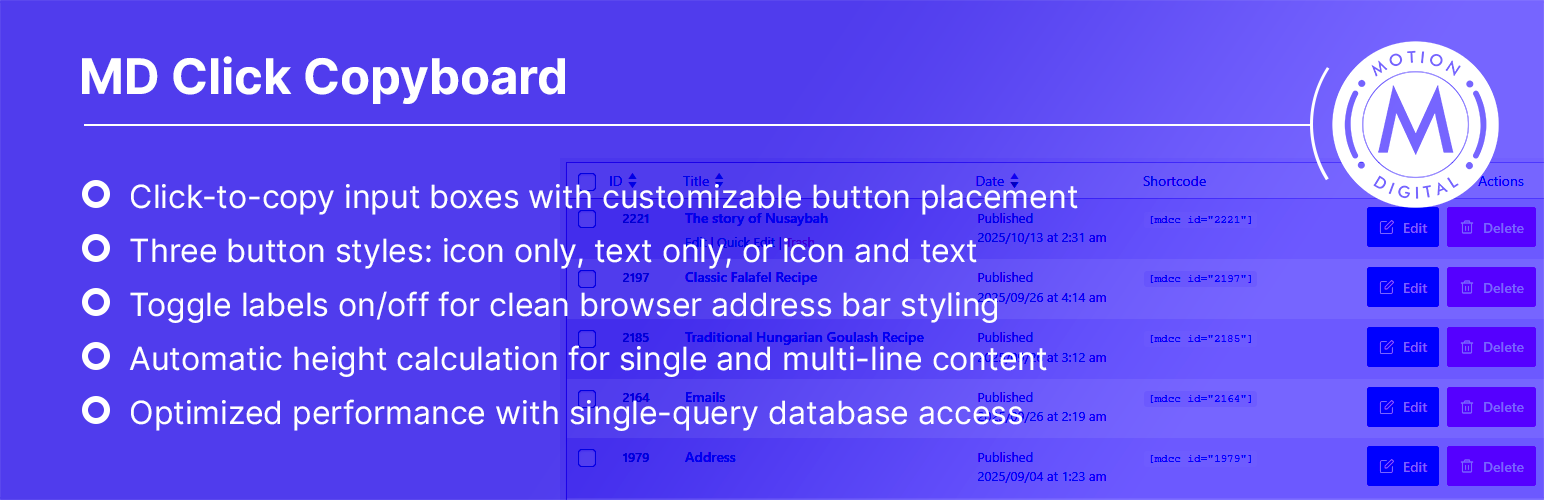
MD Click Copyboard 是一個功能強大的 WordPress 外掛,可讓您在網站上建立美觀、可自訂的點擊複製輸入框,用來分享信息。無論您需要分享 API 金鑰、密碼、程式碼片段、電子郵件地址或其他內容,這個外掛使得分享變得簡單且優雅。
常見用途:
- 說明文件站點
- 客戶入口網站
- API 文件
- 支援站點
- 開發者資源
- 安全分享敏感信息
Features:
Core Functionality:
-自定義文章類型管理
-支援 Shortcode
-視覺回饋
-後備支持
-不干擾現有的 WordPress 功能
Customization Options:
-按鈕位置選擇
-按鈕樣式選擇
-輸入框樣式選擇
-標籤控制
-自動調整尺寸
User Experience:
-現代設計
-響應式
-可存取性
-快速表現
-符合 WordPress 標準
Security:
-輸出經過消毒處理
-驗證 Nonce
-權限檢查
Usage:
-到「Copy Elements」來創建您的第一個複製元素
HTML bulleted list:
<ul>
<li>MD Click Copyboard 是一個功能強大的 WordPress 外掛,可讓您在網站上建立美觀、可自訂的點擊複製輸入框,用來分享信息。無論您需要分享 API 金鑰、密碼、程式碼片段、電子郵件地址或其他內容,這個外掛使得分享變得簡單且優雅。</li>
<li>常見用途:
<ul>
<li>說明文件站點</li>
<li>客戶入口網站</li>
<li>API 文件</li>
<li>支援站點</li>
<li>開發者資源</li>
<li>安全分享敏感信息</li>
</ul>
</li>
<li>Features:
<ul>
<li>Core Functionality:
<ul>
<li>自定義文章類型管理</li>
<li>支援 Shortcode</li>
<li>視覺回饋</li>
<li>後備支持</li>
<li>不干擾現有的 WordPress 功能</li>
</ul>
</li>
<li>Customization Options:
<ul>
<li>按鈕位置選擇</li>
<li>按鈕樣式選擇</li>
<li>輸入框樣式選擇</li>
<li>標籤控制</li>
<li>自動調整尺寸</li>
</ul>
</li>
<li>User Experience:
<ul>
<li>現代設計</li>
<li>響應式</li>
<li>可存取性</li>
<li>快速表現</li>
<li>符合 WordPress 標準</li>
</ul>
</li>
<li>Security:
<ul>
<li>輸出經過消毒處理</li>
<li>驗證 Nonce</li>
<li>權限檢查</li>
</ul>
</li>
<li>Usage:
<ul>
<li>到「Copy Elements」來創建您的第一個複製元素</li>
</ul>
</li>
</ul>
</li>
</ul>
外掛標籤
開發者團隊
原文外掛簡介
MD Click Copyboard is a powerful WordPress plugin that allows you to create beautiful, customizable click-to-copy input boxes for sharing information on your website. Whether you need to share API keys, passwords, code snippets, email addresses, or any other content, this plugin makes it easy and elegant.
Perfect for:
* Documentation sites
* Client portals
* API documentation
* Support sites
* Developer resources
* Sharing sensitive information securely
Features
Core Functionality
Custom Post Type Management – Dedicated admin interface for managing copy elements
Shortcode Support – Simple [mdcc id="123"] shortcode syntax
Visual Feedback – Clear visual indicators when content is copied
Fallback Support – Works with modern Clipboard API and older browsers
Non-Intrusive – Doesn’t interfere with existing WordPress functionality
Customization Options
Button Location: Choose between “Inside Input Box” or “Outside Input Box”
Button Styles: Three options – Icon Only, Text Only, or Icon and Text
Input Styles: Label above the content or label inside (left aligned)
Label Control: Show or hide labels completely for a clean look
Auto-sizing: Automatic height calculation for single-line and multi-line content
User Experience
Modern Design – Clean, professional appearance that blends with any theme
Responsive – Works perfectly on desktop, tablet, and mobile devices
Accessible – Keyboard navigation and screen reader support
Fast Performance – Optimized database queries for lightning-fast load times
WordPress Native – Follows WordPress coding standards and best practices
Security
Sanitized Output – All user input is properly sanitized and escaped
Nonce Verification – All form submissions are verified with nonces
Permission Checks – Only users with appropriate permissions can manage elements
Usage
Creating Your First Copy Element
Navigate to Copy Elements in your WordPress admin menu
Click New Element button (opens in a new tab for your convenience)
Fill in the configuration options:
Basic Settings:
* Element Title (top field) – Internal name for your own reference, not shown to visitors
* Content – The actual text that will be copied when users click the button
Appearance Options:
* Show Label – Toggle this checkbox to show or hide the label
* ✅ Checked – Shows a label with your content (professional look)
* ☐ Unchecked – Clean, browser address bar style (no label)
Button Location – Where the copy button appears
Inside Input Box – Button appears inside the right side of the input box
Outside Input Box – Button appears as a separate button below the input box
Button Style – How the button looks
Icon Only – Just the clipboard icon (most common)
Text Only – Just the word “Copy”
Icon and Text – Both icon and “Copy” text
Input Style (only when label is shown) – How the label appears with content
Label Above – Label appears as a separate line above the content
Label Inside – Label appears inside the left side of the input box (like “Email: content”)
Click Update to save your copy element
Managing Copy Elements
From the Copy Elements list page, you can:
* View All Elements – See a table of all your copy elements with their IDs
* Edit – Opens the element in a new tab for editing
* Delete – Permanently delete an element
* Copy Shortcode – Click to copy the shortcode to your clipboard
Using Shortcodes
The plugin generates shortcodes automatically. After creating a copy element, you’ll see its shortcode displayed in the Copy Elements list.
Basic Shortcode:
[mdcc id="123"]
Simply replace 123 with the ID of your copy element. You can find the ID in the Copy Elements list table.
Where to Use Shortcodes:
Posts and Pages – Insert shortcode directly in the WordPress editor
Page Builders – Works with Gutenberg, Elementor, Divi, Beaver Builder, etc.
Widget Areas – Use in Text Widgets or Custom HTML widgets
Templates – Place directly in PHP template files:
Finding Element IDs:
The element ID appears in the Copy Elements list table in the first column. You can also see it in the shortcode column next to each element.
Examples
Here are common use cases for the plugin:
Example 1: Email Address with Label
Use Case: Sharing email addresses in documentation
Configuration:
* Show Label: ✅ Yes
* Label: “Email”
* Content: “[email protected]”
* Button Location: Inside Input Box
* Button Style: Icon Only
* Input Style: Label Above
Result: Professional email display with clear label
Example 2: URL Without Label (Browser Bar Style)
Use Case: Sharing URLs in a minimal, clean format
Configuration:
* Show Label: ☐ No
* Content: “https://www.youtube.com/”
* Button Location: Inside Input Box
* Button Style: Icon Only
Result: Clean address bar style without any label
Example 3: API Key with Bold Display
Use Case: Sharing API keys or authentication tokens
Configuration:
* Show Label: ✅ Yes
* Label: “API Key”
* Content: “sk_live_1234567890abcdef”
* Button Location: Outside Input Box
* Button Style: Icon and Text
* Input Style: Label Above
Result: Prominent display perfect for sharing sensitive codes
Example 4: Phone Number
Use Case: Contact information display
Configuration:
* Show Label: ✅ Yes
* Label: “Phone”
* Content: “+61 2 1234 5678”
* Button Location: Inside Input Box
* Button Style: Text Only
Result: Clear label with professional appearance
Example 5: Code Snippet (Multi-line)
Use Case: Sharing multi-line code or commands
Configuration:
* Show Label: ✅ Yes
* Label: “Command”
* Content: git clone https://github.com/user/repo.git
* Button Location: Outside Input Box
* Button Style: Icon Only
Result: Auto-sized box that expands for longer content
Customization
The plugin is highly customizable through CSS. All styles are contained in css/mdcc-global.css and can be modified to match your theme.
CSS Customization
Main CSS Variables (in :root):
css
--mdcc-accent: #6400f0; /* Primary accent color */
--mdcc-accent-transparent: color-mix(...); /* Transparent accent */
--mdcc-error-bg: #cd5c5c; /* Error/destructive actions */
--mdcc-success-bg: #28a745; /* Success notifications */
Key CSS Classes:
* .mdcc_wrapper – Main container wrapper
* .mdcc_copy-input – The textarea/input field
* .mdcc_copy-button – The copy button
* .mdcc_copy-label – Label text styling
* .inside-button / .outside-button – Button location modifiers
* .logo_only-style / .text_only-style / .logo_and_text-style – Button style classes
* .mdcc_single-line – Single-line content modifier
* .label_inside-style – Label inside input styling
Admin Interface Classes:
* .mdcc_admin_form – Admin form container
* .mdcc_btn-save / .mdcc_btn-delete / .mdcc_btn-copy – Admin button styles
* .mdcc_custom_actions_table – List page custom actions
Advanced Customization
Modifying Colors:
Change the CSS variables in css/mdcc-global.css to match your brand colors. The plugin uses a modern color-mix() approach that automatically generates transparent variations.
Hiding Labels:
You can either use the “Show Label” checkbox or add this CSS:
css
.mdcc_copy-label {
display: none !important;
}
Custom Button Styling:
Target specific button styles using the provided classes:
css
.mdcc_copy-button.logo_only-style {
/* Custom styling for icon-only buttons */
}
Browser Support
Modern Browsers (Recommended):
* Chrome 60+ (uses modern Clipboard API)
* Firefox 55+ (uses modern Clipboard API)
* Safari 10+ (uses modern Clipboard API)
* Edge 79+ (uses modern Clipboard API)
Legacy Browser Support:
* Internet Explorer 11+ (fallback to document.execCommand)
* Older versions of Chrome/Firefox/Safari (fallback support)
Mobile Browsers:
* iOS Safari 10+
* Chrome Mobile
* Samsung Internet
* Firefox Mobile
Important: For secure contexts (HTTPS), the plugin uses the modern Clipboard API. For non-secure contexts, it falls back to document.execCommand() with full browser compatibility.
Developer Information
GitHub Repository: [Available on request]
Author: Motion Digital IT
Author URI: https://motiondigital.com.au
Plugin Homepage: https://motiondigital.com.au/plugins
File Structure:
md-click-copyboard/
├── assets/
│ ├── banner-*.png # WordPress.org banner images
│ ├── icon-*.png # Plugin icons
│ └── screenshot-*.jpg # Screenshots for WordPress.org
├── css/
│ └── mdcc-global.css # All styling (frontend & admin)
├── js/
│ ├── mdcc-admin.js # Admin JavaScript functionality
│ └── mdcc-copy.js # Frontend copy functionality
├── languages/
│ └── md-click-copyboard.pot # Translation template
├── md-click-copyboard.php # Main plugin file
├── readme.txt # This file
└── uninstall.php # Cleanup on deletion
Hooks and Filters:
* save_post – Handles saving of copy element meta data
* admin_enqueue_scripts – Enqueues admin scripts and styles
* wp_enqueue_scripts – Enqueues frontend scripts and styles
* post_row_actions – Modifies edit links to open in new tab
* Custom hooks for meta box rendering and column display
Functions for Developers:
* render_meta_box() – Renders the copy element configuration form
* save_meta_boxes() – Saves copy element configuration
* render_shortcode() – Renders the shortcode output
* get_meta_data() – Retrieves element meta data (optimized single query)
* render_custom_columns() – Adds custom columns to admin list
Requirements
Minimum Requirements:
* WordPress: 5.0 or higher
* PHP: 7.4 or higher
* MySQL: 5.6 or higher
Recommended:
* WordPress: 6.8 or higher
* PHP: 8.0 or higher
* Modern browser for optimal Clipboard API support
Server Requirements:
* HTTPS recommended (for modern Clipboard API)
* JavaScript enabled in browser
* Cookies enabled for admin functionality
License
This plugin is licensed under the GPL v2 or later.
`
Copyright (C) 2024 Motion Digital IT
This program is free software; you can redistribute it and/or modify
it under the terms of the GNU General Public License as published by
the Free Software Foundation; either version 2 of the License, or
(at your option) any later version.
This program is distributed in the hope that it will be useful,
but WITHOUT ANY WARRANTY; without even the implied warranty of
MERCHANTABILITY or FITNESS FOR A PARTICULAR PURPOSE. See the
GNU General Public License for more details.
`
Support
Getting Help:
* Documentation: Full documentation available at https://motiondigital.com.au/docs
* Support Forum: Available through WordPress.org plugin directory
* Email: [email protected]
* Website: https://motiondigital.com.au
Before Requesting Support:
1. Check this FAQ section for common solutions
2. Ensure you’re using the latest version of the plugin
3. Test with default WordPress theme to rule out theme conflicts
4. Deactivate other plugins to check for conflicts
5. Clear your browser cache and WordPress cache
Reporting Issues:
When reporting issues, please include:
* WordPress version
* PHP version
* Browser and version
* Description of the issue
* Steps to reproduce
* Any error messages
* Screenshots if applicable
Feature Requests:
We welcome feature requests! Contact us with your ideas for improving the plugin.
Credits
Development:
* Built with WordPress best practices
* Follows WordPress coding standards
* Uses modern CSS and JavaScript
* Optimized for performance
Thanks To:
* WordPress Community for the amazing CMS platform
* All beta testers who provided valuable feedback
* Users who support open-source software