內容簡介
HappyAccess 是一款輕量級的 WordPress 外掛,解決了網站登入的三大問題:臨時登入、無密碼登入及雙重驗證(2FA)。透過簡單的設定,使用者可以安全地管理登入權限,提升網站安全性。
【主要功能】
• 臨時登入:提供一次性登入連結或代碼,無需分享密碼
• 無密碼登入:使用者可透過 6 位數代碼或登入連結登入
• 雙重驗證(2FA):要求額外的驗證碼以增強安全性
• 安全連結:登入連結需經過確認畫面,防止濫用
• 活動追蹤:記錄使用者的變更及活動,並可匯出 CSV
• 控制權限:可自訂使用者的權限及存取範圍
外掛標籤
開發者團隊
② 後台搜尋「HappyAccess – Temporary Login, Passwordless Login and 2FA」→ 直接安裝(推薦)
原文外掛簡介
HappyAccess fixes the three login problems most WordPress and WooCommerce sites run into, in one light plugin:
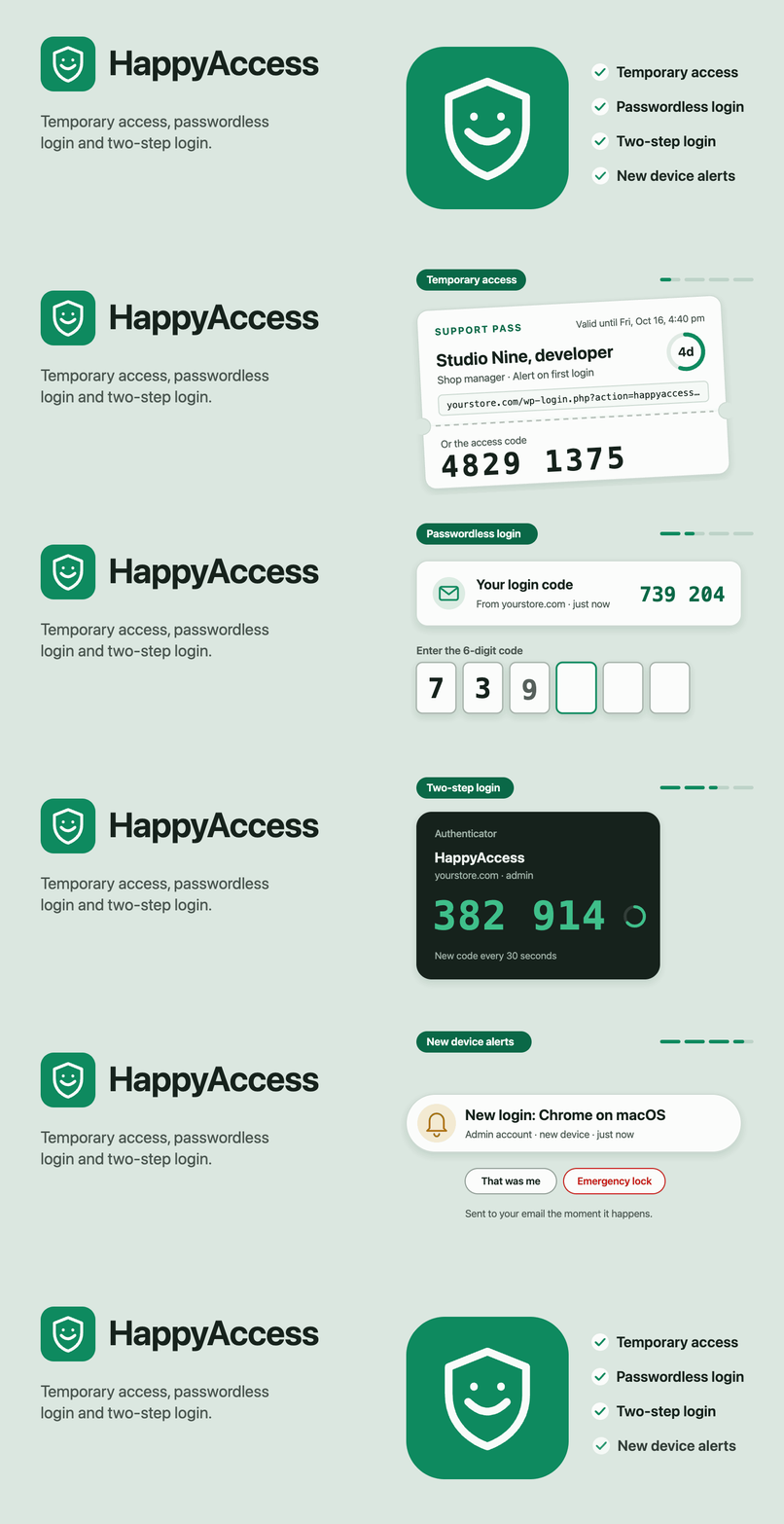
Temporary login: give a support person, developer or agency access to your site with a link or a code that ends by itself. No password shared, no account left behind.
Passwordless login: let customers and users log in with a 6-digit code or a login link sent to their email. It works on the WordPress login page, WooCommerce My Account and checkout.
Two-step login (2FA): ask for a code from an authenticator app, an email code or a backup code after the password, and require it for the roles you pick.
Two-step login also brings new device alerts: your administrators get an email when their account logs in from a browser it hasn’t seen before.
Each feature is a switch in Settings. Turn on only what you need. Anything you leave off adds no code to your pages.
How to give temporary admin access without sharing a password
Someone from support needs to look at your site. The usual way is to make them an admin account, send a password by email, and promise to delete the account later. Most people forget, and the account stays forever.
With HappyAccess, you create a pass in Users > HappyAccess and send them the link or the 8-digit code. They log in with it. When the time you picked is up, their sessions end and their account is removed by itself.
You pick how long: 1 day, 3 days, 7 days or your own range, up to 30 days.
You pick what they can do:
Protected admin (the default): a full admin who can’t install plugins, create other admins or touch your account.
Custom access: tick exactly the permissions they need.
Full admin: no limits, with an email alert on every login and a warning if they create another admin.
Safe links: the login link opens a confirm screen first, so email and chat link scanners can’t use it up.
Your choice of limits: one-time passes, an IP address allowlist, and an email when they log in.
See what they changed: the Activity tab lists the posts, pages, products, settings, plugins, themes and users they changed, and order status changes, with times and IP addresses. Export it as CSV.
Stay in control: suspend, extend or end a pass at any time. The Emergency lock in the admin bar ends every pass at once.
Your account stays private: their account can’t see or edit yours, and HappyAccess is hidden from their plugin list.
Their work stays: posts they wrote move to your account when the access ends. Nothing they made is deleted.
For agencies and hosts: WP-CLI commands to create, list, extend and end passes from the terminal.
How to log in to WordPress without a password
Forgotten passwords are the most common login problem on any site with customers. Passwordless login lets people skip the password and log in with an email code or a magic login link instead.
They select “Email me a login code” on the login form and type their email or username.
They get one email with a 6-digit code and a login link. Both work for 10 minutes by default (5 to 30, your choice).
They type the code, or open the link on any device, and they’re in.
Where the option shows:
The WordPress login page (wp-login.php).
WooCommerce My Account and the classic WooCommerce checkout, inline with no page reload.
Any page, with the HappyAccess Login block or the [happyaccess_login] shortcode.
Built to be safe:
The screen gives the same answer for an email that has an account and one that doesn’t, so nobody can use it to find out who has an account.
A code only works in the browser that asked for it, with 5 tries before it’s cancelled.
Login links can only be used once, and only from the confirm screen.
Per role, keep “Password or email code” or switch a role to “Email code only”.
How to add two-factor authentication to WordPress and WooCommerce
Two-step login (also called two-factor authentication or 2FA) asks for a second code after the password. A stolen password alone isn’t enough to get in.
Authenticator app: works with any app that supports standard time-based codes (TOTP), like Google Authenticator, Microsoft Authenticator, Authy, 1Password and Bitwarden. Setup shows a QR code, drawn on your own site.
Email codes: a 6-digit code sent to the account’s email.
Backup codes: 10 one-time codes for when the phone isn’t around.
Optional or required per role: for example required for administrators and shop managers, optional for customers.
A grace period for required roles: a few logins or days to set it up, then it becomes part of their next login.
Setup where people already are: on their WordPress profile, or in WooCommerce My Account for customers.
Never locked out: an admin can turn it off from a user’s profile, you can run wp happyaccess twostep reset
Plays nicely with others: if Two Factor, Wordfence Login Security, WP 2FA or Kadence Security already protects an account, HappyAccess skips that account, so nobody is asked twice.
New device login alerts
When an administrator’s account logs in from a browser it hasn’t used before, they get an email with the time, the browser, the system and the IP address, and a link to change their password if it wasn’t them. You can turn alerts on for other roles in Login and security. New device alerts are part of two-step login, so they run while two-step login is on.
Light, private and secure
No outside services by default. Optional Google reCAPTCHA v3 is the only one, and it’s off until you add your own keys.
Hashed and encrypted: access codes, login links and email codes are stored as hashes, never in plain text. Authenticator secrets are encrypted.
Rate limits: wrong codes are limited per IP address and per account, and the owner gets an email if a site sees a lot of wrong codes.
Compatible: works with hidden login URL plugins like WPS Hide Login, with page cache plugins, and with security plugins.
Multisite: network activated or per site.
Accessible: the admin screens follow your admin color scheme and are checked with automated accessibility tests.
Light: the login form script needs no jQuery and loads only on pages that show a HappyAccess form.
For support teams, agencies and developers
If you support WordPress or WooCommerce sites, send this to a client when you need access. Copy it, change the names, and paste it into your ticket or email.
Hi! To look into this, I need to log in to your site. You don’t have to send me a password or make me an account.
Install the free HappyAccess plugin from your Plugins screen.
Go to Users > HappyAccess and create a pass. Three days is plenty.
Send me the link it shows you.
My access ends by itself when the time is up, and you can end it earlier from the same screen. You’ll also see what I changed while I was in.
Privacy
HappyAccess keeps everything on your site. With reCAPTCHA off, nothing is sent anywhere.
What it stores:
The activity log: what temporary users did, with IP addresses and browser names. It’s deleted after the number of days you set (30 by default).
For temporary access: the name and email you enter, kept until the access ends, plus the same number of days.
For two-step login: an encrypted authenticator secret, hashed backup codes and each user’s settings.
For new device alerts: a list of the browsers each watched user has logged in from (random IDs, stored as hashes) with the last time each was seen.
Cookies it sets, only during the login steps that need them:
happyaccess_pl_request: ties a passwordless code to the browser that asked for it. 30 minutes at most.
happyaccess_pl_confirm: protects the login link’s confirm screen. 10 minutes.
happyaccess_ts: holds a login between the password and the two-step code. 10 minutes.
happyaccess_dev: a random ID that tells the site it has seen this browser before, for new device alerts. 1 year.
WordPress’s Export Personal Data and Erase Personal Data tools include HappyAccess data. Suggested text for your privacy policy is in Settings > Privacy.
If you give admin access to people outside your business, your privacy policy should say so.
External services
HappyAccess uses one outside service, and only when you turn it on.
Google reCAPTCHA v3 checks that a person, not a script, is using the HappyAccess access code screen, the login link screen and the email code forms. When it’s on, those screens load Google’s script, and each time someone submits one, Google gets the visitor’s IP address, browser details and how they used the page. Google’s script hands back a token, and to check it HappyAccess sends that token, the visitor’s IP address and your secret key to https://www.google.com/recaptcha/api/siteverify, once for each submit. When you save a new secret key, or turn reCAPTCHA on, HappyAccess also sends that secret key to the same address once, with no visitor data, to check that Google knows it. It’s off by default, and it needs your own keys from Google. The two-step login screens don’t use it, so a problem with Google never locks out someone who already entered their password.
Terms: https://policies.google.com/terms
Privacy: https://policies.google.com/privacy
Credits
The QR code on the two-step setup screen is drawn by qrcode-generator by Kazuhiko Arase, under the MIT license.