內容簡介
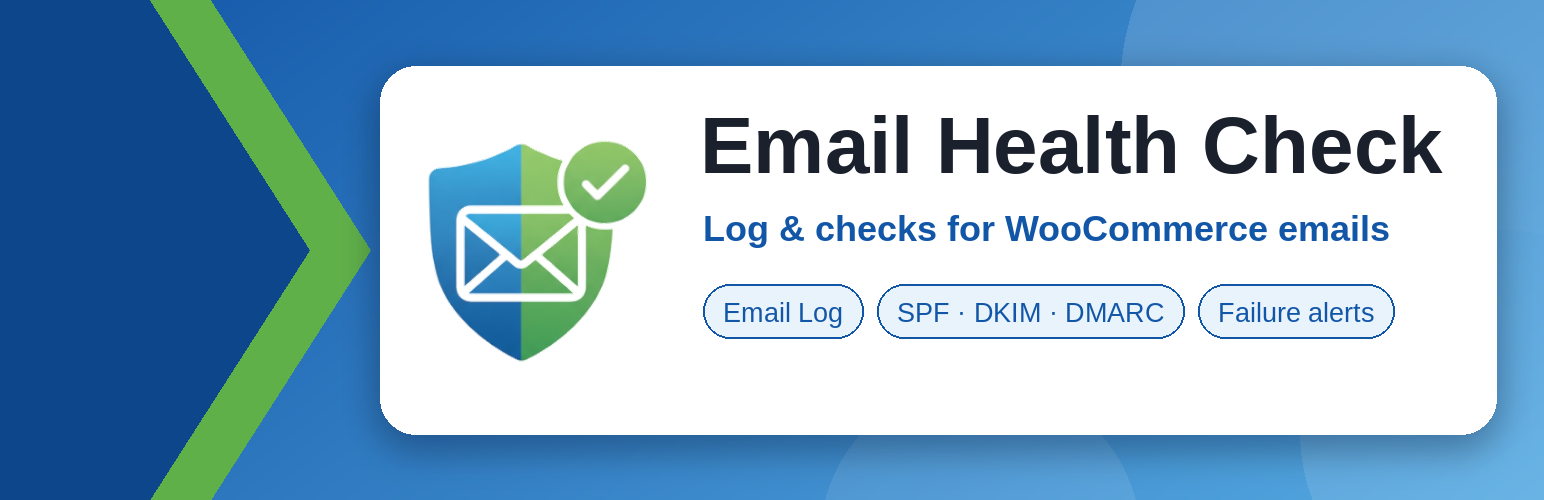
Email Health Check & Log for WooCommerce 是一款專為 WooCommerce 設計的外掛,幫助用戶檢查和修復電子郵件發送問題,包括 SPF、DKIM 和 DMARC 設定,並提供詳細的電子郵件日誌,確保商店的電子郵件能順利送達。
【主要功能】
• 檢查 SPF、DKIM 和 DMARC 設定問題
• 提供電子郵件發送日誌
• 測試電子郵件發送功能
• 自動生成健康報告
• 無需註冊帳號或付費
外掛標籤
開發者團隊
② 後台搜尋「Email Health Check & Log for WooCommerce – SPF, DKIM, DMARC & Alerts」→ 直接安裝(推薦)
原文外掛簡介
WooCommerce emails not sending, or going to spam? Find out why, and fix it.
Email Health Check looks at how your WordPress or WooCommerce site sends email and tells you what is wrong in plain language: SPF, DKIM and DMARC problems, mail sent through plain PHP mail, a blacklisted server IP, order emails that are switched off or stuck behind unpaid orders, and more. It also keeps an email log of what your site sends. It is free, needs no account, and sends no email content or personal data to any service. The only outside lookup is a server IP blacklist check that runs only when your site sends mail directly from your server (see External services).
What it does not do
It is not an SMTP plugin and does not send your email for you. It works next to whichever plugin or mail service you already use.
No account, no upsell banners or nags, no tracking and no analytics. It makes no HTTP requests of its own and sends nothing to the plugin’s authors; the only outside lookups are the DNS queries described under External services. The only prompt it ever shows is one dismissible request for a review, on its own screens, to administrators only.
One plain text link, no more: there is one small link, “Follow the Pro plan”, to a waiting list page for a possible future Pro version (in the footer of its own screen and on its row in the Plugins list). The plugin never requests anything for it and sends nothing; it can be hidden with the ecehc_show_pro_link filter. Nothing in this free plugin is removed or locked.
Nothing bundled: no third-party libraries, fonts or scripts, only the plugin’s own code.
What data it touches
The checks read your site’s own settings and look up the public DNS records of your sending domain through your server’s own DNS resolver. The one lookup that involves your server is the IP blacklist check, which runs only when your site sends mail directly from your server (see External services).
The email log keeps the time, source, status, WooCommerce email type, the recipient’s domain, a partly hidden address such as j***@example.com and an error message with addresses hidden. Never the subject or the message. It is kept for 7 days by default (choose 1, 3 or 7), can be turned off or cleared, and is removed when you uninstall the plugin.
A test email goes only to the address you type (or the site admin address if you leave it blank).
Nothing is sent to the plugin’s authors.
Diagnose
Email Health Report: one page with a Pass, Warning or Fail status for each check. The page opens at once and the checks (including the DNS lookups) run in the background, so slow DNS never holds it up.
Getting-started checklist: a short checklist for new installs (send a test email, fix the top failing check, look at the Email Log) that ticks itself off and can be hidden.
“Fix this first” summary: the top of the report names the one check to fix first (failures before warnings, never a “Not checked” result) with a plain-language next step and a link to its “How to fix this” panel. When every check passes it says so. When the report loads in the background, the summary is also announced to screen readers.
Sending test: send a test email to your own address or to any inbox you want to try (for example Gmail or Outlook), with an optional subject. The result shows right away, with the error if it failed.
Copy support report: a plain-text summary of your setup (versions, domains, check results, the detected mail provider, recent email counts and, if the blacklist check ran, your server IP address) to paste into a support ticket, with no passwords, message contents or full email addresses. Review it before posting it publicly.
SMTP / mail service: warns when mail goes out through plain PHP mail, and names the plugin that handles your outgoing email when it finds one.
Sender address, SPF, DKIM and DMARC: checked for the domain you actually send from, since that is what receivers verify.
Server IP blacklists: when you send straight from your server (no SMTP service), your IP is looked up on the free DroneBL and PSBL lists.
WooCommerce email setup: flags turned-off key emails, a missing new-order recipient, an invalid From address and outdated theme overrides of WooCommerce email templates. It only reads your settings.
“WooCommerce emails not arriving?” panel (WooCommerce): combines the results below and the last 7 days of the Email Log into the most likely cause and one next step: a broken WooCommerce email setting, recent failed WooCommerce emails, turned-off emails, unpaid orders, no mail service, a From address problem, missing DNS records or a blacklisted server. It says “most likely” because the checks cannot see inside a mailbox. It makes no requests of its own and stores nothing.
Unpaid orders (WooCommerce): warns when many orders are stuck in “Pending payment” or “Failed”. WooCommerce sends no order emails for those, so the real problem may be your payment gateway. Only order counts are read.
Email log and failure alerts
Email Log and statistics: every email your site sends (WooCommerce, other plugins and WordPress itself) with its source, WooCommerce email type, status and error. Filter by source, status and WooCommerce email type, and see accepted and failed counts for the last 24 hours and 7 days. Only a partly hidden recipient address is stored, never the message. You can shorten the retention, turn logging off or clear the log.
Failure alerts in wp-admin: an “Email Health” dashboard widget and a Site Health test warn you when many emails fail, without needing email to work.
Site Health integration: the same checks appear under Tools > Site Health.
Fix
“How to fix this” panels: failing SPF, DKIM and DMARC checks show a copy-paste DNS record where your provider documents one, and a link to the provider’s official setup guide.
WP-CLI
wp ehc check runs all checks (add --format=json for scripts). It exits with status 1 when any check fails. The server IP blacklist check needs a web request, so from the command line it is skipped unless you set the IP with the ecehc_server_ip filter.
wp ehc log lists recent logged emails (--source, --status, --type, --limit), and wp ehc log --stats shows accepted and failed counts for the last 24 hours and 7 days.
For developers
The ecehc_checks_completed action fires after every run of the checks, with the results of each check. Together with the ecehc_email_logged action and the ecehc_checks filter and others, the hooks and the ecehc_run_checks() function are documented with a stability promise in docs/extending.md in the plugin’s GitHub repository.
Works with
The plugin identifies the provider from the settings of WP Mail SMTP, FluentSMTP and Post SMTP, and gives setup guidance for SendGrid, Mailgun, Brevo, Postmark, Amazon SES, SparkPost, Mailjet, Elastic Email, Google Workspace and Microsoft 365. It also works with any other SMTP plugin, or with none.
WooCommerce is a trademark of Automattic Inc. This plugin is independent and is not affiliated with or endorsed by WooCommerce or Automattic.
External services
The “Server IP Blacklists” check sends DNS queries to the public blacklists DroneBL and PSBL. This happens only when your site does not send email through an SMTP plugin or mail service, and only when you open the plugin’s report or Tools > Site Health. The answer is saved for about 12 hours (about 1 hour after a failed lookup; the Re-check button and a changed IP address also trigger a new lookup). The queries go through your server’s own DNS resolver.
What is sent: a DNS query for your web server’s public IPv4 address (written in reverse, for example 4.3.2.1.dnsbl.dronebl.org). The lists’ operators can see that address and the address of your DNS resolver. No other data is sent.
DroneBL: https://dronebl.org/ (terms: https://dronebl.org/docs/howtouse)
PSBL: https://psbl.org/ (usage: https://psbl.org/howto)
Spamhaus is intentionally not queried, because its free service is limited to low-volume non-commercial use. Developers can change the lists with the ecehc_dnsbl_zones filter.
Pro waiting list link (outboxhealth.com). The plugin shows one plain text link, “Follow the Pro plan”, to https://outboxhealth.com/waitlist/ in the footer of its own screen and on its row in the Plugins list. The plugin makes no request to that site and sends it no data. outboxhealth.com receives a visit only if you click the link, and is covered by its own privacy policy: https://outboxhealth.com/privacy/. To hide the link, return false from the ecehc_show_pro_link filter.