內容簡介
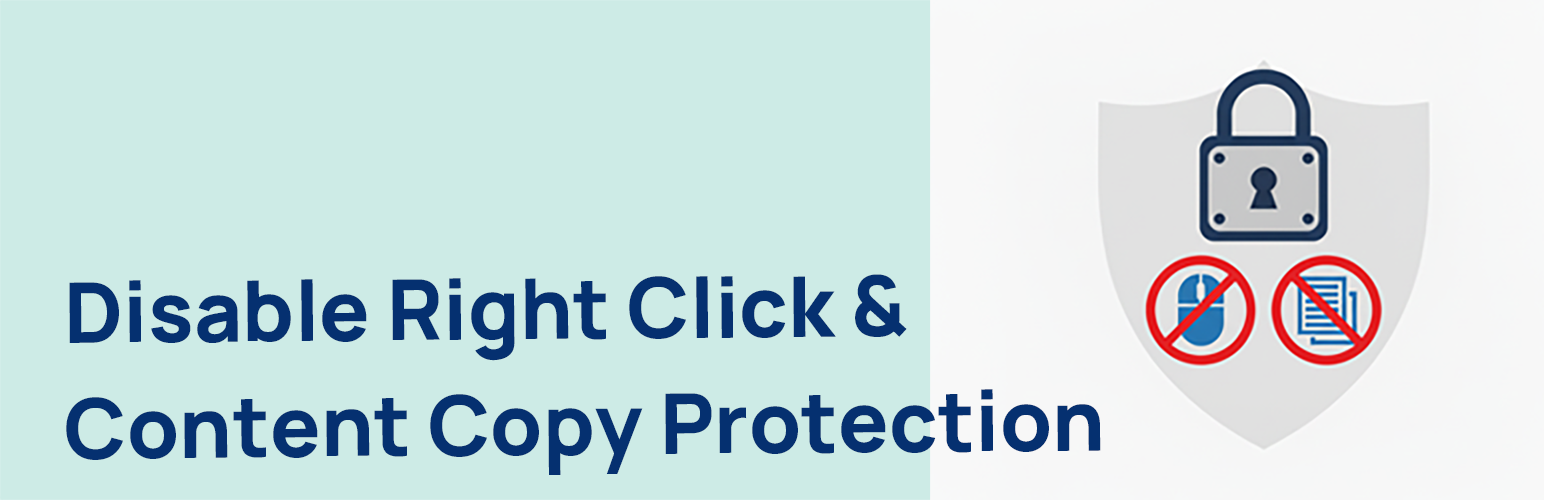
Disable Right Click & Content Copy Protection 是一款強大的 WordPress 外掛,旨在保護網站內容不被未經授權的複製和下載。此外掛提供多層保護,確保您的內容、圖片及智慧財產安全,並且不影響網站性能。
【主要功能】
• 右鍵保護:完全禁用網站的右鍵選單
• 防止內容複製:阻止 Ctrl+C、Ctrl+A、Ctrl+V 等快捷鍵
• 圖片拖曳保護:防止用戶拖曳並儲存圖片
• 內容類型控制:選擇特定文章類型進行保護
• 主開關:輕鬆啟用/禁用整個外掛
• 開發者工具保護:禁用 F12、Ctrl+Shift+I 等快捷鍵
外掛標籤
開發者團隊
② 後台搜尋「Disable Right Click & Content Copy Protection」→ 直接安裝(推薦)
原文外掛簡介
Disable Right Click & Content Copy Protection is a powerful WordPress plugin designed to protect your website’s content from unauthorized copying and downloading. This plugin provides multiple layers of protection to safeguard your valuable content, images, and intellectual property.
Are you looking for the best, lightweight replacement and alternative to plugins like WP Content Copy Protection & No Right Click, Secure Copy Content Protection and Locked Browser, or WP Shield Content Protector? Disable Right Click & Content Copy Protection is the most advanced, modern, and user-friendly plugin to protect your WordPress site from content theft. Not only does it secure your content and images, but it also gives you fine-grained control over exactly what gets protected, all without slowing down your website performance!
Running a store on Shopify instead? Check out Disable Right Click on Shopify for the same content protection on your Shopify storefront.
Key Features
Right-Click Protection: Completely disable the right-click context menu across your website
Copy Content Prevention: Block keyboard shortcuts like Ctrl+C, Ctrl+A, Ctrl+V, and more
Image Drag Protection: Prevent users from dragging and saving images from your website
Content Type Control: Choose specific post types (posts, pages, custom post types) where protection should be applied
Master Toggle: Easy enable/disable functionality for the entire plugin
Developer Tools Protection: Disable F12, Ctrl+Shift+I, and other developer console shortcuts
Text Selection Blocking: Prevent text highlighting and selection on protected pages
Print Protection: Block printing via the Ctrl+P/Cmd+P shortcut and the browser’s print menu, plus a warning notification when the Print Screen key is pressed (note: OS-level screen capture itself cannot be blocked by any website)
Mac & Windows Keyboard Support: All keyboard shortcut protections block both Ctrl (Windows/Linux) and Cmd (Mac) key combinations
Mobile Optimized: Works seamlessly on mobile devices and tablets
Advanced Settings
Selective Protection: Apply protection only to specific content types
Individual Feature Control: Enable or disable specific protection features independently
Admin Interface: Clean, intuitive settings page with toggle switches
Real-time Configuration: Changes take effect immediately without caching issues
Multiple Notification Styles: Choose from Toast, Banner, Modal, or Inline notification styles with custom text and colors
User Exemptions: Exempt all logged-in users or specific user roles (e.g. administrators, editors) from protection
IP Whitelist: Bypass protection for trusted IP addresses — ideal for clients, team members, or staging access
Copy Watermark: Automatically append a customizable attribution text (e.g. source URL) whenever content is copied
Per-Page/Post Override: Control protection on individual posts and pages directly from the editor sidebar metabox
Use Cases
This plugin is perfect for:
Content Creators: Protect articles, tutorials, and written content
Photographers: Safeguard image portfolios and galleries
E-learning Platforms: Protect course materials and educational content
Business Websites: Secure proprietary information and documents
News Websites: Prevent unauthorized content reproduction
Portfolio Sites: Protect creative work and designs
Security Features
Console Protection: Display warning messages in browser console
Developer Tools Detection: Detect when developer tools are opened
Multi-browser Compatibility: Works across all major browsers
No Performance Impact: Lightweight code that doesn’t slow down your site
Easy to Use
Install and activate the plugin
Go to Settings > Content Protection
Configure your protection preferences
Save settings and your content is protected!
WordPress Guidelines Compliant
This plugin follows all WordPress coding standards and security guidelines:
* Proper data sanitization and validation
* Secure nonce verification
* Escaped output for security
* Translation ready
* Clean, documented code
Check Out Our Other Plugins
Add as Preferred Source
Announcement Notification Bar – Notification Top Bar & Sticky Call to Action Banner
Browser Address Bar Color Changer
Image Zoom on Hover