內容簡介
ClientPin 外掛將客戶的反饋轉化為可固定、可追蹤和可批准的意見,直接在 WordPress 網站上進行。專為代理商和自由工作者設計,讓客戶能夠輕鬆留下意見並進行頁面批准,確保所有決策都有記錄,避免未來的爭議。
【主要功能】
• 一鍵頁面批准,記錄所有決策
• 客戶可在任何元素上留下視覺化反饋
• 自動截圖,記錄客戶所見內容
• 無需客戶帳號,安全的審核連結
• 團隊工作流程,分配評論與進度追蹤
• 電子郵件通知,隨時更新狀態
外掛標籤
開發者團隊
② 後台搜尋「ClientPin – Pin Client Feedback & Get Page Approval」→ 直接安裝(推薦)
原文外掛簡介
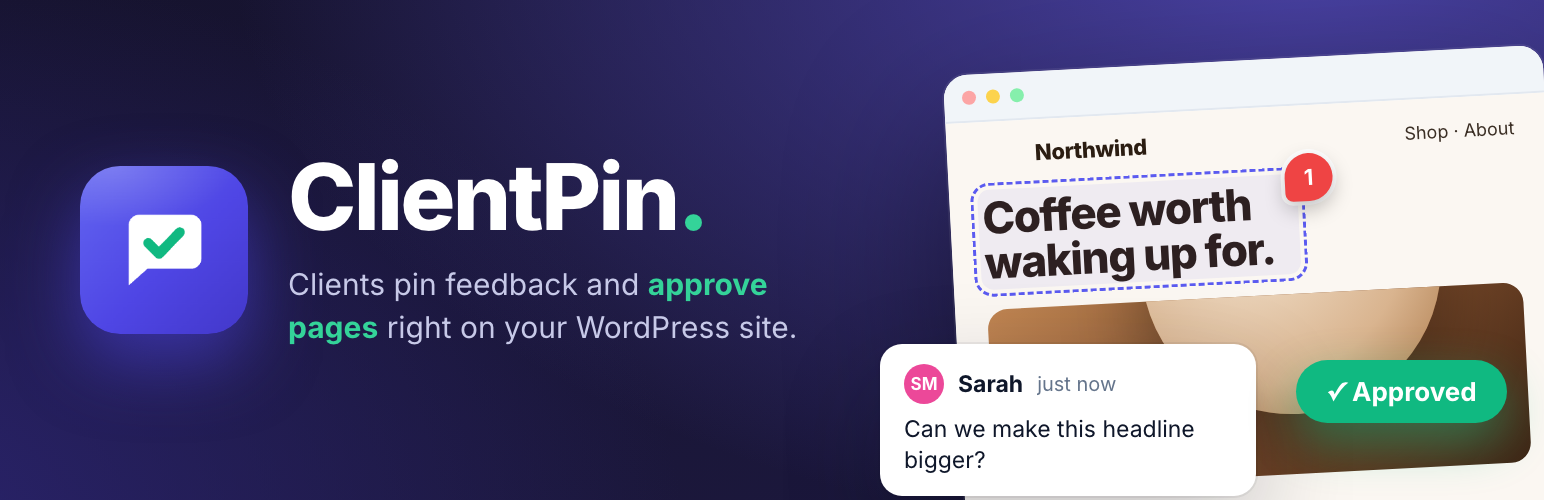
ClientPin turns “can you move that logo?” emails into pinned, trackable, approvable feedback — directly on the live WordPress site.
Built for agencies and freelancers: send your client a secure review link (no account needed), they click anywhere on the page to leave a comment, and when they’re happy they press Approve — creating a permanent approval record with name, timestamp, and IP. No more “but I never approved this.”
Your data never leaves your server. No SaaS subscription, no per-seat fees, no proxy rendering that breaks your site.
See it in action
Why ClientPin
Page approval, recorded. Clients approve pages (or request changes) with one click. Every decision is logged with approver identity, note, timestamp, and IP — and you can print a branded Approval Certificate per feedback round.
Figma-style visual comments. Clients click any element to drop a numbered pin, write feedback, and attach inspiration images. Pins are anchored to DOM elements and reposition responsively.
Automatic viewport screenshots. Every comment captures what the client actually saw, stored in your Media Library.
No client accounts. Secure, expiring, revocable review links bypass the WordPress login.
Team workflow. Assign comments to teammates, track Todo / In Progress / Done, reply in threads, and work in versioned feedback rounds.
Email notifications. Assignment, status, reply, and approval alerts via wp_mail() — fully toggleable, with extra recipient support.
Admin dashboard. Project health tiles, activity feed, feedback manager with filters and bulk actions, approval log, and review-link manager.
Perfect for
Agencies collecting feedback on staging sites
Freelancers who need documented client approval before invoicing
Teams tired of feedback scattered across email, Slack, and calls
Third-Party Libraries
This plugin bundles html2canvas v1.4.1 (MIT license) to capture the viewport screenshot attached to each comment. The screenshot is rendered entirely in the visitor’s browser; no page content is sent anywhere except to your own WordPress site. Both the minified build (assets/js/vendor/html2canvas.min.js) and the unminified source (assets/js/vendor/html2canvas.js) are included.
External Services
This plugin does not contact any external service. It sends no data anywhere: no licensing checks, no update pings, no analytics, no usage tracking. All feedback, screenshots, and approval records are created and stored on your own server.
The one exception is entirely under your control and off by default: if you enter a Slack Incoming Webhook URL or a generic webhook URL (Zapier, Make, or your own endpoint) in ClientPin → Settings, feedback events are sent to the endpoint you chose. Nothing is transmitted unless you enter a URL yourself. What is sent: the event type, comment or approval text, the reporter/approver name, and the page URL. Because you choose the destination, refer to the terms of whichever service you point the webhook at — for example Slack’s Privacy Policy.
Privacy
ClientPin stores the following data in custom database tables on your own server:
Feedback comments: the comment text, the page URL, the position of the pin, an optional reporter email address, and screenshots the reviewer captured or uploaded (stored in your Media Library).
Approvals: the approver’s name, an optional email address and note, the page URL, a UTC timestamp, and — as the audit trail that gives an approval its legal weight — the reviewer’s IP address and browser user agent.
Review links: the access token, an optional description, and the expiry date.
Because approval records deliberately capture IP addresses, you should tell your clients that their approval is being logged. All of this data is deleted when you uninstall the plugin, unless you enable “Keep data on uninstall” in ClientPin → Settings.