內容簡介
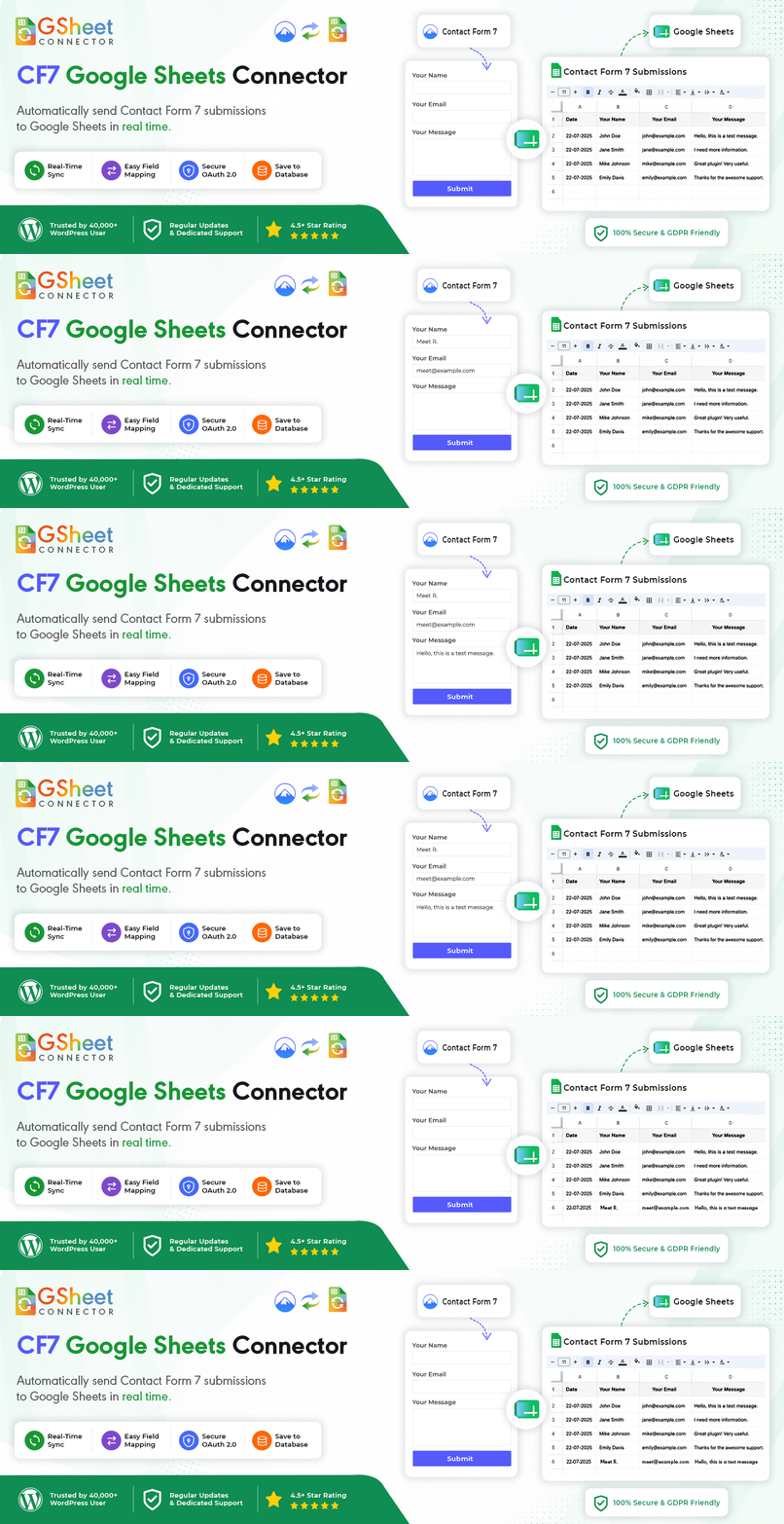
GSheetConnector – CF7 Google Sheets Connector 讓 Contact Form 7 自動將表單提交資料即時傳送至 Google Sheets,簡化資料管理,提升團隊協作效率。
【主要功能】
• 即時同步表單資料至 Google Sheets
• 簡單設定 Google 帳戶連接
• 組織化儲存各類表單資料
• 團隊成員可輕鬆存取資料
• 可選擇在 WordPress 資料庫備份提交資料
外掛標籤
開發者團隊
② 後台搜尋「GSheetConnector – CF7 Google Sheets Connector & Save CF7 Entries to Database」→ 直接安裝(推薦)
📦 歷史版本下載
原文外掛簡介
CF7 Google Sheets Connector connects Contact Form 7 to Google Sheets and automatically sends form submissions to a Google Sheet in real time. Every new entry, including leads, inquiries, RSVPs, orders, and other form data, is added directly to your spreadsheet. This makes it easy to keep your Contact Form 7 entries organized, searchable, and accessible to your team without relying only on email notifications.
It’s a lightweight CF7 Google Sheets integration built for site owners who want a reliable way to connect Contact Form 7 to Google Sheets. With one-click Google OAuth 2.0 authentication, you can quickly connect your Google account, map your CF7 form to a Google Sheet, and start sending form entries automatically.
Homepage | Documentation | Support | Live Demo
Why Connect Contact Form 7 to Google Sheets?
Connecting Contact Form 7 to Google Sheets gives you a simple way to collect, organize, and share form submissions without manually copying data from emails or WordPress.
Real-time Google Sheets sync – Send Contact Form 7 submissions to your Google Sheet as soon as they are successfully submitted. No manual exports or copy-pasting.
Simple setup – Connect your Google account, map your CF7 form to a spreadsheet once, and future submissions are automatically added as new rows.
Keep form entries organized – Store leads, inquiries, registrations, RSVPs, orders, and other Contact Form 7 data in a structured spreadsheet.
Easy access for your team – Share, search, sort, and filter incoming submissions in Google Sheets without giving team members access to your WordPress dashboard.
Local submission backup – Optionally store Contact Form 7 entries in your WordPress database, independently of the Google Sheets connection.
⚡ Key Features
Real-Time Contact Form 7 to Google Sheets Sync
Connect any Contact Form 7 form to a specific Google Sheet and worksheet tab using the Sheet Name, Sheet ID, Tab Name, and Tab ID.
Automatically append a new spreadsheet row after every successful Contact Form 7 submission using the wpcf7_mail_sent event.
Send your Contact Form 7 field values to their corresponding columns in Google Sheets.
Supports the Contact Form 7 date special mail tag in the free version.
Built-in formula-injection protection removes leading =, +, -, and @ characters from submitted values before they are sent to your spreadsheet.
Newly added rows have inherited formatting cleared automatically to help prevent unwanted cell styling.
Easy Google OAuth 2.0 Authentication
Connect your Google account quickly without having to create your own Google Cloud project.
Quick Connect (recommended) – Connect your Google account in just a few clicks using Google OAuth 2.0 authentication.
No Google Cloud project or API keys are required when using Quick Connect.
Once authenticated, configure your Contact Form 7 form and Google Sheet to start receiving submissions.
For advanced setups, GSheetConnector also provides additional authentication options.
Google Service Account Authentication
Connect Google Sheets using a Google Service Account JSON key for server-to-server authentication.
This method does not require an interactive Google login after configuration and can be useful for agencies, managed websites, and automated environments.
CF7 Google Sheets Connector PRO also provides a manual Google authentication option for organizations that prefer to use their own Google Cloud project and OAuth credentials.
How Field Mapping Works in the Free Version
The free version uses your Contact Form 7 field names as column headers in Google Sheets. This creates a direct connection between each CF7 field and its corresponding spreadsheet column.
For example, if your Contact Form 7 form contains:
[text your-name]
[email your-email]
[tel your-phone]
[textarea your-message]
Add the corresponding field names to the first row of your Google Sheet:
your-name | your-email | your-phone | your-message
Then follow these steps:
Create or open the Google Sheet where you want to receive Contact Form 7 submissions.
Add your Contact Form 7 field names as column headers in the first row of the spreadsheet.
Make sure each Google Sheets column header matches the corresponding CF7 field name.
Enter the required Google Sheet and worksheet details in the connector settings.
Save your configuration and submit a test entry through your Contact Form 7 form.
The submitted values will automatically appear under their matching columns as a new row.
You only need to configure the column headers once. Future Contact Form 7 submissions will automatically be added to the same Google Sheet.
CF7 Google Sheets Connector PRO makes field management easier with automatic sheet and tab detection, custom column ordering, header renaming, field controls, and additional mail tag options.
CF7 Database – Store Submissions in WordPress
Keep a local record of your Contact Form 7 submissions directly inside WordPress.
Optionally store every CF7 submission in your WordPress database, independently of the Google Sheets connection.
Browse submissions separately for each Contact Form 7 form.
Search and paginate stored form entries.
Mark submissions as read or unread to help keep track of processed entries.
Select stored entries and resend them to Google Sheets using the bulk Send to Spreadsheet action.
Keeping submissions locally gives you an additional record of your form data and makes it easier to resend entries if a Google Sheets sync is interrupted or needs to be retried.
Error Logs and System Status
GSheetConnector includes built-in diagnostic tools to make troubleshooting your Contact Form 7 Google Sheets connection easier.
A dedicated error log records Google authentication, connection, and API failures.
Automatic error de-duplication helps prevent the same recurring error from unnecessarily filling the log.
The System Status page displays useful information about your WordPress, PHP, plugin, and server environment.
View recent WordPress debug log information to help identify configuration or compatibility problems.
Manage Connected Forms from Your Dashboard
A WordPress Dashboard widget gives you a quick overview of your Contact Form 7 and Google Sheets connections.
See connected Contact Form 7 forms at a glance.
View the Google Sheets linked to your forms.
Quickly identify where your CF7 submissions are being sent.
⭐ Unlock More with CF7 Google Sheets Connector PRO
The free version provides the essential features needed to connect Contact Form 7 to Google Sheets and automatically send form submissions to a spreadsheet.
For websites that need more control over field mapping, authentication, automation, mail tags, and spreadsheet organization, CF7 Google Sheets Connector PRO adds advanced features including:
Multiple Google Sheets feeds – Send submissions from a single Contact Form 7 form to multiple Google Sheets or worksheet tabs.
Automatic Google Sheet and tab detection – Select your Google Sheet and worksheet tab directly instead of manually entering Sheet IDs and Tab IDs.
Advanced field mapping – Choose which Contact Form 7 fields are sent to Google Sheets and control how your form data is organized.
Custom column ordering – Choose the order in which your Contact Form 7 fields appear in Google Sheets.
Custom header names – Rename Google Sheets column headers instead of being limited to the original CF7 field names.
Enable or disable individual fields – Choose exactly which Contact Form 7 fields should or should not be sent to your spreadsheet.
All Contact Form 7 special mail tags – Send additional submission information using Contact Form 7 special mail tags, including date, time, serial number, remote IP address, user agent, page URL, post ID, post title, site title, and more.
Custom mail tags – Send supported custom mail tag values to Google Sheets for more flexible data collection.
Mail tag controls – Enable or disable special and custom mail tags using simple toggle controls, so you can choose exactly which additional information is added to your Google Sheet.
Manual Google authentication – Create and use your own Google Cloud project and OAuth credentials. This is especially useful for Google Workspace organizations that want to configure their OAuth application with an Internal audience and restrict authentication to users within their organization.
Header and row styling – Enable spreadsheet styling and choose the formatting you want to apply to the header and data rows in your connected Google Sheet, helping keep your Contact Form 7 entries organized and easier to read.
Freeze header row – Enable the freeze header option to automatically freeze Row 1 of your connected Google Sheet, keeping your column headings visible while you scroll through Contact Form 7 submissions.
Background colors and formatting – Apply supported formatting options to make spreadsheet data easier to read and manage.
Conditional logic – Create rules that determine when a Contact Form 7 submission should be sent to Google Sheets.
Local file attachment storage – Store files submitted through Contact Form 7 upload fields locally in your WordPress uploads directory under the /uploads/cf7gs/ folder, organized by year. The file URL is automatically added to the corresponding Google Sheets column, making it easy to open and access uploaded attachments directly from your spreadsheet.
Google Drive file storage – Store files submitted through Contact Form 7 upload fields in Google Drive. The Google Drive file link is automatically added to the corresponding Google Sheets column, so you can quickly open and access uploaded attachments directly from your spreadsheet.
CSV export – Export locally stored Contact Form 7 submissions as a CSV file.
Role-based permissions – Control which WordPress user roles can access and manage GSheetConnector features.
Priority support – Get priority assistance from the GSheetConnector support team.
See the complete Free vs PRO feature comparison to compare features and choose the version that fits your workflow.
Free vs PRO: Mail Tags and Field Mapping
The free and PRO versions both send Contact Form 7 submissions to Google Sheets, but they provide different levels of control over fields and mail tags.
In the Free version:
Add your Contact Form 7 field names manually as column headers in the first row of your Google Sheet.
The spreadsheet column names should match the field names used in your CF7 form.
The Contact Form 7 date special mail tag is supported.
Once configured, new submissions are automatically added under the matching spreadsheet columns.
In CF7 Google Sheets Connector PRO:
Manage Contact Form 7 fields with more flexible field mapping controls.
Rename and reorder spreadsheet columns.
Enable or disable individual fields.
Use all supported Contact Form 7 special mail tags.
Use supported custom mail tags.
Enable or disable individual mail tags with toggle controls.
Automatically detect Google Sheets and worksheet tabs instead of manually entering IDs.
The free version provides a straightforward way to connect Contact Form 7 to Google Sheets, while PRO adds more control over field mapping, mail tags, spreadsheet organization, and advanced workflows.
🔌 Compatibility
Works with the latest versions of WordPress and Contact Form 7.
Connects Contact Form 7 forms directly to Google Sheets.
Compatible with Contact Form 7 forms embedded in pages created with popular page builders such as Elementor, Divi, and Avada.
Supports WordPress Multisite, with each site managing its own Google connection.
📚 Documentation and Support
Need help setting up your Contact Form 7 Google Sheets integration?
Follow the CF7 Google Sheets Connector documentation for step-by-step setup instructions, configuration guides, and troubleshooting information.
If you need additional help, visit GSheetConnector Support.
🔗 Useful Links
CF7 Google Sheets Connector PRO
Documentation
Live Demo
Support
GSheetConnector Homepage
More Google Sheets Integrations by GSheetConnector
GSheetConnector also connects other popular WordPress form plugins, page builders, and eCommerce plugins with Google Sheets. Use the built-in Extensions tab to discover more integrations for your WordPress website.
Contact Forms Google Sheets Integrations
WPForms → Google Sheets Integration
Gravity Forms → Google Sheets Integration
Ninja Forms → Google Sheets Integration
Forminator → Google Sheets Integration
Formidable Forms → Google Sheets Integration
Fluent Forms → Google Sheets Integration
JetFormBuilder → Google Sheets Integration
eCommerce Google Sheets Integrations
WooCommerce → Google Sheets Integration
Easy Digital Downloads → Google Sheets Integration
Page Builder Forms Google Sheets Integrations
Elementor Forms → Google Sheets Integration
Avada Forms → Google Sheets Integration
Divi Forms → Google Sheets Integration
Each GSheetConnector integration is built for its respective WordPress plugin, making it easier to send form submissions, orders, and other WordPress data to Google Sheets from one familiar ecosystem.