內容簡介
**總結:**
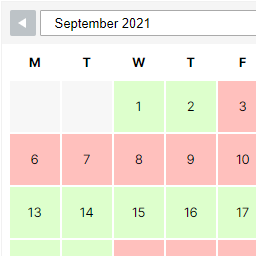
BookSync to Google Calendar 是 WordPress 外掛,允許使用者直接在您的網站上預約約會並將它們與 Google 日曆自動同步。
### 問與答:
1. BookSync to Google Calendar 可以在網站上提供哪些功能?
- 互動式日曆與日期和時間插槽。
- 可自訂的工作時間、休息時間和假期。
- 儲存約會至您的 WordPress 數據庫。
- 在 Google 日曆中自動創建事件。
- 可編輯前端字段的標籤(例如名稱、電話)。
- 具備多語言的管理面板,支持i18n/l10n。
2. BookSync to Google Calendar 的系統需求是什麼?
- PHP: 8.0 或更新版本
- WordPress: 6.0 或更新版本
- 數據庫:MySQL 5.7+ 或 MariaDB 10.2+
- PHP 擴展:curl、json、openssl
- 伺服器:啟用 mod_rewrite 的 Apache/Nginx
3. 這外掛連接至 Google 日曆 API 進行什麼操作?
- 進行 OAuth 授權時,外掛會將 OAuth 授權請求發送至 Google 的伺服器。
- 創建事件時,外掛會將預約時的相關數據發送至 Google 日曆 API。
- 查看可用時間時,外掛會查詢 Google 日曆 API 以確認事件和衝突。
- 定期刷新 OAuth 存取令牌。
4. BookSync to Google Calendar 如何處理數據存儲?
- OAuth 存取令牌和刷新令牌存儲安全性於 WordPress 數據庫中。
- 預約數據(客戶姓名、電話號碼、約會時間)存儲於 WordPress 數據庫。
- 除非明確連接 Google 帳戶並配置 API 憑證,否則不會將任何數據發送至 Google。
外掛標籤
開發者團隊
原文外掛簡介
BookSync to Google Calendar is a WordPress plugin that allows users to book appointments directly on your website and automatically sync them with Google Calendar.
Features:
* Interactive calendar with date and time slots.
* Customizable working hours, breaks, and holidays.
* Save appointments to your WordPress database.
* Automatic event creation in Google Calendar.
* Editable labels for frontend fields (e.g., Name, Phone).
* Multilingual admin panel with i18n/l10n support.
System Requirements
PHP: 8.0 or higher
WordPress: 6.0 or higher
Database: MySQL 5.7+ or MariaDB 10.2+
PHP Extensions: curl, json, openssl
Server: Apache/Nginx with mod_rewrite enabled
External services
This plugin connects to Google Calendar API to create and manage calendar events. This integration is required for the core functionality of syncing bookings with Google Calendar.
What data is sent and when:
During OAuth authorization: When you connect your Google account, the plugin sends OAuth authorization requests to Google’s servers. This includes your Client ID, Client Secret (stored securely in WordPress), and redirect URI. This happens only when you click “Connect Google Account” in the plugin settings.
When creating events: Each time a booking is made through the calendar, the plugin sends the following data to Google Calendar API:
Event title (summary) – contains the client’s name
Event description – contains the client’s phone number
Event start and end times (date and time)
Timezone information
This data is sent immediately when a booking is confirmed.
When checking availability: The plugin queries Google Calendar API to check for existing events and conflicts. This includes:
Date range queries for available time slots
Calendar ID to identify which calendar to check
This happens when users view available time slots on the booking calendar.
Token refresh: The plugin may periodically refresh OAuth access tokens by sending refresh token requests to Google’s OAuth servers. This happens automatically when tokens expire.
Data storage:
* OAuth access tokens and refresh tokens are stored securely in your WordPress database (in the wp_options table).
* Booking data (client names, phone numbers, appointment times) is stored in your WordPress database.
* No data is sent to Google unless you explicitly connect your Google account and configure the API credentials.
Service provider:
This service is provided by Google LLC. By using this plugin with Google Calendar integration, you agree to Google’s terms of service and privacy policy.
Google Terms of Service: https://policies.google.com/terms
Google Privacy Policy: https://policies.google.com/privacy
Google Calendar API Terms: https://developers.google.com/calendar/api/terms
Note: The Google Calendar integration is optional. The plugin can function without Google Calendar connection, but booking events will only be stored in your WordPress database and not synced to Google Calendar.
Security & Stability Recommendations
Regular Database Backups: Create daily backups of your WordPress database
Power Protection: Use UPS to prevent data corruption from power outages
Disk Health: Regularly check disk integrity and replace failing drives
Keep Updated: Maintain latest versions of your hosting environment and WordPress
Monitoring: Monitor server logs for any database errors or warnings