內容簡介
總結:Advanced Datatable 是一個古鐘區塊外掛程式,讓網站管理員能夠在後端上傳 CSV 檔案並將其數據顯示為美麗的資料表,具備搜尋、排序、分頁等功能。資料表可根據需求自定義。
問題與答案:
1. 什麼是 Advanced Datatable?
- Advanced Datatable 是一個古鐘區塊外掛程式,可以讓網站管理員上傳 CSV 檔案並轉換成美觀的資料表。
2. 這個外掛的特色有哪些?
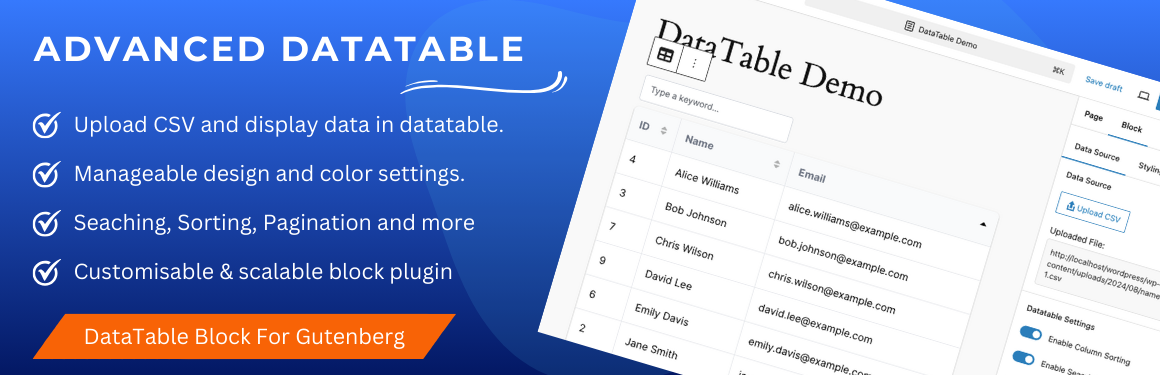
- 顯示 CSV 數據;可配置設置;響應式設計;排序功能;搜尋功能;分頁功能;可管理寬度和高度;固定表頭;調整列寬度;自訂表格 UI;獨立設置表頭和行;可自訂且可擴展的區塊外掛。
外掛標籤
開發者團隊
② 後台搜尋「Advanced Datatable – The Ultimate Data Table Plugin」→ 直接安裝(推薦)
原文外掛簡介
Advanced Datatable is a Gutenberg block plugin that enables site administrators to upload a csv file in the backend & display its csv data into a beautiful datatable powered by searching, sorting, pagination and more. The data table can be customized according to needs from the provided block properties.
Features
👉 Display CSV data: Easily import CSV file and display data with DataTables.
👉 Configurable Settings: Sorting, searching and paginations are configurable settings from backend. Site admin can enable and disable it from block settings.
👉 Responsive Design: Datatable looks great on both desktop and mobile devices.
👉 Sorting: Allow users to sort columns in ascending or descending order.
👉 Searching: Enable search functionality to filter data based on user input.
👉 Pagination: Display numeric pagination for easier navigation.
👉 Manageable Width & Height: Admin can set width and height in percent or fixed px values.
👉 Stickly Table Header: Keep the header row of the table fixed while scrolling through data.
👉 Column Size: Adjust the width of columns to suit your data presentation.
👉 Customisable Table UI: Table background color, text color, hover effects and other design settings can be applied from block settings. Single and multiple colors can be applied to the table.
👉 Seperate settings for table header and table rows.
👉 Customisable and scalable block plugin.
How To Use
Create a page where you want to display CSV data. Navigate to the Gutenberg editor.
CLick on the + icon to see all available block elements. Find “Advanced Datatable” block element under “Widgets” category.
Click on the “Advanced Datatable” block element icon will display a message to upload a csv file first as an input to block.
From the block properties, upload your csv file via the provided button. Once the file has been uploaded successfully, all the records will be populated in a beautiful datatable.
Now from the block settings, you can enable / disable feature like searching, sorting and pagination for the created datatable.
Publish or update your page and you are done. Just visit the page on frontend. You will see the exact same datatable you created in backend.
Live Demos
👉 Frontend Live Demo
Try It Now
Explore the plugin instantly using the WordPress Playground:
👉 Try Advanced Datatable