
內容簡介
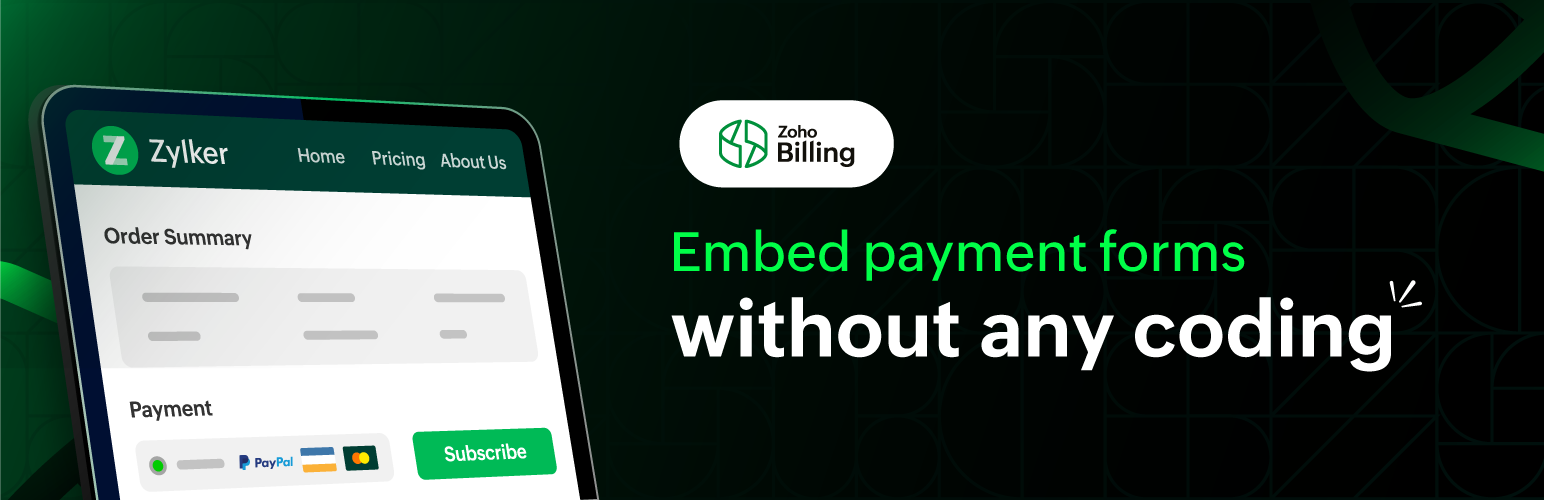
Zoho Billing 外掛讓您在 WordPress 網站上輕鬆嵌入付款表單,無需編碼。客戶可以透過此表單進行一次性或定期付款,簡化收款流程。
【主要功能】
• 嵌入付款表單,無需編碼
• 支援一次性及定期付款
• 自動化訂閱管理與開立發票
• 連接 Zoho Billing 帳戶進行整合
• 自訂嵌入表單的寬度
外掛標籤
開發者團隊
② 後台搜尋「Zoho Billing – Embed Payment Form」→ 直接安裝(推薦)
原文外掛簡介
ZOHO BILLING PLUGIN FOR WORDPRESS
This plugin allows you to embed a payment without any coding on your WordPress website. Your customers/visitors can make one-time and recurring payments to you using the embedded payment form.
WHAT IS ZOHO BILLING?
Zoho Billing is billing software that makes it easy to handle your customers’ entire billing life-cycle. It can help you with automated recurring billing, managing subscriptions, sending professional tax-compliant invoices, and getting paid on time, every time.
You must to have an account with Zoho Billing to use this plugin, sign up now, if you haven’t already.
Integration/Authentication Setup
After installing and activating the plugin, you need to connect it to your Zoho Billing organization. To do this:
Navigate to the Zoho Billing plugin from the Installed Plugins section in the left sidebar.
Select the domain from which you access Zoho Billing.
Enter the Connector Key from Zoho Billing.
Tip: You can find your domain and the Connector Key by going to Zoho Billing > Settings > Integrations & Marketplace > Other Apps > WordPress Integration.
Click the Save button
EMBED PAYMENT FORMS
You can embed your hosted payment pages from Zoho Billing by including the following shortcode while drafting (or editing) a page/post in WordPress:
[zs plan_code="BASIC"]
Copy and paste the shortcode above in WordPress’ editor. Next, replace BASIC in the shortcode with your plan’s actual Plan Code. You can see what your embedded hosted payment page looks like by previewing your page/post.
Tip: You can find your plan’s Plan Code by going to Zoho Billing > Product Catalog > Subscription Items. Select a product and copy the Plan Code for the plan whose hosted payment pages you’d like to embed.
You can adjust the width of your embedded hosted payment page by specifying a custom width in the shortcode above. Here’s how:
[zs plan_code="BASIC" width="600"]
Replace 600 in the shortcode above with your required width. If you do not include the “width” parameter, the default width will be set as 700.
Learn more about the Zoho Billing plugin from our help document.
WHO DO I CONTACT FOR MORE INFORMATION?
You can reach out to our support team at [email protected] with any questions you have about this plugin and we’d be happy to assist you.