內容簡介
WP Eventbrite Embedded Checkout 是一款專為 WordPress 設計的外掛,旨在簡化活動報名流程,提升品牌體驗。透過此外掛,活動主辦方可以輕鬆嵌入 Eventbrite 的報名表單,讓參加者享受無縫的報名體驗。
【主要功能】
• 嵌入 Eventbrite 報名表單於頁面
• 添加按鈕以開啟 Eventbrite 報名彈窗
• 簡碼功能可於任何文章或頁面使用
外掛標籤
開發者團隊
② 後台搜尋「WP Eventbrite Embedded Checkout – Ticket Checkout Block, Popup & Elementor Widget」→ 直接安裝(推薦)
📦 歷史版本下載
原文外掛簡介
Eventbrite Plugin for WordPress
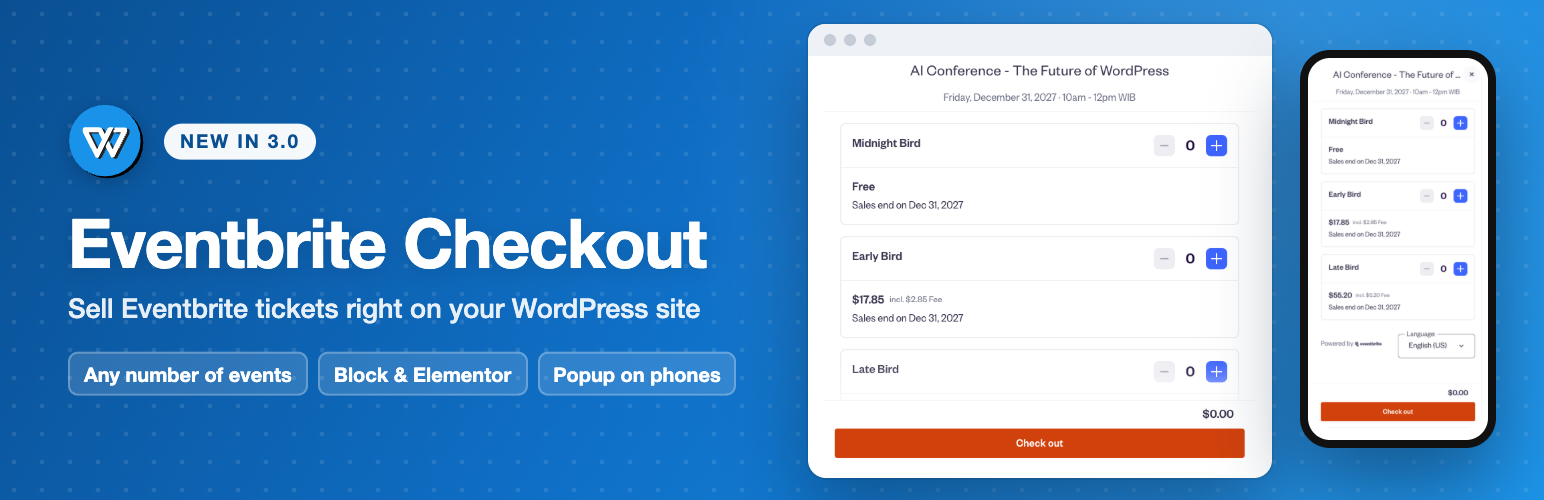
WP Eventbrite Embedded Checkout puts Eventbrite’s own ticket checkout on your WordPress site, so people buy tickets without leaving your pages. In the WordPress editor, add the Eventbrite Checkout block, paste the link to your event and click Show checkout. The real checkout appears in the editor. Then pick how to show it: right on the page, or as a button that opens the checkout in a popup.
You get an Eventbrite Checkout block with the live checkout in the editor, an Eventbrite Checkout widget for Elementor, and a [wp-eventbrite-checkout] shortcode for the classic editor, widgets, Divi, Bricks and other page builders. Every block, widget and shortcode can sell tickets for a different event, so one site can sell all of them.
Eventbrite takes the payment, sends the tickets and keeps your attendee list, exactly as on eventbrite.com. The plugin needs no API key and stores no orders.
Made for event organizers, venues, conferences, workshops, meetups, schools and nonprofits that want ticket sales on their own website.
How to add Eventbrite checkout to WordPress
Install and activate WP Eventbrite Embedded Checkout: go to Plugins → Add New, search for “Eventbrite checkout” and click Install Now, then Activate.
Open your event on Eventbrite and copy its link from the address bar, for example https://www.eventbrite.com/e/your-event-tickets-123456789012. The number at the end is the event ID; either works.
In the WordPress editor, add the Eventbrite Checkout block. Type “eventbrite” in the block search to find it.
Paste the link and click Show checkout. The checkout appears in the editor.
In the block sidebar, pick On the page or Button that opens a popup, adjust the options, and publish.
Using Elementor? Add the Eventbrite Checkout widget, paste the link and pick how to show it.
Using the classic editor or another page builder? Paste the shortcode instead: [wp-eventbrite-checkout event="123456789012"]. Go to Eventbrite → Shortcode to build one with your options and copy it.
Your site needs https (an SSL certificate): Eventbrite shows its checkout only on secure pages.
Eventbrite’s embed code or this plugin?
You don’t need a plugin to embed Eventbrite. In your event dashboard on Eventbrite, choose Embedded Checkout under Marketing, copy the code and paste it into a Custom HTML block. That works for one event that rarely changes.
Use this plugin instead if you want to:
See the checkout while you edit, instead of an empty HTML box.
Paste a link instead of code, and change the display, button text, colour or promo code from the sidebar.
Let Authors and Contributors add checkouts. WordPress removes scripts saved by users who aren’t allowed to add unfiltered HTML, so Eventbrite’s code disappears when they save. The block works for every user who can edit the page.
Give phone visitors a button that opens the checkout full screen, as Eventbrite recommends, while larger screens keep the checkout on the page.
Send ticket purchases to Google Analytics, Google Tag Manager or Meta Pixel, and send buyers to your own thank-you page.
Features
Any number of events: every block, widget and shortcode has its own event.
Paste the event’s link or its ID. Eventbrite’s embed code works too: the plugin finds the event in it.
Two ways to show it: the checkout on the page, or a button that opens it in a popup over the page.
Popup on phones: on small screens, the checkout on the page becomes a button, and the checkout opens full screen.
Your brand colour on the checkout’s buttons and links, applied by Eventbrite.
Promo codes: apply one of your Eventbrite promo codes when the checkout opens.
The button matches your theme’s buttons or uses a simple dark style, in your own colours if you like. The Elementor widget has a Style tab for it.
A shortcode builder: choose your options under Eventbrite → Shortcode and copy the finished shortcode.
Optional purchase tracking: an eventbrite_purchase event for the Google Analytics, Google Tag Manager and Meta Pixel tags already on your site.
Optional thank-you page after a completed order.
Eventbrite’s script loads only on pages with a checkout.
A Get started page that saves your event once and creates a page with the block or widget for you, and a Settings page with defaults for every checkout.
Shortcode
[wp-eventbrite-checkout event="https://www.eventbrite.com/e/your-event-tickets-123456789012" mode="popup" button_text="Get tickets"]
Without attributes, [wp-eventbrite-checkout] shows the event set under Eventbrite → Settings, as in earlier versions. See the FAQ for all attributes.
External services
This plugin shows Eventbrite’s ticket checkout (eventbrite.com), a third-party ticketing service. It does not work without it.
On every page with a checkout, the plugin loads Eventbrite’s checkout widget script from https://www.eventbrite.com/static/widgets/eb_widgets.js, which shows the checkout from https://www.eventbrite.com/checkout-external in an iframe on the page or in a popup. The visitor’s browser connects to Eventbrite directly and sends the event ID, the address of your page, the promo code and button colour you set, and standard request data such as the IP address and browser. Campaign tags (utm_*) in your page’s address are passed on by Eventbrite’s script. Ticket selection, the order form, payment and the tickets are handled by Eventbrite; nothing a buyer enters is sent to your WordPress site. Eventbrite sets its own cookies inside the checkout.
The block editor and Elementor’s editor show the live checkout from Eventbrite the same way while you edit.
In the WordPress admin, the plugin contacts Tally (tally.so), a form service, only if you click Request this feature on the Eventbrite → Events page. That opens a short feedback form hosted on Tally (https://tally.so/r/M1eoWE) and loads Tally’s embed script (https://tally.so/widgets/embed.js) at that moment. The form sends what you choose or type, plus the plugin’s version number. Tally’s terms and privacy policy: https://tally.so/help/terms-and-privacy.
Optional features, all off by default (Eventbrite → Advanced):
Track ticket purchases. When Eventbrite reports a completed order, the plugin sends an eventbrite_purchase event with the event ID and the order number to the Google Analytics (gtag), Google Tag Manager (dataLayer) and Meta Pixel (fbq) tags already on your page. It carries no buyer details. The plugin adds no analytics tags of its own; what your own tags send, and to whom, is governed by those services.
Thank-you page. After a completed order, the buyer is sent to the page you choose.
Eventbrite’s terms of service: https://www.eventbrite.com/help/en-us/articles/251210/eventbrite-terms-of-service/
Eventbrite’s privacy policy: https://www.eventbrite.com/help/en-us/articles/460838/eventbrite-privacy-policy/