內容簡介
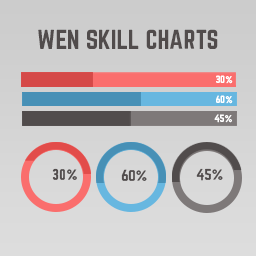
Progress Bar 外掛是一個簡單而強大的工具,能在您的 WordPress 網站上顯示進度、統計數據、技能或任何基於百分比的數據。它提供流暢的動畫效果和專業的外觀,適合各種需求。
【主要功能】
• 單一進度條:經典的水平進度條,完全自訂
• 動畫數字計數器:具前綴、後綴及可選的下方條
• 多種樣式變化:薄、中、厚、條紋、圓形等
• 一鍵模板樣式:十種主題可選
• 進度百分比控制:可自訂顏色與高度
• 支援全站編輯器(FSE):完全響應式設計
外掛標籤
開發者團隊
原文外掛簡介
The Progress Bar block is a simple yet powerful tool for displaying progress, statistics, skills, or any percentage-based data on your WordPress site. Built with modern web standards, this block offers smooth animations and a clean, professional appearance.
Whether you need a simple skill bar, an animated number counter, a circular radial ring, or a full skills section — WBD Progress Bar has you covered.
🆓 Free Features
Display Modes
* Single Bar – Classic horizontal progress bar with full customization
* Number Counter – Animated count-up effect with prefix, suffix, and optional bar below
Style Variations
* Thin (6px), Medium (12px), Thick (20px), Striped (animated), Circle (SVG ring)
10 One-Click Template Styles
Ocean Blue, Sunset Fire, Forest Green, Purple Galaxy, Golden Hour, Midnight Dark, Rose Pink, Arctic Ice, Corporate Gray, Lemon Lime
Customization
* Progress percentage control (0–100)
* Custom fill & track colors
* Gradient fill (two-color gradient)
* Bar corner radius control (square to pill)
* Bar height control (6px–40px)
* Optional percentage text display
* Percentage position — Inside bar / Outside right / Above bar
* Label position — Above / Below / Inline row
* Inline gap control (when label is inline)
* Milestone marker with custom label
* Scroll-triggered animation (IntersectionObserver)
* Animation type — Ease, Ease In, Ease Out, Ease In Out, Linear, Bounce, Elastic
* Animation duration control
* Typography control — Font family & font size for label and percentage text
* Fully responsive design
* Full Site Editor (FSE) support
* Accessible design with semantic HTML
⚡ Pro Features
Display Modes (Pro)
* Circular / Radial Progress Bar – Beautiful SVG ring-style progress with 10 themes, custom size, stroke width, center text, and optional label
* Group / Skills Section – Display multiple progress bars together as a skills list with individual labels, colors, and percentages; flexible label & percentage positioning
Single Bar (Pro)
* Hover Tooltip – Show a custom tooltip message when hovering over the bar
👉 Upgrade to Pro
Perfect For:
Skill & competency display
Project completion indicators
Goal tracking & fundraising
Statistics & data visualization
Survey results & polls
Resume / portfolio pages
The block provides an intuitive editing experience with sidebar controls for adjusting the percentage (0–100), customizing colors, toggling percentage text visibility, and selecting from predefined style variations.
Why Use WBD Progress Bar?
Most progress bar plugins are either too bloated with unnecessary features or too simple to be actually useful. WBD Progress Bar is built differently:
🚀 Performance First
The block outputs pure static HTML and CSS — no jQuery, no heavy JavaScript libraries. The frontend script only loads when your block is actually on the page, keeping your site fast.
🎨 Visual Flexibility
Four display modes, five style variations, ten one-click templates, gradient fill, custom radius, custom height, and full color control — all without touching a single line of code.
🧩 Built for Gutenberg
This is a native WordPress block, not a shortcode or widget. It works seamlessly inside the block editor, Full Site Editor (FSE), reusable blocks, and block patterns.
📱 Responsive by Default
Every mode — single bar, counter, circular, group — adapts automatically to mobile, tablet, and desktop screens without extra configuration.
⚡ Scroll Animation Without a Plugin
Built-in IntersectionObserver-based scroll trigger animates your bars when they come into view. No extra animation plugin needed.
🔒 Honest Free vs Pro
The free version is genuinely useful — single bars, counters, templates, animations, and all customization options are free. Pro unlocks circular/radial rings, grouped skill sections, and hover tooltips for power users.
How To Use
Step 1 — Add the Block
Open any post, page, or template in the WordPress editor. Click the + block inserter button, search for “Progress Bar”, and click to insert the WBD Progress Bar block.
Step 2 — Choose a Display Mode
In the right sidebar, find the Block Mode panel at the top. Select one of four modes:
Single Bar — A classic horizontal progress bar. Best for individual skills, project completion, or goal tracking.
Number Counter — An animated number that counts up on scroll. Great for statistics pages (“500+ clients”, “$1M+ revenue”).
Circular / Radial (Pro) — A circular SVG ring progress indicator. Perfect for dashboards or visual KPI displays.
Group / Skills Section (Pro) — Multiple bars stacked together. Ideal for resume skills sections or comparison lists.
Step 3 — Apply a Template (Optional)
Open the Template Styles panel and click any of the 10 preset templates to instantly apply a complete color scheme and style. You can fine-tune colors individually after applying a template.
Step 4 — Customize Settings
Depending on your selected mode, configure the following panels:
Progress Settings — Set percentage, height, radius, label text, label position, and percentage position.
Animation — Choose animation type (ease, bounce, elastic), set duration, and enable scroll-triggered animation.
Milestone & Tooltip — Add a milestone marker at any percentage point with a custom label. (Hover Tooltip is Pro)
Typography — Set font family and font size for the label and percentage text independently.
Color Settings — Set fill color, track color, label color, and percentage text color. Enable gradient fill to use two colors.
Step 5 — Using the Number Counter
Switch to Number Counter mode. Set:
Target Number — The final value to count up to (e.g. 1500).
Prefix — Text before the number (e.g. $).
Suffix — Text after the number (e.g. + or %).
Label — A description shown below the number (e.g. “Happy Clients”).
Show Progress Bar Below — Toggle to add a bar underneath the counter.
The counter animates automatically on page load, or enable Animate on Scroll so it only starts when the user scrolls to it.
Step 6 — Using Group / Skills Section (Pro)
Switch to Group / Skills Section mode. In the sidebar:
Each bar item has its own Label, Percentage, and Bar Color.
Click + Add Bar to add more items (no limit).
Click ✕ to remove any item.
Set Label Position — Above bar (with optional percentage on the same line) or Inline row.
Set Percentage Position — Inside bar / Outside right / Same line as label.
Adjust Gap Between Bars and Inline Gap sliders to control spacing.
Step 7 — Using Circular / Radial Mode (Pro)
Switch to Circular / Radial mode. In the sidebar:
Choose one of the 10 circular themes by clicking the theme thumbnail.
Adjust Size (80–300px) and Stroke Width (3–20px).
Set the Progress Percentage.
Toggle Show Label Below to display a text label under the ring.
Fine-tune Stroke Color, Track Color, and Center Text Color individually.
Step 8 — Publish
Click Publish or Update. The block renders as clean, static HTML on the frontend with no extra requests or render-blocking scripts.
Where can I get support?
Visit our contact page for support.