內容簡介
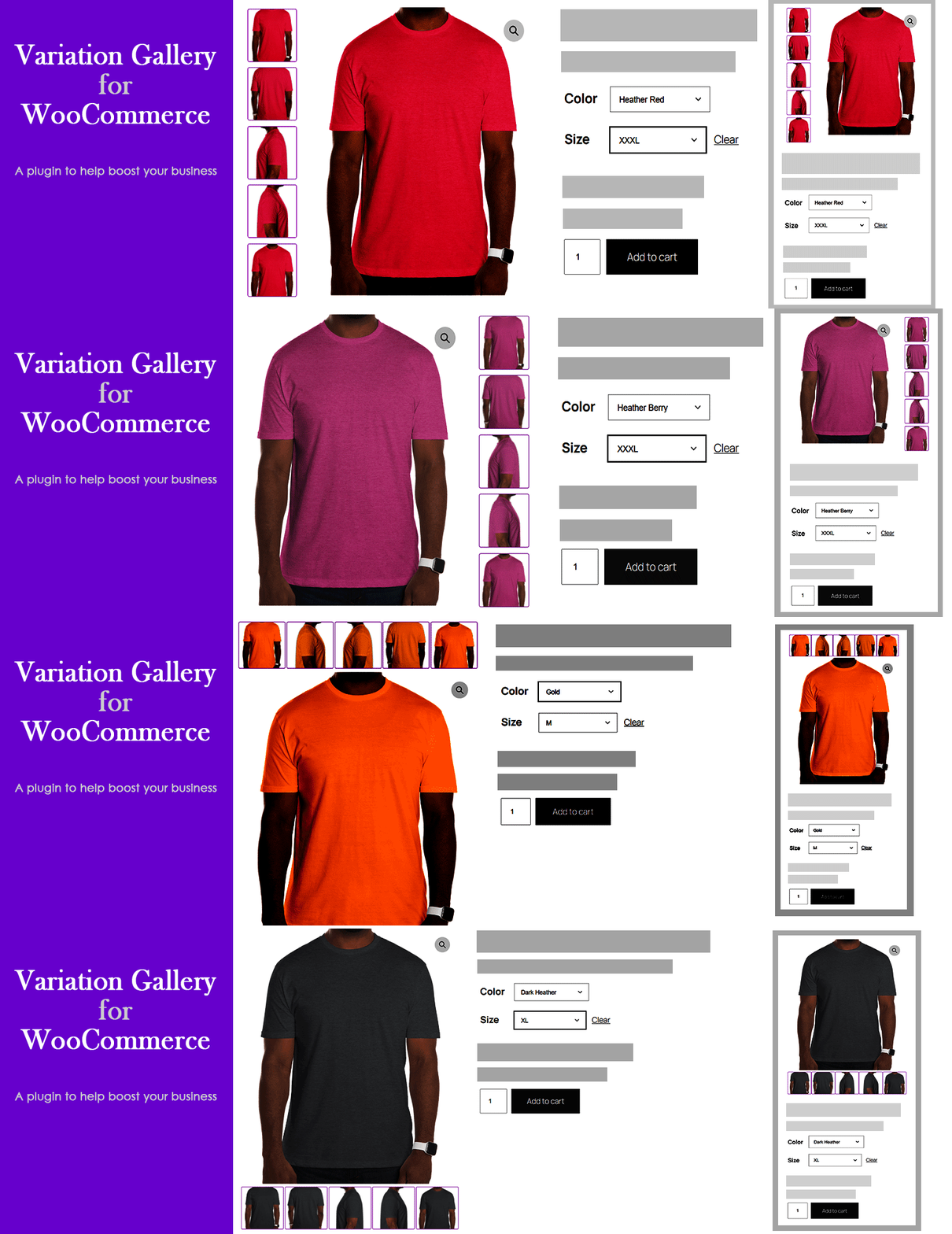
Variation Gallery for WooCommerce 讓使用者能夠自訂變化縮圖畫廊在產品畫廊中的顯示位置,提升產品展示的靈活性與視覺效果,適合需要多樣化圖片展示的 WooCommerce 商店。
【主要功能】
• 圖片滑動:使用 Slick Slider 進行流暢的圖片導航
• 縮圖位置選擇:可選擇縮圖顯示在上方或下方
• 縮圖滑動:使用 Slick Slider 進行縮圖流暢導航
• 放大選項:可對主要產品圖片進行放大查看
• 燈箱效果:提供全螢幕高解析度的圖片查看功能
• 全球與產品級別控制:可在管理後台或產品編輯器中設定
外掛標籤
開發者團隊
② 後台搜尋「Variation Gallery for WooCommerce」→ 直接安裝(推薦)
原文外掛簡介
Variation Gallery for WooCommerce allows you to customize where variation thumbnail galleries appear relative to the product gallery. By default, WooCommerce allows multiple images for each variation, which has no limits on how much visual information can be shown.
👉 Plugin Demo | Documentation | Get Pro 👈
Core Features & Highlights
✨ Image slider: Uses Slick Slider for smooth, responsive navigation of the main product gallery image.
✨ Thumbnail position (Top/ Bottom) : Offers flexible positioning for product gallery thumbnails with options to align them on the top or bottom.
✨ Thumbnail slider: Uses Slick Slider for smooth, responsive navigation of the main product thumbnail image.
✨ Zoom option: Enables a zoom feature on main product images, allowing detailed viewing across all color and style variations.
✨ Light box: Enables a lightbox popup for viewing product variation and main gallery images in a full-screen, high-resolution display.
✨ Global & Product-Level Controls: Configure settings globally via WordPress Admin → Tools → Variation Gallery or customize them per product under the product editor tab.
How to Work Settings with Gallery.
✨ Thumbnail Position: Top — Displays gallery thumbnails above the main product image.
👉 Live Demo | Documentation
✨ Thumbnail Position: Bottom — Displays gallery thumbnails below the main image (Default).
👉 Live Demo | Documentation
✨ Thumbnail Position: Left (Pro) — Displays gallery thumbnails stacked vertically on the left side.
👉 Live Demo | Documentation
✨ Thumbnail Position: Right (Pro) — Displays gallery thumbnails stacked vertically on the right side.
👉 Live Demo | Documentation
Compatibility
Variation Gallery for Woocommerce plugin is integrated into WooCommerce and WordPress, but only where necessary. It’s unlikely to conflict with other plugins.
Need Any Help?
👉 For any bug, support or suggestion please submit your ticket here .