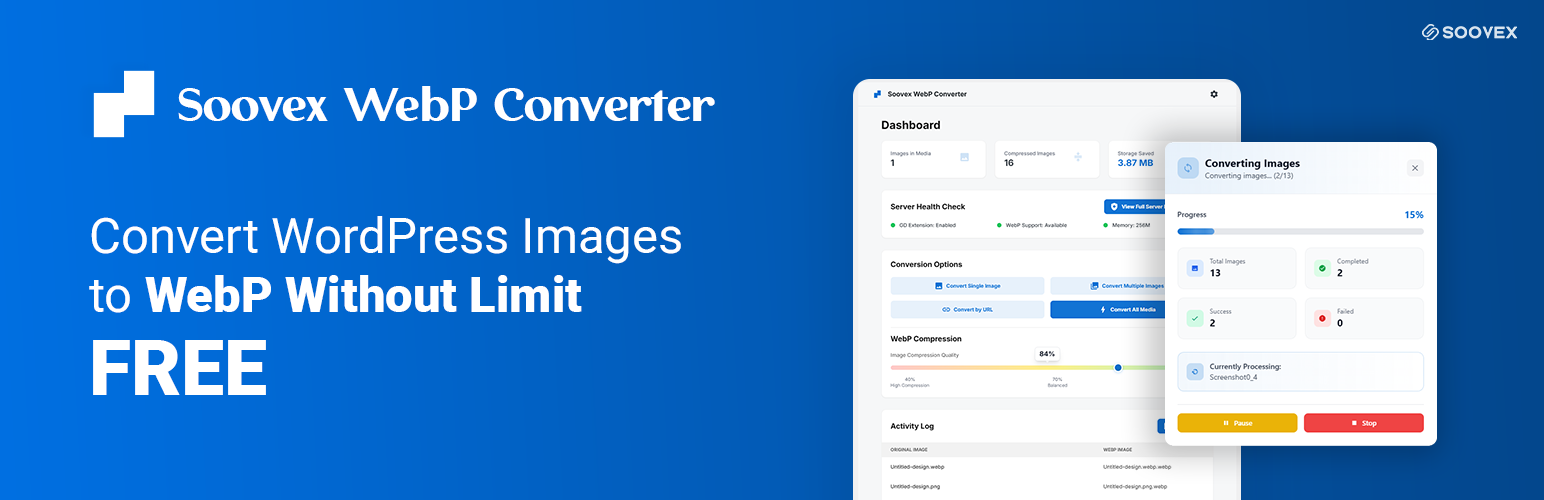
內容簡介
<html>
<body>
<h3>Soovex WebP Converter 外掛總結:</h3>
<p>Soovex WebP Converter 是一個功能豐富且強大的 WordPress 外掛,可自動將您的媒體庫圖片(JPG、PNG)轉換為現代的 WebP 格式。這個圖片優化外掛可以顯著減少文件大小 25-35%,同時保持優秀的視覺品質,帶來更快的頁面加載時間、提高 Google PageSpeed 分數、改善 SEO 排名和減少頻寬使用。</p>
<h3>問題與答案:</h3>
<h4>為什麼要使用 WebP 圖片格式?</h4>
<ul>
<li>WebP是Google開發的現代圖片格式,與傳統的JPEG和PNG格式相比,提供優越的壓縮效果。</li>
<li>它提供無損和有損壓縮,使您可以獲得更小的文件大小而不會影響圖片品質。</li>
<li>WebP 圖片加載速度更快,消耗較少的頻寬,改善 Core Web Vitals 分數,提升用戶體驗,尤其是在移動設備上。</li>
<li>所有現代瀏覽器都支援 WebP,這個外掛會自動將 WebP 提供給相容的瀏覽器,同時對於舊版瀏覽器會回退至原始格式。</li>
</ul>
<h4>關鍵特點包括:</h4>
<ul>
<li>無限圖片轉換</li>
<li>一鍵轉換</li>
<li>智能備份系統</li>
<li>媒體庫整合</li>
<li>批量處理</li>
<li>URL轉換</li>
<li>品質控制</li>
<li>自動轉換上傳</li>
<li>還原功能</li>
<li>活動日誌記錄</li>
<li>即時統計</li>
<li>現代儀表板</li>
<li>延遲加載支援</li>
<li>瀏覽器兼容性</li>
<li>伺服器健康檢查</li>
<li>備份管理</li>
<li>SEO優化</li>
<li>性能監控</li>
</ul>
</body>
</html>
外掛標籤
開發者團隊
② 後台搜尋「Soovex WebP Converter – Convert Images | Optimize & Compress | Unlimited Conversions」→ 直接安裝(推薦)
原文外掛簡介
Soovex WebP Converter is a powerful, feature-rich WordPress plugin that automatically converts your media library images (JPG, PNG) to modern WebP format. This image optimization plugin significantly reduces file sizes by 25-35% while maintaining excellent visual quality, resulting in faster page load times, improved Google PageSpeed scores, better SEO rankings, and reduced bandwidth usage.
Why Use WebP Image Format?
WebP is a modern image format developed by Google that provides superior compression compared to traditional JPEG and PNG formats. It offers both lossless and lossy compression, allowing you to achieve smaller file sizes without sacrificing image quality. WebP images load faster, consume less bandwidth, improve Core Web Vitals scores, and enhance user experience – especially on mobile devices. All modern browsers support WebP, and this plugin automatically serves WebP to compatible browsers while falling back to original formats for older browsers.
Key Features:
Unlimited Image Conversions: Convert unlimited JPG/PNG images to WebP format with no restrictions
One-Click Conversion: Convert single, multiple, or all images with simple one-click operations
Smart Backup System: Automatically creates secure backups of original images before conversion
Media Library Integration: Seamlessly convert images directly from WordPress media library
Bulk Processing: Convert single, multiple, or all images at once with background processing
URL Conversion: Convert images from external URLs and save to media library
Quality Control: Adjustable WebP compression quality (40-100) for optimal balance
Auto-Convert Uploads: Automatically convert new image uploads to WebP format
Revert Functionality: Restore original images from backups anytime with one click
Activity Logging: Comprehensive activity log tracking all conversions, failures, and reversions
Real-Time Statistics: Monitor conversion stats, storage savings, and performance metrics
Modern Dashboard: Beautiful, intuitive dashboard with conversion statistics and quick actions
Lazy Loading Support: Optional native lazy loading for improved page performance
Browser Compatibility: Automatic fallback to original images for unsupported browsers
Server Health Check: Built-in server requirements verification and status monitoring
Backup Management: Flexible backup retention settings with automatic cleanup options
SEO Optimization: Improves Google PageSpeed scores and Core Web Vitals
Performance Monitoring: Track storage savings, conversion statistics, and bandwidth reduction
Documentation
Conversion Options
Convert Single Image
Convert one image at a time from your media library to WebP format.
Click the “Convert Single Image” button on the Dashboard
Select an image from your media library
Click “Convert” to start the conversion
The converted WebP image will be saved automatically
Note: Only JPEG and PNG images can be converted to WebP format.
Convert Multiple Images
Convert multiple images at once from your media library.
Click the “Convert Multiple Images” button on the Dashboard
Click “Select Images” to open the media library
Hold Ctrl (Windows/Linux) or Cmd (Mac) while clicking to select multiple images
Click “Use these images” to confirm your selection
Click “Convert” to start batch conversion
Monitor progress in the progress modal
Tip: Batch conversion processes images in the background, so you can continue working while conversions complete.
Convert by URL
Convert an image from an external URL to WebP format.
Click the “Convert by URL” button on the Dashboard
Enter the full URL of the image (must be a direct link to a JPEG or PNG image)
Click “Convert” to download and convert the image
The converted image will be saved to your media library
Important: The URL must be publicly accessible and point directly to an image file (not an HTML page).
Convert All Media
Convert all JPEG and PNG images in your media library to WebP format at once.
Click the “Convert All Media” button on the Dashboard
Confirm the action in the modal dialog
Monitor the progress in the progress modal
The conversion will process all eligible images in your media library
Warning: This action will convert all images. Make sure you have backups enabled if you want to keep originals.
Compression Settings
Image Compression Quality
Control the balance between image quality and file size.
Quality Levels:
* 40-60%: High compression, smaller file size, noticeable quality loss
* 60-80%: Balanced compression, good quality with reasonable file size (recommended)
* 80-100%: Low compression, larger file size, minimal quality loss
Recommended: 80-85% provides an excellent balance between quality and file size for most websites.
Backup & Recovery
Enable Data Backup
Keep original images as backup after conversion. This allows you to revert conversions if needed.
Benefits:
* Original images are preserved in a backup folder
* You can revert any conversion at any time
* Provides safety net for all conversions
Note: Backups use additional storage space. Monitor your disk usage if you have many images.
Backup Reminder
Get notified before backup data is automatically deleted.
When enabled, you’ll receive admin notices 3 days before backups are scheduled for deletion, giving you time to take action if needed.
Automatically Delete Original Data from Backup
Set how long to keep backup files before automatic deletion.
Options:
* 7-365 days: Keep backups for a specific duration
* Custom: Set your own duration (1-3650 days)
* Never: Keep backups permanently (uses more storage)
Critical: Once deleted, original images cannot be recovered. Ensure you have backups elsewhere if needed.
All Data Recovery (Revert All)
Revert all converted images back to their original format.
This action will restore all converted WebP images to their original JPEG/PNG format using the backup files. Only works if backups are enabled and available.
Auto Features
Auto-convert New Uploads
Automatically convert images to WebP when they are uploaded to the media library.
How it works:
* When enabled, all new JPEG/PNG uploads are automatically converted
* Conversion happens in the background after upload
* Original images are kept as backup (if backup is enabled)
* No manual intervention required
Requirement: Auto-convert requires backup to be enabled. If backup is disabled, auto-convert will also be disabled.
Enable Lazy Loading
Improve page load times by loading images only when they enter the viewport.
Benefits:
* Faster initial page load times
* Reduced bandwidth usage
* Improved performance on mobile devices
* Better user experience on image-heavy pages
Lazy loading adds the native “loading=’lazy'” attribute to all img tags. Modern browsers support this natively without additional JavaScript.
Serve WebP Images
Automatically serve WebP images to browsers that support them for better performance.
How it works:
* Browsers that support WebP receive the optimized WebP version
* Older browsers automatically receive the original format
* No changes needed to your theme or content
* Works transparently in the background
Compatibility: All modern browsers support WebP. Older browsers will automatically fall back to original formats.
Activity Log
Viewing Activity Log
Track all conversion activities, including successful conversions, failures, and reversions.
Information displayed:
* Original Image: Name of the source image
* WebP Image: Name of the converted WebP file
* Status: Conversion status (Converted, Failed, Reverted)
* Date: When the action occurred
Revert Single Image
Revert a single converted image back to its original format.
Click the “Revert” button next to any converted image in the Activity Log to restore it to its original format. Only available for successfully converted images with backups.
Retry Failed Conversion
Retry a conversion that previously failed.
Click the “Retry” button next to any failed conversion in the Activity Log to attempt the conversion again. Useful if the failure was due to temporary issues.
Clear Logs
Clear all activity log entries.
Use the “Clear Logs” button to remove all activity log entries. This action cannot be undone but does not affect your images.
Advanced Options
Reset Everything
Reset all plugin settings and data to default values.
This action will:
* Revert all converted images to original format
* Clear all activity logs
* Reset all settings to default
* Delete all backup files
⚠️ This action cannot be undone!
Tips & Best Practices
Recommended Settings:
* Enable backups for safety
* Set compression quality to 80-85%
* Enable auto-convert for new uploads
* Enable lazy loading for better performance
Performance Tips:
* Use batch conversion for many images
* Monitor disk space with backups enabled
* Check Activity Log regularly
* Test compression quality on sample images first
Server Requirements
Server Health Check
The plugin includes a built-in server health check feature that verifies:
GD Extension: Must be enabled for image processing
WebP Support: GD extension must support WebP format
Memory Limit: Recommended minimum of 128MB
Note: If WebP support is not available, contact your hosting provider to enable GD extension with WebP support.