
內容簡介
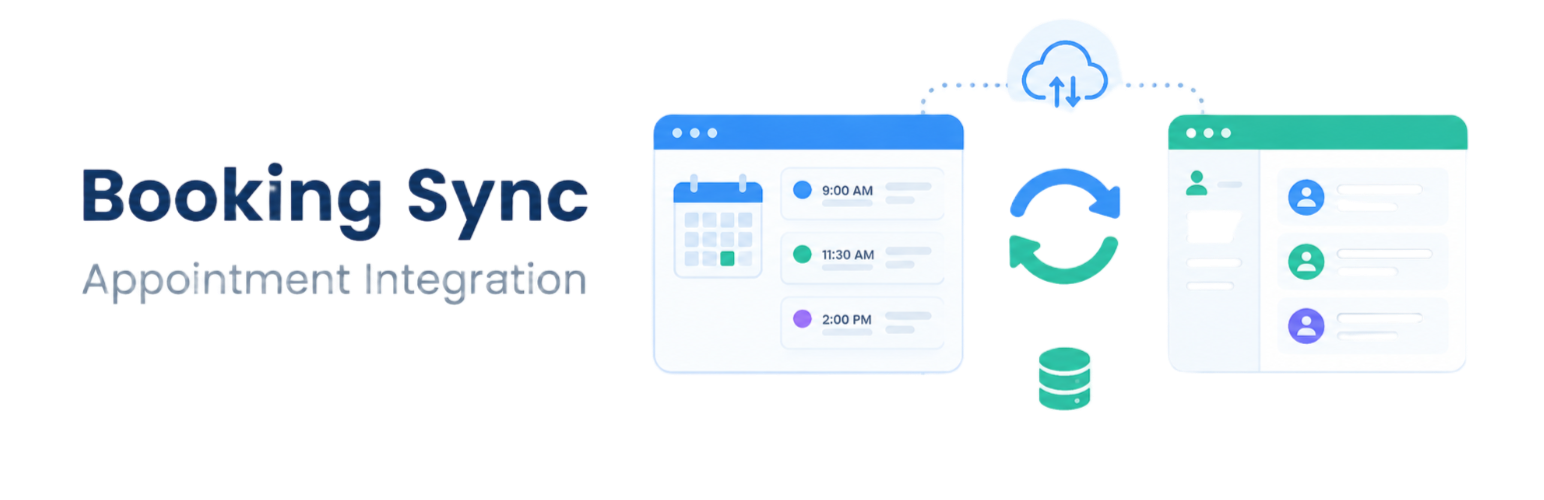
Slotbridge Sync for Calendly and Cliniko 是一款獨立的 WordPress 外掛,能自動將 Calendly 的預約同步到 Cliniko,幫助用戶管理病患與預約。此外掛可定期檢查預約,並防止重複預約的發生。
【主要功能】
• 五步驟引導設置精靈
• 預約日曆短碼顯示
• 自動同步預約時間
• 可選自動創建病患
• 可選取消處理功能
• 同步日誌與手動同步按鈕
外掛標籤
開發者團隊
② 後台搜尋「Slotbridge Sync for Calendly and Cliniko」→ 直接安裝(推薦)
原文外掛簡介
Slotbridge connects Calendly with Cliniko to help automatically synchronize scheduled bookings into Cliniko as patients and appointments.
Slotbridge is an independent plugin. It is not affiliated with, endorsed by, or sponsored by Calendly or Cliniko. “Calendly” and “Cliniko” are trademarks of their respective owners and are used only to describe the services this plugin connects to.
The plugin runs automatically using WordPress Cron, checking Calendly on the schedule you choose and creating matching Cliniko patients and appointments. It tracks each Calendly booking by its unique invitee link to help prevent duplicate appointments when a sync runs again.
Features
Guided Setup Wizard – five steps that test each connection as you go. Your Calendly user, Cliniko business, practitioner and appointment types are selected from lists loaded from your accounts.
Booking calendar shortcode – show your Calendly booking page on any page or post with [slotbridge_booking].
Automatic synchronization on a schedule you choose, from 5 minutes to 24 hours.
Optional automatic patient creation in Cliniko when an invitee’s email is not already associated with a patient.
Optional cancellation handling: cancelling a booking in Calendly cancels the linked Cliniko appointment.
Per-event-type mapping between Calendly event types and Cliniko appointment types, with name-based matching as a fallback.
A sync log, connection tests, and a manual “sync now” button.
How It Works
The plugin reads Calendly scheduled events within a configurable look-back and look-ahead window.
For each invitee, it looks up a matching Cliniko patient by email or, if enabled, creates a patient.
It creates a Cliniko individual appointment using the mapped or default appointment type.
If a booking is later cancelled in Calendly, the plugin can cancel the linked Cliniko appointment when cancellation handling is enabled.
Actions are recorded in the Sync Logs screen.
Appointment Type Mapping
Each Calendly event type can be mapped to a specific Cliniko appointment type. The Setup Wizard lets you configure this using dropdowns. Without a mapping, the plugin tries to match a Cliniko appointment type with the same name as the Calendly event type, then falls back to an optional default appointment type.
Showing the booking calendar
Add the [slotbridge_booking] shortcode to any page or post. It displays the Calendly booking page entered in the Setup Wizard or under Slotbridge > Settings.
You can override the URL and height for a specific page:
[slotbridge_booking url="https://calendly.com/your-name/30min" height="800"]
Only calendly.com links are accepted. Bookings made through the calendar are synchronized to Cliniko by the normal schedule.
Configuration
Calendly Personal Access Token – obtain this from Calendly’s Integrations/API settings.
Calendly User URI – found automatically by the Setup Wizard or a connection test.
Cliniko API Key – obtain this from your Cliniko account under My Info > API Keys.
Cliniko API Base URL – the regional endpoint for your Cliniko account, for example https://api.au5.cliniko.com/v1. Only genuine cliniko.com API hosts are accepted.
Business ID, Practitioner ID and Appointment Type ID – selected from the Setup Wizard dropdowns or entered manually in Settings.
External Services
This plugin connects to third-party services to provide its synchronization feature. Details of what is sent and when are below.
Calendly
The plugin connects to the Calendly API at https://api.calendly.com to read scheduled events and invitee details so they can be synchronized to Cliniko. Requests are made from your server when synchronization runs on the configured schedule, when you click “Sync Calendly Now,” and when you use the “Test Calendly Connection” button.
The API access token configured by the site administrator is sent to Calendly for authentication. The plugin reads booking information from Calendly; it does not send patient data to Calendly through these API requests.
Calendly Privacy Policy: https://calendly.com/privacy
Calendly Terms of Use: https://calendly.com/terms
Calendly booking embed (shortcode)
When you use the [slotbridge_booking] shortcode, the page contains an iframe that loads your Calendly booking page from calendly.com. The visitor’s browser contacts Calendly directly, so Calendly may receive the visitor’s IP address and information the visitor submits while booking. The embed is not loaded on pages that do not use the shortcode.
Calendly Privacy Policy: https://calendly.com/privacy
Calendly Terms of Use: https://calendly.com/terms
Cliniko
The plugin connects to the Cliniko API to search for and create patients and appointments based on Calendly booking data. Requests are made from your server when synchronization runs and when you use the “Test Cliniko Connection” button.
Every Cliniko request includes the API key configured by the site administrator and a User-Agent header containing the contact email address entered in the plugin settings (by default, the site’s administration email). Depending on synchronization settings and Calendly booking data, information such as invitee name, email, and appointment time may be sent to Cliniko to create or match patients and appointments.
Cliniko Privacy Policy: https://www.cliniko.com/privacy/
Cliniko Terms of Service: https://www.cliniko.com/terms/
Privacy
The plugin stores synchronization records in the WordPress database to help prevent duplicate appointments and maintain synchronization logs. API credentials are stored in the WordPress options table. According to the plugin’s current behavior, plugin settings, credentials, logs and the log table are removed when the plugin is deleted from the Plugins screen.
Limitations
Synchronization depends on WordPress Cron, which runs on site visits by default. Low-traffic sites should configure a real cron job.
The plugin matches patients by email address. Invitees without an email, or whose email is not registered in Cliniko, may be skipped unless automatic patient creation is enabled.
Calendly and Cliniko APIs are rate-limited. Large synchronization windows on busy calendars may take longer to process.
Troubleshooting
Use the Test Calendly Connection and Test Cliniko Connection buttons in Settings to check your credentials.
Check the Sync Logs screen for per-booking error messages.
Make sure your server can make outbound HTTPS requests to api.calendly.com and your Cliniko regional API host.