內容簡介
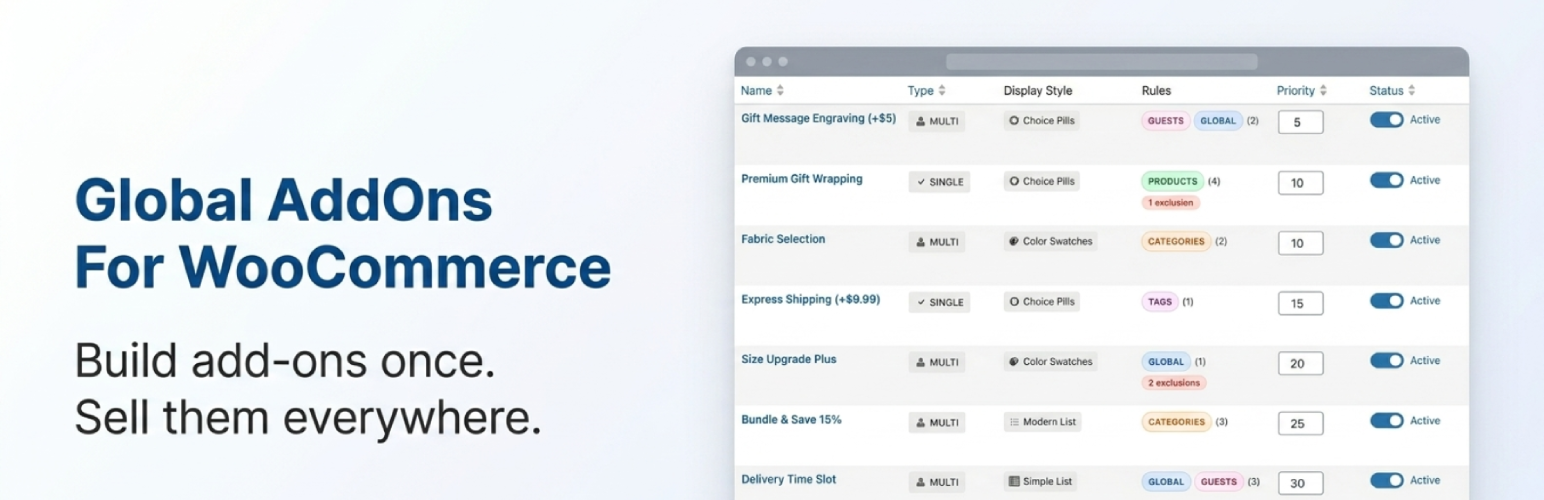
Product Upsells & Add-Ons for WooCommerce by WPRaptor 讓您能夠一次性建立產品附加選項,並根據需求在選定的產品上顯示,簡化了手動編輯每個產品的繁瑣過程,提升了商店的整體管理效率。
【主要功能】
• 創建無限的附加產品選項
• 根據規則將附加選項分配給特定產品
• 提供多種顯示樣式以符合佈景主題
• 支援優先顯示和多選選項
• 完整整合 WooCommerce 購物車和結帳流程
外掛標籤
開發者團隊
② 後台搜尋「Product Upsells & Add-Ons for WooCommerce by WPRaptor」→ 直接安裝(推薦)
原文外掛簡介
Global Add-Ons lets you build product add-ons once and show them on the products you choose. No more editing every product by hand.
Gift wrapping, personalization fields, priority processing, upsells, bundle options. Create each add-on a single time, then use smart rules to decide exactly where it appears on your store.
Your add-ons live in one place. Your rules stay consistent. Your store stays tidy.
See it in action
What you can do
Create unlimited add-on products, each with one option or many
Assign add-ons to all products, specific categories, tags, user roles, or individual products
Combine conditions using rule groups (AND within a group, OR across groups)
Choose from five display styles to match your theme
Control where each add-on appears on the product page
Set the display order when multiple add-ons show together
Works cleanly with the WooCommerce cart, checkout, and orders
Display templates
Choice Pills: compact pill-shaped buttons, great on mobile
Simple List: classic checkboxes or radio buttons
Option Cards: visual card grid with space for details (Pro)
Modern List: enhanced list with product images (Pro)
Color Swatches: circle swatches for color options (Pro)
Perfect for
Gift wrapping, gift messages, and packaging upgrades
Personalization, engraving, and custom printing
Priority processing and rush shipping
Accessory bundles and cross-sells
Free features
Unlimited add-on products
Assign to all products, product categories, or guest users
Rule groups with AND logic (single group)
Choice Pills and Simple List display templates
Single and multi-select options
Priority-based display ordering
Full cart and checkout integration
Customizable colors, borders, and labels
Import and export your add-ons, rules, and settings as JSON
Pro features
Pro is optional. Everything listed under Free works without a license.
Assign to specific products, product tags, user roles, or individual users
Multiple rule groups with OR logic. For example: “show to guests on Electronics, or to admins store-wide”.
Exclusion rules to skip specific products or categories
Option Cards, Modern List, and Color Swatches templates
Tooltips on add-on options for extra guidance
Priority support
Ready to upgrade? Get Pro here: https://checkout.freemius.com/plugin/22559/plan/37780/
Quick Start
Create your first add-on in five steps:
Go to Global Add-Ons > Add-Ons and click Add New Add-On.
Give it a clear name (e.g. Gift Wrapping).
Set Product type to Global Add-On.
Add one or more variations with prices (e.g. Standard $3, Premium $7), or use single-option mode for a flat add-on.
Click Manage Rules and choose where it should appear (e.g. All products, a category, specific products).
Save, and your add-on will show on matching product pages right away.
Troubleshooting
Add-ons don’t appear on product pages
Make sure the add-on product is Published (not draft).
Check that the assignment rules match the product (correct category, product, tag, or All products).
If you’re using Pro, check that no exclusion rule is blocking the add-on.
Clear your site cache and your browser cache after changes.
Color swatches don’t show
Set a Swatch Color for each variation in the Variations tab.
Variations without a color are hidden on purpose. Add a color to make them appear.
Prices don’t update on the product page
Some themes have sticky Add to Cart bars that override the price. The plugin updates the common ones automatically (Flatsome, GeneratePress Premium, Astra Pro, Elementor Pro). If yours is different, let us know.
Clear any page-cache or object-cache after saving add-on prices.
Layout or styling looks off
Go to Global Add-Ons > Settings to adjust colors, borders, and labels.
Resave the add-on product after changing the Display Template so the new template loads.
Add-ons conflict with my theme or another plugin
Temporarily switch to a default theme (Twenty Twenty-Four) to check if it’s theme-related.
Deactivate other plugins one by one to identify a conflict.
If you find a conflict, please contact support with the theme or plugin name so we can investigate.
External Services
This plugin connects to a third-party service called Freemius (freemius.com) to handle licensing and Pro updates, and to receive optional opt-in anonymous usage statistics. This is how Pro licenses stay activated and how you receive Pro update notifications.
What is sent:
Your site URL
The admin email you entered during activation (only when you opt in to the Freemius connect prompt, or when you activate a Pro license)
The plugin version and activation status
What is never sent:
Customer information, order data, product data, or add-on content
Anything about your store’s shoppers
When it is contacted:
During plugin activation (only if you opt in to the connect prompt)
During Pro license activation, deactivation, and renewal checks
When checking for Pro updates
Low-frequency background health pings
Useful links:
Freemius Terms of Service: https://freemius.com/terms/
Freemius Privacy Policy: https://freemius.com/privacy/
If you are on the free version and skip the opt-in connect prompt during activation, no information is sent.