內容簡介
Printcart Canvas 是一款專為 WooCommerce 設計的畫布印刷外掛,讓顧客能夠上傳照片、選擇尺寸、佈局及邊緣樣式,並在購買前預覽畫布效果。此外掛提供自動印刷品質檢查及安全的伺服器定價,簡化了畫布產品的購買流程。
【主要功能】
• 顧客可上傳照片並選擇畫布尺寸
• 提供四種邊緣樣式的即時預覽
• 自動檢查印刷品質(DPI)
• 34種照片佈局選擇
• 提供模板庫以快速導入產品
• 自動將付費訂單發送至 Printcart
外掛標籤
開發者團隊
② 後台搜尋「Printcart Canvas – Canvas Print Designer & Edge-Wrap Preview for WooCommerce」→ 直接安裝(推薦)
原文外掛簡介
Printcart Canvas – Canvas Print Designer & Edge-Wrap Preview for WooCommerce
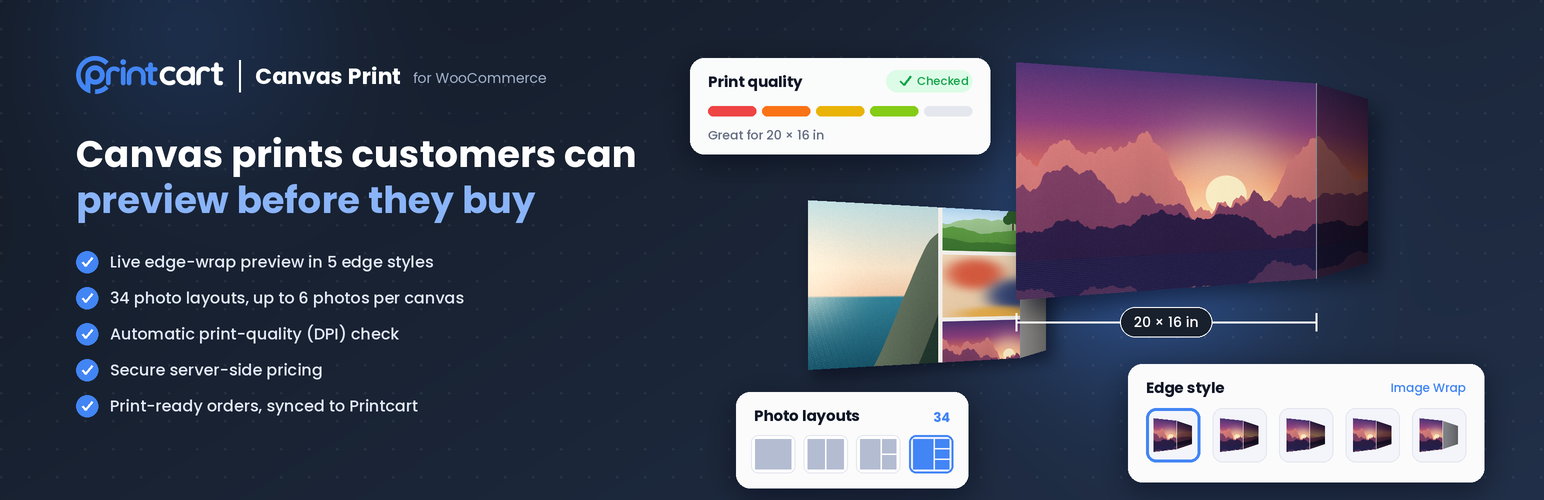
Printcart Canvas is a canvas print designer for WooCommerce that lets customers upload photos, choose a size, layout and edge style, and preview the gallery wrap before they buy. Every photo gets an automatic print-quality check, prices are calculated on the server, and paid orders reach production with every canvas detail attached.
Live demo: try it as a customer on our demo store —
Classic Photo Canvas
Portrait Canvas Print
Square Canvas Print
Panoramic Canvas Print
Deluxe Gallery Canvas
Turn your WooCommerce store into an online canvas print shop.
Live edge-wrap preview in 4 edge styles: Image Wrap, Mirror Wrap, Blur Wrap and Solid Colour
Colour, Black & White or Sepia, applied to the print file
Optional extras: photo retouching, hanging hardware and back finish, priced per product
34 photo layouts, from one photo to six on a single canvas
Starter photo: the designer opens with a sample photo the customer keeps or replaces
Template Library: import a ready-made canvas product with sizes, depths and prices in one step
Print-ready CMYK PDF for every order line, with trim, bleed and cut line
Sizes grouped by shape, plus a custom size field
Automatic print-quality (DPI) check before checkout
Secure server-side pricing
Print sheet calculated for every size and depth, with no template per size
Artwork review queue with a quality verdict for every file
Paid orders sent to Printcart automatically, with retry
Guided product setup with one readiness verdict per product
What is Printcart Canvas?
Printcart Canvas is a WooCommerce plugin from Printcart built only for canvas and wall-art products. It adds a canvas designer to your product page, where customers upload photos, pick a size, layout and edge style, and see how the picture wraps around the frame. Unlike a general product designer, every part of it is built around canvas: frame depth, edge wrap, image resolution, print sheet and printer roll width.
Perfect for selling
Gallery-wrapped canvas prints
Photo canvas gifts: family, pets, weddings and travel
Photo collage canvases with two to six photos
Square, portrait, landscape and custom-size canvases
Wall art and art reproductions for artists and galleries
Who is it for?
Canvas print shops selling gallery-wrapped canvases online
Photo labs and print studios adding canvas to an existing WooCommerce store
Print-on-demand and wall-art brands that need accurate edge previews at scale
Printshops using Printcart that want a dedicated canvas workflow
Key features for customers
See the edge before buying. The canvas updates as the customer changes size or edge style, and Printcart renders an edge-wrap preview image of the finished piece.
Four edge styles: Image Wrap (the photo continues around the sides), Mirror Wrap, Blur Wrap and Solid Colour in any colour, shown in the designer, the edge preview and the print file.
Colour, Black & White or Sepia. The photo changes live, and the same colour is printed.
Extras with every canvas. Hanging hardware (Sawtooth Hanger or Adhesive Hanging System), back finish (Classic Back or Dust Cover) and photo retouching, each priced from your pricing template.
34 photo layouts. One photo or up to six, from full-bleed to hero-and-grid arrangements.
Edit from the cart. Until the order is placed, the customer can reopen the design from the cart and the price updates with the size.
Easy photo placement. Fit, fill or reset each photo, zoom, and replace any photo in its cell.
Honest quality feedback. Every photo is rated on a five-step quality scale against the chosen size, so customers know before ordering whether a phone photo is sharp enough.
Key features for store owners
Your options, your products. Sizes, depths and edge styles come from your Printcart printing option, including sizes grouped by shape and a custom size field.
DPI Profiles. Set the minimum quality per product type and decide what happens below it. By default customers are warned, never blocked.
Prices you can trust. Printcart calculates the price on the server and holds it as a single-use, 30-minute reservation, re-priced when the item is added to the cart. A price sent by the browser is never trusted.
No blank canvases. A canvas cannot be added to the cart with an empty face unless you allow it.
Print sheets without templates. The print sheet is calculated from the face size and depth. An optional production profile adds back-wrap and staple allowances and checks every sheet against your printer’s roll width.
Canvas templates. Save size, wrap, print sheet, defaults and pricing rules once and apply them to many products.
Setup that tells you what to do next. Product Setup gives each product one readiness verdict and the next action to take.
Artwork queue. Review every customer file with its quality verdict, then approve it or request a replacement.
Production-ready orders. Each order line records size, depth, edge style, layout, preview and design file. Paid orders are sent to Printcart automatically, with a retry on the Orders screen, and sending can be turned off on the Connection screen.
Support-friendly. Diagnostics checks the environment and connection and builds a support bundle with every credential removed. Store credentials never reach the browser.
How it works
Step 1: Set up your canvas products (admin)
Install and activate the plugin, then connect your Printcart account under PC Canvas > Connection
Link a WooCommerce product to its Printcart printing option
Follow the readiness verdict in Product Setup until the product is ready to sell
Choose your quality rules under DPI Profiles
Step 2: The customer designs a canvas
The Printcart designer opens over your product page
The customer uploads photos, picks a layout, a size and an edge style
The preview and quality rating update as they go
The customer adds the canvas to the cart and checks out
Step 3: The order goes to production
Every canvas choice is saved on the WooCommerce order line
The artwork appears in the Artwork queue with its quality verdict
The paid order is sent to Printcart with its design file and print sheet
Good to know
The preview is a rendered image of the finished canvas, not a rotatable 3D model.
Multi-panel canvases (one picture split across several frames) are not available yet.
A Printcart account is required. Preview renders use 1 Printcart token each and quality checks use 2 tokens per check, taken from the store’s Printcart wallet, never from the customer. See External services below.
Part of the Printcart family
Each Printcart plugin is a complete solution for one product niche. One store runs one Printcart solution. To run several Printcart solutions on one store, see Printcart Connect (integration service, Printcart Advanced plan or above).
Selling T-shirts, mugs, business cards or stickers as well? Printcart Store is our web-to-print product designer for every other product type.
Need a complete canvas or wall-art store built for you? See solution.printcart.com.
Need help?
Ask on the support forum
Email [email protected]
External services
This plugin connects your WooCommerce store to Printcart, a third-party
print-production service. It cannot work without it: the designer, preview,
print-quality check, pricing and order hand-off run on Printcart. Nothing is
sent to Printcart until you enter your Printcart credentials on PC Canvas >
Connection and link a product to Printcart.
Apart from paid orders (see “Automatic order sync” below), the plugin does not
send your customers’ names, email addresses, phone numbers, billing addresses
or shipping addresses to Printcart. Like any server-to-server request, each
call also carries your server’s IP address and the standard WordPress user
agent, which includes your site address and WordPress version.
1. Printcart API: https://api.printcart.com/v1
Called by your server, never by the browser. It is the only host that receives
your SID and Secret. The address can be changed with the “API base URL” field
on the Connection screen.
In wp-admin, when you act.
Connection test: reads your store details and plan (GET /stores/store-details, GET /account/wordpress-plan) and checks the Unauth Token (GET /products).
Product setup: looks up the Printcart product for a WooCommerce product by its WooCommerce product ID, reads products, sides, side geometry, 3D settings and production readiness, and reads your printing options (/printing-options/resolve, /printing-options/{id}/wordpress). No customer data.
When you ask for it: creates a Printcart product from the WooCommerce product name (POST /products), writes side sizes (PUT /sides/{id}) and saves the 3D profile (edge style and depth).
Test preview: uploads a test image and renders it, as below, at the same token cost.
Support export: the same read-only checks plus GET /integration/woocommerce/sync-health. The export is shown to you to copy; it is not sent anywhere.
In the background. When a product’s saved copy of its printing-option
fields is older than 15 minutes, WP-Cron reloads it
(GET /printing-options/{id}/wordpress) in its own request. No customer data.
When a customer asks for a preview (the designer asks automatically when the
customer changes an option the preview depends on):
POST /images: a PNG snapshot of the design (up to 10 MB) and its file name, so Printcart can host it.
POST /3d/edge-preview: the Printcart product and side IDs, the hosted image address, the edge style and colour, the output size, and the customer’s size and depth.
Metered: 1 token per render Printcart performs, from the store owner’s wallet, billed to you. A render Printcart serves from its cache is free, but a repeat of the same design is not guaranteed to be served from cache. Refused on Printcart’s free plan. Any visitor who opens the designer on an enabled product can trigger renders.
When a customer’s image is checked for print quality (on upload, on a size
change and before add to cart):
POST /customizer/preflight/dpi: the Printcart product and side IDs, the canvas size in pixels and inches, and each placed image’s pixel dimensions (up to 100 images). No image and no image address are sent.
Metered: 2 tokens per request from the store owner’s wallet, billed to you. If the wallet is empty the customer keeps the local estimate and the designer stops asking for that session.
When a customer confirms a design and adds it to the cart:
POST /printing-options/{id}/calculate: the quantity, canvas size and unit, and the customer’s option choices, so Printcart can price the line.
Automatic order sync, on by default. The order is sent by Printcart Connect,
the small library bundled in vendor/printcart-connect/ that every Printcart
plugin shares, so a site that runs more than one Printcart plugin sends each
order once. When an order is paid (WooCommerce status processing or completed)
it is sent in the background with POST /integration/woocommerce/orders,
never during checkout, and every later status change of that order is sent
too. Bank-transfer and cheque orders wait until you mark them paid. A failed
send is retried. The first time a store is connected, paid orders of the last
30 days are sent once as well. The library also reports which Printcart
plugins and versions run on the site (PUT /v1/stores/apps) and keeps the one
set of store keys for all of them.
Order: order ID, number, key and status, currency, subtotal, shipping total, tax total, total, payment method and creation and modification dates.
Customer: customer ID, name, company, email, phone, and the billing and shipping addresses.
Every order line, designed or not: line ID, WooCommerce product and variation IDs, SKU, name, quantity, subtotal and total, and which Printcart plugin the line belongs to.
Each canvas line also: the design file and preview addresses, and the canvas details (Printcart product, side and profile IDs, size, geometry, edge style, colour, depth, layout and panel count).
Not sent: payment card or account details, and the customer note.
Turn it off: set the option printcart_connect_sync_orders to no, or disconnect the store on Printcart > Connection (that also stops previews and quality checks). The “Send paid orders to Printcart automatically” box on PC Canvas > Connection only controls the plugin’s own sender, which is used when the library is switched off. Retry sync on PC Canvas > Orders asks for a resend by hand.
Terms of Service: https://solution.printcart.com/tos/licenses-and-terms
Privacy Policy: https://printcart.com/privacy-policy
2. Printcart designer: https://customizer.printcart.com
When a customer clicks “Design your canvas”, their browser loads the
Printcart designer in an iframe. Its address carries your shop address, your
store’s Unauth Token, the Printcart product and side IDs, the WooCommerce
product and variation IDs, and a short description of the canvas. From then
on the designer is Printcart’s application: it loads its own files from
Printcart, and the photos the customer uploads and the design they make go to
Printcart. The address can be changed with the PC3D_APP_URL constant.
The Unauth Token is readable by any visitor to an enabled product page, by
design. It cannot change your products’ canvas geometry, but it is not a
read-only key: Printcart accepts it for some write requests, such as saving
design templates. It can appear in browser history, server logs and Referer
headers. You can rotate it from your Printcart account.
Terms of Service: https://solution.printcart.com/tos/licenses-and-terms
Privacy Policy: https://printcart.com/privacy-policy
3. Printcart file hosting
Uploaded design images and rendered previews are stored by Printcart and
served from the address Printcart returns for them. The customer’s browser and
your wp-admin load those images from there.
Terms of Service: https://solution.printcart.com/tos/licenses-and-terms
Privacy Policy: https://printcart.com/privacy-policy
Stored on your own site (not an external service)
So that “See it on a wall” can open from the cart and the order, the plugin
keeps the customer’s finished design picture (JPEG, at most 1200 px) in a
private folder of your own uploads directory (uploads/pc3d-room-faces/), under a random
file name. It is not added to the Media Library, has no public page and is not
sent to Printcart. It is deleted 7 days after it was made when no order uses it,
and when the plugin is deleted. A picture kept for an order stays as long as the
order. This only happens for products where the Show room preview setting is on.
API reference: https://docs.printcart.com/rest-api-reference/