內容簡介
MyVendorHub for WooCommerce 是一款免費外掛,專為供應商產品銷售而設計,能自動管理庫存、定價和訂單,並確保供應商及時收到通知,提升商店運營效率。
【主要功能】
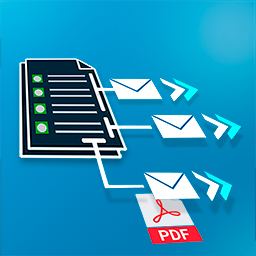
• 自動供應商通知,快速傳遞訂單資訊
• 支援電子郵件與 WhatsApp 通知供應商
• 一鍵接受/拒絕/其他回應,簡化供應商管理
• 智能提醒,跟進未回應的供應商
• 供應商儀表板,快速查看訂單狀態
• 多語言訊息通知,支援12種語言
外掛標籤
開發者團隊
原文外掛簡介
Selling products from suppliers? MyVendorHub organizes your inventory, pricing, and orders — automatically.
This free plugin connects your WooCommerce store to MyVendorHub. When a customer orders a supplier’s products, MyVendorHub notifies the right vendor by email or WhatsApp, tracks their Accept / Reject / Other response, and writes status updates back to your order notes — so nothing falls through the cracks.
Less spreadsheets. Less WhatsApp chaos. Fewer mistakes. More control.
What MyVendorHub does for your store
Automatic supplier notifications — New orders are routed to the right vendor with product details, quantities, and shipping address
Email & WhatsApp — Reach vendors on the channels they already use (WhatsApp on Growth+ plans)
One-click Accept / Reject / Other — Vendors respond from a secure link; you get alerts when something needs attention
Smart reminders — Configurable follow-ups for vendors who haven’t replied, optionally limited to working hours
Supplier dashboard — Orders grouped by vendor with revenue, product details, and fulfillment status at a glance
Vendor sync from your catalog — Pull vendor names from product meta and manage contacts in one place
Product Scanner — Track supplier product page URLs for price, availability, and catalog changes
Event Hub — Activity feed for notifications sent, vendor responses, reminders, and failures
Multi-language messaging — Notify vendors in 12 languages (including Hebrew and Arabic)
Multi-store ready — Manage multiple WooCommerce stores from one MyVendorHub account
HPOS compatible — Works with WooCommerce High-Performance Order Storage
Merchants manage vendors, reminders, scanner, billing, and responses in the MyVendorHub web dashboard — this plugin keeps your store connected securely.
Free Starter plan available after connect (limits apply). Paid plans unlock more vendors, reminders, WhatsApp, and higher volume. See pricing on myvendorhub.com.
How it works
Install → Connect → done. No WooCommerce REST API keys are required for the standard setup — the plugin securely handles order sync, vendor sync, draft product creation, and order note/status write-back on its own.
Install and activate this plugin (WooCommerce 6.0+ required).
Connect your store to MyVendorHub in WooCommerce → Settings → MyVendorHub.
Add vendor contacts and enable notifications in the MyVendorHub dashboard.
Place a test order — vendors are notified within seconds, and responses appear on the order in WooCommerce.
Connect your store
Recommended: one-click Connect
Review the permissions checklist on the settings page, then click Connect to MyVendorHub. Sign in (or create an account), and your store credentials are returned securely — no secrets are embedded in the plugin.
After connecting, use Open MyVendorHub in wp-admin to return to your dashboard without signing in again (signed SSO launch).
Manual connection (Advanced)
Already have a store in MyVendorHub? Copy Store ID and API token from MyVendorHub → Settings → API access, then paste them under Advanced → Manual connection in WooCommerce → Settings → MyVendorHub.
Developers (self-hosted only)
For local / self-hosted MyVendorHub environments, define VENDORHUB_WC_CONNECT_SECRET in wp-config.php to enable a Direct connect (dev) HMAC registration button. Not used for the public SaaS.
External services
This plugin connects your store to MyVendorHub cloud services over HTTPS (default host: https://www.myvendorhub.com). A MyVendorHub account is required to forward orders.
Data that may be transmitted after you connect:
Connect — your site URL, store display name, and a per-site plugin token used to complete the handshake
Order sync — order number, line items, SKUs, vendor names, shipping address, and customer contact details needed for fulfillment
Inbound updates — MyVendorHub securely POSTs vendor status, notes, and tracking back to your WordPress site (HMAC-verified)
No MyVendorHub admin passwords are stored in WordPress. Only the per-store storeId and apiToken from connect are saved locally.
Privacy policy: https://www.myvendorhub.com/privacy
Learn more or try the live demo: https://www.myvendorhub.com