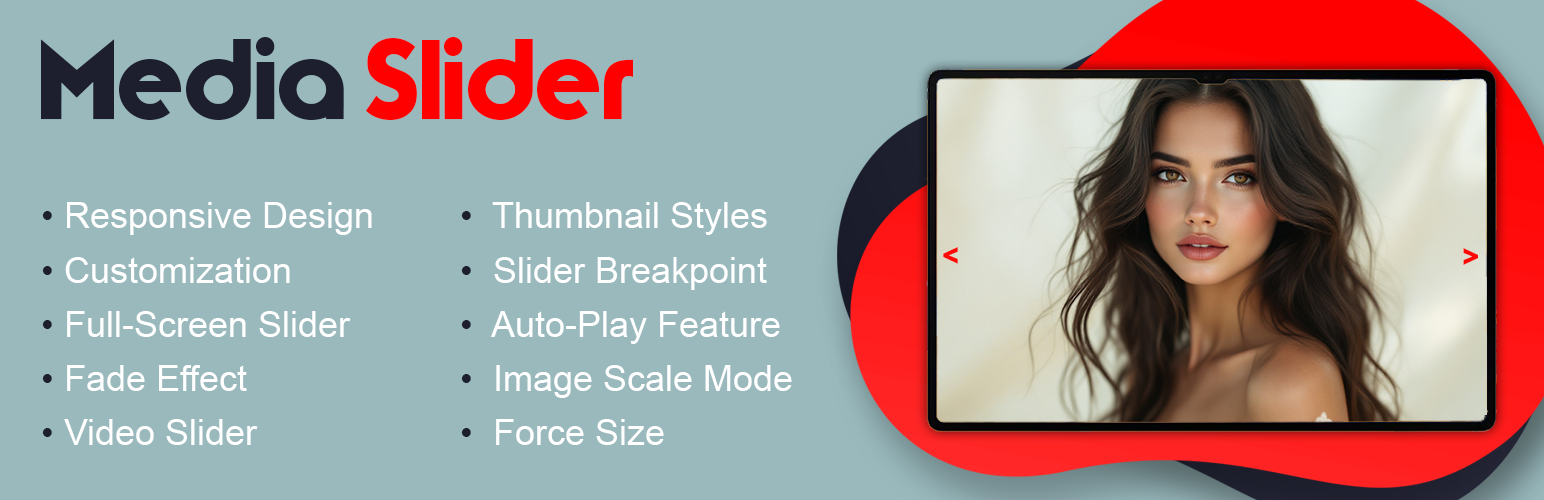
內容簡介
Media Slider for Photos Images Videos 是一款可創建響應式圖片滑動顯示的外掛,讓您能夠在 WordPress 網站上展示照片、圖片畫廊及播放影片幻燈片,簡單易用,適合各種媒體檔案的管理。
【主要功能】
• 創建平滑淡入效果的照片幻燈片
• 在網站上顯示 YouTube 影片
• 建立混合畫廊,包含圖片與影片
• 同時顯示多個幻燈片於旋轉木馬
• 啟用響應式縮圖導航
• 選擇全寬或盒裝佈局
外掛標籤
開發者團隊
② 後台搜尋「Media Slider for Photos Images Videos」→ 直接安裝(推薦)
📦 歷史版本下載
原文外掛簡介
Create a responsive image slider to display photos, picture galleries, and play video slides on your WordPress website.
Media Slider Description for Photos and Videos
Media Slider helps you create beautiful slideshows for your site. You can showcase photo galleries, list portfolio items, or embed videos. This easy-to-use plugin organizes all media files in one dashboard.
View Free Demo: Media Slider | View Pro Demo: Media Slider Pro
Learn More About Pro: Media Slider Pro | Purchase Pro: Buy Media Slider Pro
You can upload photos from your library. The plugin also supports YouTube videos. Add as many slides as you want. You can display the slider anywhere using a simple shortcode. Each slide allows custom titles, text descriptions, and links.
Key Uses:
* Make photo slideshows with smooth fade effects.
* Display YouTube videos on your site.
* Build mixed galleries with images and videos.
* Show multiple slides at once in a carousel.
* Enable responsive thumbnail navigation.
* Select full-width or boxed layouts.
Free Version Key Features:
* Fully responsive layout fits any screen size.
* Transition styles like slide and fade.
* Classic previous and next arrow buttons.
* Option to display navigation thumbnails below.
* Custom width and height control fields.
* Autoplay slide mode with speed settings.
* Full-screen viewing button.
* Simple sidebar widget support.
* Compatible with standard WordPress themes.
* No coding experience needed.
Premium Version Features:
* 4+ unique styles for navigation arrows.
* 3+ navigation thumbnail layouts.
* 9+ caption positions for texts.
* Display image, YouTube and Vimeo videos on your site.
* Advanced controls to autoplay, loop, or mute videos.
* Custom breakpoint options for different screens.
* 3+ image fitting and scaling methods.
* Force size settings to lock slider dimensions.
* Fast priority email support.
Free vs Pro Version Comparison:
Free Version:
* Create unlimited slideshow panels.
* Upload photos and insert video links.
* Use basic arrows or thumbnails.
* Apply classic fade slide transitions.
* Mobile friendly and responsive.
* Embed via widget.
* Embed via shortcode.
Pro Version:
* Insert YouTube and Vimeo videos.
* Multiple navigation designs.
* Richer thumbnail templates.
* Custom position options for captions.
* Video autoplay and mute tools.
* Advanced mobile breakpoints.
* Smart image crop layouts.
* Dedicated developer support.
Quick Setup Guide:
1. Open the Media Slider menu in your dashboard.
2. Click “Add Media Slider” to create a new post.
3. Select your photos or add video links.
4. Save settings and publish the post.
5. Copy the shortcode and paste it on any page.
Getting Support:
If you have questions, please visit our support forum. We reply to all support tickets within 24 to 48 hours.
Installing the Photo and Video Slider
Upload the plugin folder to the /wp-content/plugins/ directory. Or use the WordPress admin installer.
Activate the plugin on the plugins page.
Click “Media Slider” in the sidebar menu.
Click “Add Media Slider” to create a post.
Add photos and adjust settings.
Publish the post to generate the shortcode.
Paste the shortcode into any page or post.
Photo and Video Slider FAQ
How do I create a new photo and video slider?
Go to the Media Slider menu. Click “Add Media Slider” in your dashboard. Upload photos or add video URLs. Set options and publish. Paste the shortcode on your page.
Can I mix photos and videos in the same image slider?
Yes. Media Slider supports mixed layouts. You can combine library photos with YouTube and Vimeo links in one slider.
Is this photo and video slider mobile responsive?
Yes. The layouts adjust automatically. Your slideshows look clean on desktops, tablets, and phones.
How do I embed the slider shortcode on my page?
Copy the shortcode from the slider editor. Paste it into the editor of any page, post, or widget.
Can I change navigation arrows in the image slider?
The free version has standard arrows. The premium version includes 4+ different arrow designs.
What video slide platforms does the slider support?
The plugin supports YouTube and Vimeo videos. Paste the link into the slide URL field.
How many photo and video sliders can I build?
You can create as many sliders as you want. Each slider can have unlimited slides.
Can I add descriptions to photos in the slider?
Yes. Every slide supports a title, description, and link. The Pro version offers 9+ text alignment layouts.
Does the shortcode work with Elementor and other page builders?
Yes. The shortcode works in Elementor, Beaver Builder, Divi, and other site builders.
How do I enable autoplay for photos and video slides?
Check the autoplay settings in the options panel. Set the duration timer between slides.
Can I show thumbnails below the photo slider?
Yes. Turn on the thumbnails option in your settings. This navigation works in both versions.
What is the difference between the free and premium image slider?
The free version has core features. The Pro version adds premium navigation arrows, advanced thumbnails, captions, video controls, and support.