內容簡介
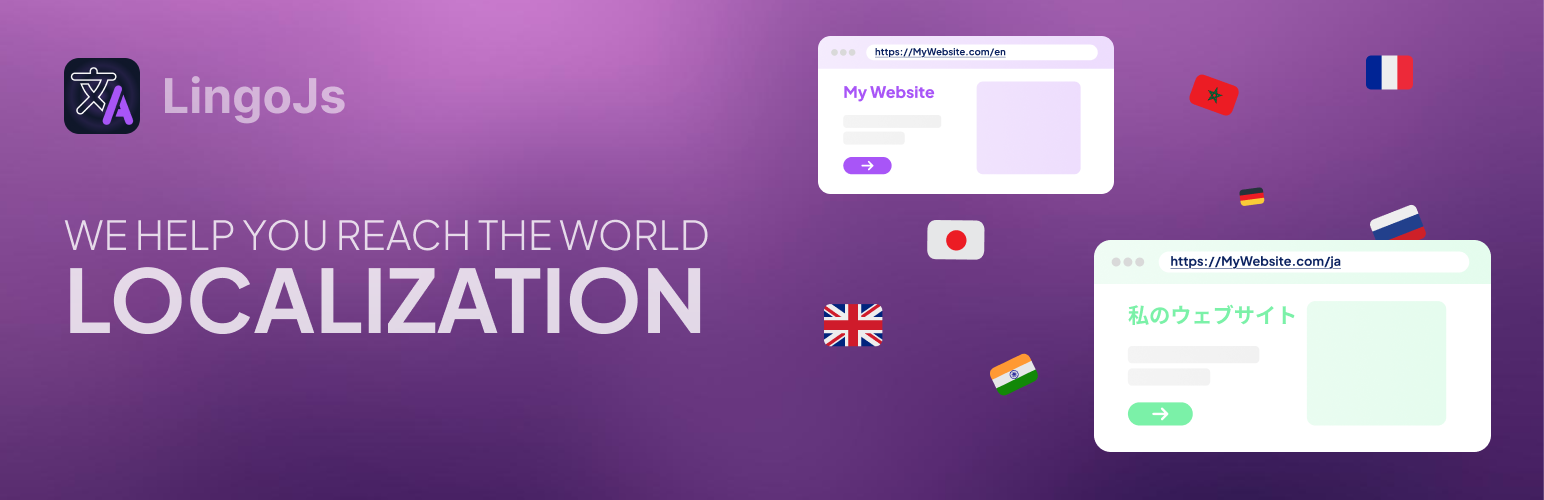
LingoJS 是一款官方 WordPress 外掛,能夠輕鬆將您的網站與 LingoJS 連接,無需編輯主題檔案。透過此外掛,您可以在控制台中設定翻譯選項,實現自動化的多語言翻譯。
【主要功能】
• 自動插入 LingoJS 腳本
• 定義 LingoJS 專案金鑰
• 設定基礎語言與目標語言
• 啟用持久語言選擇
• 顯示或隱藏語言切換小工具
• 支援動態內容顯示
外掛標籤
開發者團隊
② 後台搜尋「LingoJS – Website Translation Integration」→ 直接安裝(推薦)
原文外掛簡介
LingoJS Integration is the official WordPress plugin for connecting your website with LingoJS. No more editing your theme files! This plugin lets you add the LingoJS script and configure your translation settings from the WordPress admin panel.
Note: This plugin integrates with the LingoJS SaaS platform and uses a remote script to connect to our translation engine. This is required to provide automatic, dynamic multilingual translations for your website.
Key features:
Automatically insert the LingoJS script
Define your LingoJS project key
Set base and target languages
Enable persistent language selection
Show/hide the language switcher widget
Display the language switcher as a floating widget or embed it anywhere with a shortcode
Support for dynamic content
Privacy Notice
This plugin integrates with the LingoJS SaaS platform by loading a remote script to provide automatic and dynamic multilingual translations.
By using this plugin, you acknowledge that a connection is made to LingoJS servers. You must have a valid LingoJS account and agree to our Terms of Service and Privacy Policy, available at:
https://lingojs.com/terms
https://lingojs.com/privacy
The plugin itself does not collect any personal data directly. However, the LingoJS service may collect data as described in their privacy policy.
Please review our policies to understand how your data is handled when using this plugin.
Usage
After activating the plugin:
Refresh your website page. The language widget should appear.
If it shows “undefined,” refresh the page once more. This happens because the browser is still retrieving your LingoJS settings, so a quick reload ensures everything loads correctly.
Go to your LingoJS dashboard and open the Translations section.
Select the texts you want to publish or block.
Texts marked as “published” will be automatically translated into all target languages of your project.
Return to your website and refresh the page.
You should now see your text translated based on your settings.
Embedded Widget
To place the language widget inside your page instead of floating over it:
Open Settings > LingoJS and set Widget Display to Embedded in page.
Add the [lingojs_widget] shortcode where the widget should appear.
In Elementor, add a Shortcode widget to the desired section and enter [lingojs_widget]. The widget also works in Gutenberg, theme templates, and other page builders that support WordPress shortcodes.