外掛標籤
開發者團隊
② 後台搜尋「KeepInMind Dashboard Notes」→ 直接安裝(推薦)
📦 歷史版本下載
原文外掛簡介
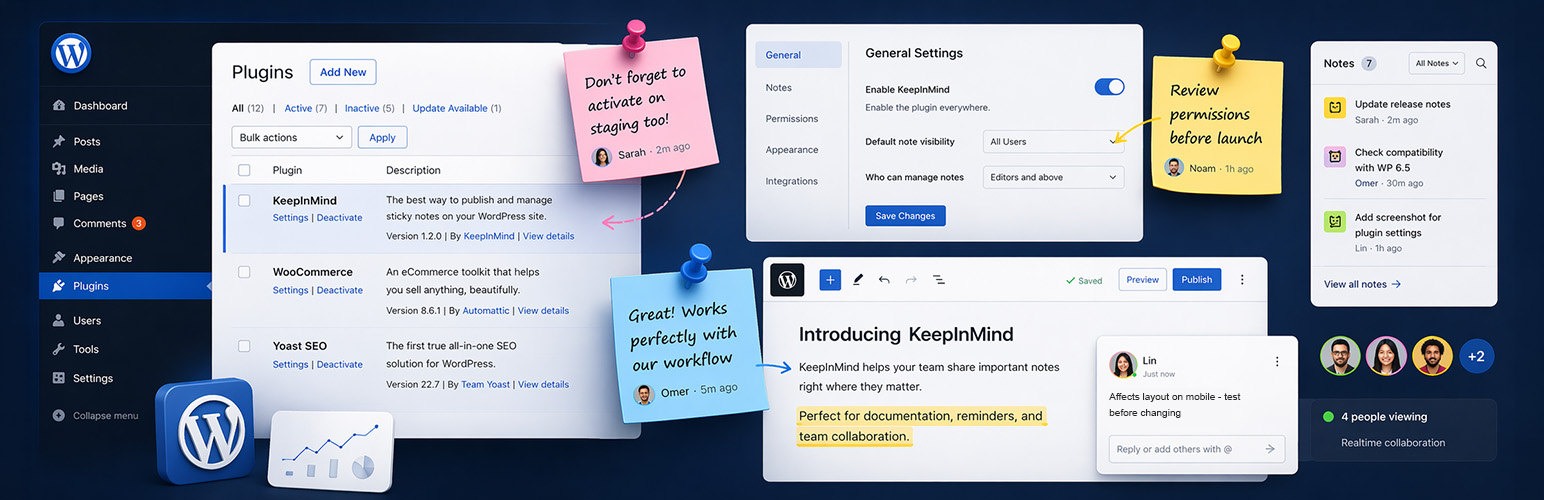
KeepInMind Dashboard Notes turns your WordPress dashboard into a collaborative workspace. Place notes directly on any admin page – anchored to the exact element you’re talking about. No more Slack messages, emails, or random chats saying “that field on the product edit page” – just click, write your note, and your team sees it right where it matters.
Why KeepInMind Dashboard Notes?
Whether you’re working in a team or managing a site on your own, the same problem keeps coming up: how to keep track of decisions in the dashboard. Which settings need to change? What does this custom field do? Why is this item configured this way?
KeepInMind Dashboard Notes solves this by letting you pin notes directly to dashboard elements – for your team, or for your future self.
Here are just a few real-world scenarios where it shines:
You temporarily disable a plugin to test whether it’s causing a conflict. Drop a Warning note on the Plugins page so everyone knows it was turned off on purpose – and so you remember to check back in three weeks.
You installed a plugin for one very specific reason that isn’t obvious. Pin a note to it explaining why it’s there, so another admin – or future you – doesn’t delete it thinking it’s unused.
A client keeps changing a setting that breaks their site. Attach an always-visible Alert banner right next to that toggle: “Do not change – this controls the checkout redirect.”
Your developer configured a custom field with a non-obvious format. Leave a note on the field itself explaining what values are expected, so the content team doesn’t have to guess.
You’re onboarding a new team member. Instead of writing a separate training doc, scatter helpful Attention banners across the pages they’ll use most – guidance that shows up exactly where they need it.
You’re running a staging review before launch. Pin notes to every area that needs a final check, and let your team reply with updates as they work through the list.
Key Features
Pin Notes Anywhere
Click any element on any admin page to leave a note. Your note stays anchored to that exact element – a form field, a menu item, a settings toggle, a table row. When your teammate visits the page, they see the note marker right where it belongs.
Rich Text Editing
Format your notes with bold text, links, and text colors. The floating toolbar appears on text selection.
Three Note Types:
Pinned Note – Appears as a marker on the page. Click to open and manage a threaded discussion.
Open Note – Always visible inline. Choose a color to highlight the note based on its importance.
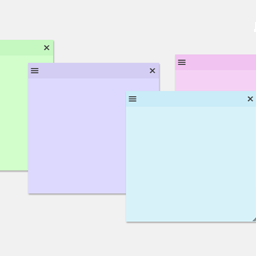
Sticky Note – Bold square note that sticks in place for highly visible reminders and warnings.
@Mention Teammates
Type @ to mention any allowed user. They’ll receive an email notification with your note. Autocomplete helps you find the right person fast – just keep typing to filter.
Private notes
Mark any note as private so only you can see it. Perfect for personal reminders and work-in-progress notes.
Threaded Replies
Pinned notes support full threaded replies. Keep conversations organized and contextual without cluttering the page.
Drag & Relocate
Notes can be dragged to a new element if the page layout changes. Grab the drag grip and drop it on the right spot – all replies move with it.
Note Scoping
On entity pages (posts, terms, users), choose whether your note applies to this specific item or all items of this type. For example, a note on the “Blue T-Shirt” edit page can be scoped just to that product – or to the edit page of all products.
Configurable Permissions
Control exactly who can add notes and who can edit or delete:
Role-based access – Choose which roles can use the plugin (Administrator is always included).
User-level access – Whitelist specific users regardless of role.
Edit/Delete/Relocate policies – Author only, role hierarchy (strict or relaxed), or everybody.