內容簡介
**總結:**
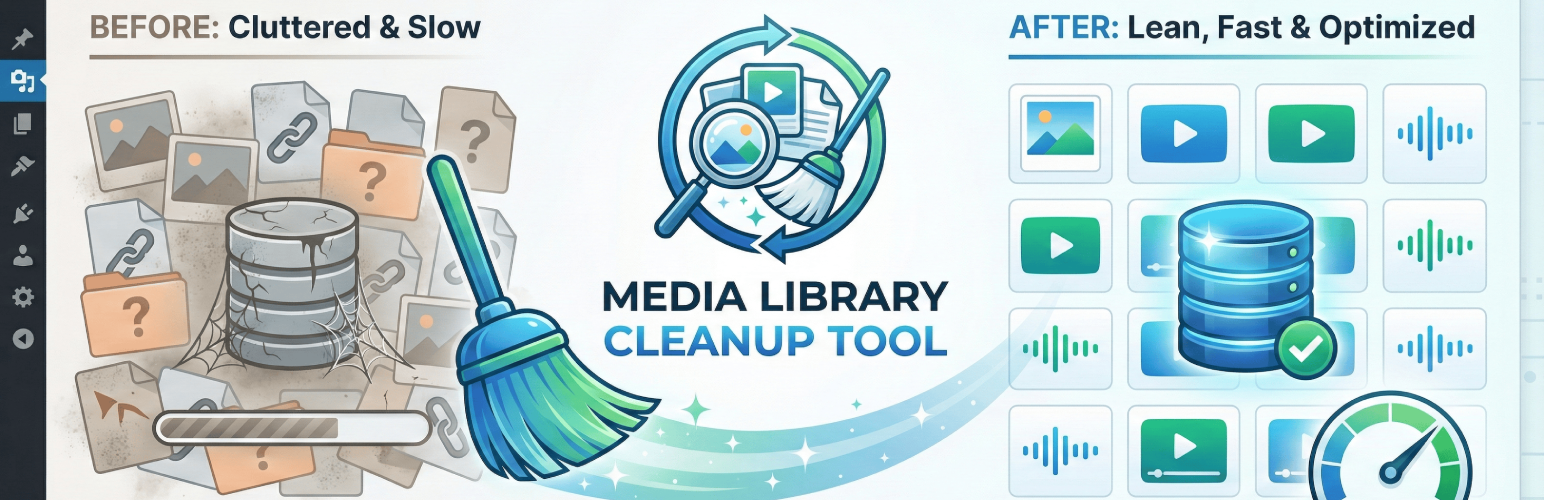
Jix 媒體庫清理工具是 WordPress 管理員的終極解決方案,可以清理媒體庫,減少數據庫膨脹,提升網站效能。它可以幫助您掃描、分析並安全移除庫中的“孤立”項目。
**問題與答案:**
1. 什麼是 Jix 媒體庫清理工具的免費 (Lite) 版本提供的功能?
- 答: 包括 Dashboard Overview、Dry Run Mode、Move to Trash、Standard Cleanup Criteria、Safety Protections、Real-Time Logs、Batch Processing 等功能。
2. 在什麼情況下應該選擇將文件移至垃圾桶,而不是立即永久刪除?
- 答: 當您需要保留參考,以便在必要時還原文件時,可以選擇將其移至垃圾桶。
3. Pro 版本的 Jix 媒體庫清理工具提供了哪些功能?
- 答: Pro 版本可以解鎖 Deep Scan Engine、Automated Scheduler、Advanced Audit Logging、Advanced Filtering 以及 Unlimited Batch Size 等功能。
4. 如何設置 Jix 媒體庫清理工具以進行清理?
- 答: 首先進入 Tools > Media Cleanup,然後查看統計資料,配置設置(啟用 Dry Run Mode 和 Move to Trash 等),選擇清理標準,設置控制項,運行清理並在實時進度日誌中檢視進度。
外掛標籤
開發者團隊
② 後台搜尋「Jix Media Library Cleanup Tool」→ 直接安裝(推薦)
原文外掛簡介
The Jix Media Library Cleanup Tool is the ultimate solution for WordPress administrators looking to clean up their media library, reduce database bloat, and improve site performance.
Over time, your WordPress Media Library accumulates “orphaned” items—database entries without files, files not attached to any posts, or broken links. This tool allows you to scan, analyze, and remove these items safely.
🚀 Upgrade to the Pro Version to unlock Deep Scanning for page builders (Elementor/Divi), Automated Scheduling, and Advanced Filtering.
✨ Free (Lite) Features
Dashboard Overview: Get a quick snapshot of your library health, including Total Attachments, Estimated Library Size, and Unattached Items.
Dry Run Mode: The safest way to clean. Run a full simulation to see exactly what would be deleted without touching a single file.
Move to Trash: Support for “Soft Delete.” Instead of permanently deleting files, move them to the WordPress Trash first so you can restore them if needed.
Standard Cleanup Criteria:
Missing Parent Post: Attachments belonging to deleted posts.
Missing Physical File: Database records where the actual file is missing from the server.
HTTP Errors: Detects images returning 403 (Forbidden) or 404 (Not Found) errors.
Unattached (Unused) Media: Files that are not attached to any specific post or page.
Safety Protections:
Ignore Recent Files: specific setting to protect files uploaded within the last X days (default 30) from being scanned.
Manual Exclusions: “Lock” specific files to ensure they are never deleted.
Real-Time Logs: View a live log of the cleaning process directly on the screen as batches are processed.
Batch Processing: Processes files in small batches (Max 5 in Lite) to prevent server timeouts.
💎 Pro Features
Unlock the full power of Jix Media Cleanup:
Get Pro Version Now
Deep Scan Engine: The standard scan looks at WordPress attachments. The Deep Scan engine analyzes content within Page Builders (Elementor, Divi), Widgets, and Theme Options to ensure you don’t delete images currently in use by your design tools.
Automated Scheduler: “Set it and forget it.” Schedule your cleanups to run automatically (Daily, Weekly, or Monthly) with your preferred criteria.
Advanced Audit Logging: Keep a permanent record of every action taken with downloadable log files.
Advanced Filtering:
Filter by Parent Post Types: Restrict scans to specific post types (e.g., scan only ‘product’ or ‘post’).
Exclude File Formats: Prevent specific file extensions (e.g., .pdf, .gif) from ever being deleted.
Unlimited Batch Size: Remove the 5-item limit for faster processing on powerful servers.
How to Use
Navigate: Go to Tools > Media Cleanup.
Review Stats: Check the top widgets for an overview of your library.
Configure Settings:
Enable Dry Run Mode (Highly Recommended for first use).
Enable Move to Trash for added safety.
Select Criteria: Choose what you want to clean (e.g., Missing Parent Post, Unattached Media).
Set Controls:
Set “Ignore Recent Files” (e.g., 30 days).
(Pro) Enable Deep Scan if you use Elementor or Divi.
Run: Click the “Start Cleanup” button.
Review: Watch the “Real-time Progress” log. If in Dry Run, review the results to see what would have been deleted.