外掛標籤
開發者團隊
② 後台搜尋「Instaread Audio Player — Text-to-Speech & Article-to-Audio」→ 直接安裝(推薦)
原文外掛簡介
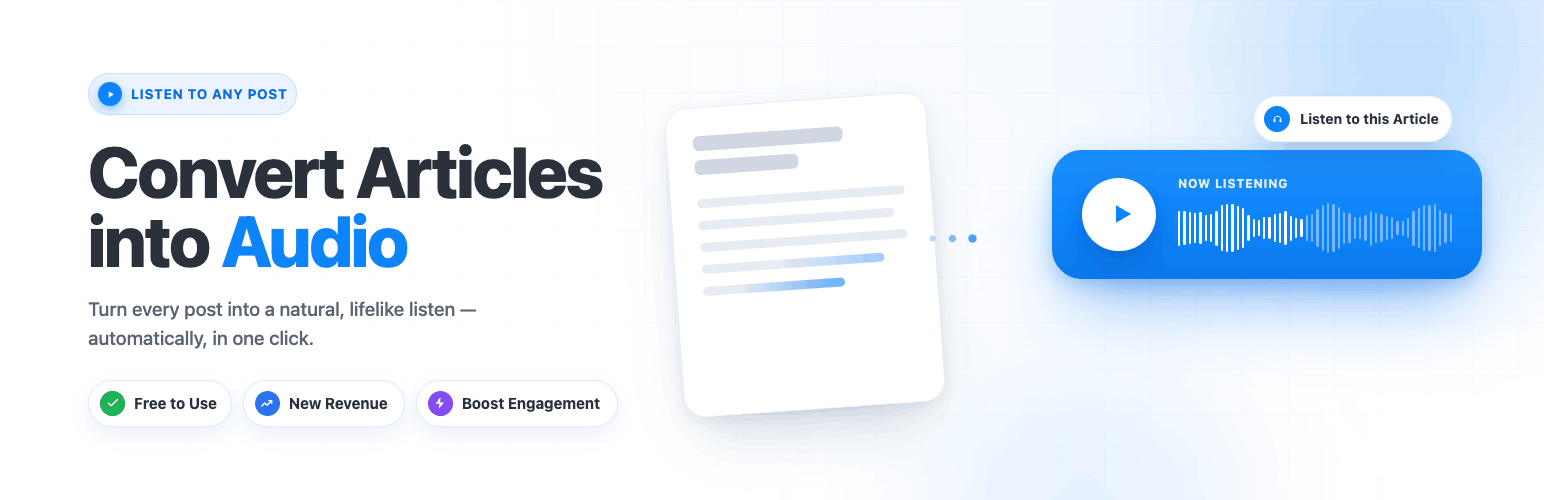
Instaread Audio Player converts your WordPress articles, blog posts, and pages into natural-sounding audio and embeds an audio player on your content. The plugin is provided at no cost to publishers; Instaread operates on an ad-supported model, where revenue is generated through optional audio advertising and shared with the publisher.
The plugin is intended for publishers who want to add an audio version of their text content to improve accessibility and offer an alternative way to consume articles.
Features
Automatic text-to-speech conversion for posts, pages, and custom post types
Embedded audio player with waveform visualizer
Color and style customization to match your site’s branding
Voice library with multiple natural-sounding voices; voice cloning available on request
Site-specific pronunciation dictionary for proper nouns and brand names
Analytics dashboard with listener metrics
Audio podcast feed generation for distribution to podcast platforms
Playlist support for serialized content
Subscribe-to-listen flow for paywalled content
Optional ad suppression for logged-in subscribers
Works with standard WordPress themes
Compatible with major page builders (Elementor, Divi, Beaver Builder, Gutenberg)
Mobile-responsive player layout
Asynchronous player loading — does not block page rendering
How It Works
Install and activate the Instaread Audio Player plugin
Connect your site through the onboarding wizard
Choose your voice, customize the player appearance, and add the required ads.txt lines
Submit your site for approval
Once approved, your articles are converted to audio and the player appears on every post
Who Is This For?
News publishers who want to offer an audio version of their articles
Bloggers who want to make content accessible to audio-first audiences
Content-heavy websites looking to add audio without a separate production pipeline
Magazine and media sites that want an audio version of their archive
Pricing and Monetization
The plugin is provided at no cost to publishers. Instaread’s revenue comes from optional audio advertising played within the audio stream; publishers receive a share of that revenue.
Configuration Guide
Admin Dashboard
After activation, the Instaread menu appears in the WordPress admin sidebar. All settings are managed through a locally-rendered admin interface — no iframes, no external page loads in the admin.
Step 1 — Register Your Site
Fill in:
* Website Name — your publication name
* Homepage URL — your site’s root URL (e.g. https://example.com)
* Email Address — for account notifications
Step 2 — Choose a Voice
Browse the voice library and click the play button to preview any voice
Select one or more voices — the system will alternate between them
Browse the available voices and choose the ones that best fit your publication
Step 3 — Configure the Player
Player Design: Choose from Acoustic Player (waveform visualizer), Compact Acoustic, or Compact
Player Color: Set the primary accent color to match your branding
Player Label: Defaults to “Listen to this article” — customize as needed
Waveform Colors, Timestamps Color, and Advertisement Text are available depending on design
A live preview updates instantly as you change settings — no need to save first
Step 4 — Set Player Position
Default Position (recommended): Player is injected above .entry-content automatically
Custom Position: Enter a CSS selector (e.g. .article-body) and choose above or below
Step 5 — Submit for Approval
Click Submit for Approval. You will be taken to a confirmation screen that shows:
* Your submission status (pending → accepted)
* The ads.txt content you must add to your domain
Step 6 — Add ads.txt
Instaread requires ads.txt entries to serve audio ads. Add the provided lines to your domain’s /ads.txt file. You can:
* Edit the file manually at https://yourdomain.com/ads.txt
* Use the free Ads.txt Manager WordPress plugin (recommended)
The confirmation screen shows a live verification indicator — green when detected correctly.
Step 7 — Approval and Go-Live
Once Instaread verifies your ads.txt and approves your site, audio generation begins automatically. New posts are converted within minutes of publishing. Your full archive is also converted at no additional cost.
Approval typically happens within a few hours of submission. After approval, additional settings pages unlock in the admin sidebar:
* Voice Selection — change or add voices
* Audio Player — update player design and colors
* Position — change player placement
* Manage Posts — include/exclude posts by date or category
* Pronunciation — add custom pronunciations for brand names or proper nouns
* Ads — view and copy your ads.txt configuration
* Analytics — view listener metrics (plays, duration, geography)
Testing the Plugin
For WordPress.org Reviewers
The plugin has two distinct phases: before approval (configuration only) and after approval (player active on posts).
To test the admin interface:
Install and activate the plugin
Click Instaread in the admin sidebar
You will see the setup wizard — fill in any website name, URL, and email to explore the interface
Use the voice library to preview voices (click the play button next to any voice)
Change the player design, colors, and label — the live preview updates instantly without saving
The admin UI is a locally-rendered React application — no iframes, no external page loads in the admin
To test with a live account:
Complete the registration form with real site details and submit
Add the provided ads.txt lines to your domain
After submitting, visit any post on the front end — a player placeholder (“Audio coming soon”) appears immediately on all posts, confirming the plugin is injecting correctly
Once Instaread approves your site, audio is generated for your articles and the placeholder is replaced with a fully playable audio player
Click play to hear the article read aloud
Note for reviewers: The player widget is injected on posts immediately after activation — you will see it on the front end right away showing “Audio coming soon”. Audio generation requires a one-time Instaread approval (to prevent abuse of TTS resources). The admin UI, player preview, voice previews, and all settings pages are fully functional without approval.
External Services
Instaread Audio Player connects to external services operated by Instaread (https://instaread.co).
By installing this plugin, you agree to the Instaread Terms of Service and Privacy Policy.
External Service Disclosure
This plugin connects to Instaread’s external audio service. Instaread’s hosted service performs article-to-audio processing, audio hosting, player delivery, ad serving, analytics, and revenue-share reporting. These functions are not performed locally by the WordPress plugin.
When enabled by the site administrator, the plugin may send article URLs, article text, site domain, and basic playback/ad event data to Instaread for the purpose of generating audio, serving the audio player, measuring usage, and supporting ad monetization.
Use of the Instaread service is subject to Instaread’s Terms of Use (https://instaread.co/terms).
Instaread API (https://api.instaread.co)
Purpose: Plugin registration, hourly settings sync, activation/deactivation/deletion lifecycle signals, and voice metadata lookups (name, gender, accent) for voices selected by the site administrator.
Data sent: Site publication identifier, website URL, and (for voice lookups) the voice identifier the administrator selected. No reader, author, or post content is sent to this endpoint.
Terms of Service: https://instaread.co/terms
Privacy Policy: https://instaread.co/privacy
Instaread Player API (https://player-api.instaread.co)
Purpose: Submits article content for text-to-speech conversion each time a published post is saved.
Data sent: Article title, author, publication date, body content (plain text), article URL, featured image URL, and your site’s publication identifier.
Terms of Service: https://instaread.co/terms
Privacy Policy: https://instaread.co/privacy
Amazon S3 — Instaread Player Service (https://s3.us-east-1.amazonaws.com/instaread-scripts/)
Purpose: Delivers the Instaread audio player JavaScript as part of the Instaread service. This
is not an offloaded static asset — it is a per-publisher service bundle generated and maintained
server-side by Instaread. It cannot be included inside the plugin ZIP because:
Every publisher receives a unique bundle compiled for their specific Instaread account.
The bundle contains publication-specific configuration, monetization logic, voice model
bindings, and audio delivery settings that are updated server-side without requiring a
plugin update.
There is no single file to bundle — the URL path (instaread.{publication}.js) is unique
per publisher and resolved at runtime using the configured publication identifier.
This is the same model used by services such as Disqus, Wistia, and Mailchimp, which deliver
account-specific JavaScript bundles from their own servers. Instaread operates as a managed
text-to-speech and audio monetisation service; the JavaScript delivery is an integral part of
that service, not a convenience offload.
No personal user data is transmitted to this endpoint.
Amazon Web Services Privacy Policy: https://aws.amazon.com/privacy/
Data Sent Summary
Plugin activation: site URL and publication ID → api.instaread.co
Post publish/update: article title, author, content, URL, image → player-api.instaread.co
Hourly sync: publication ID → api.instaread.co
Voice metadata lookup (on admin save of selected voices): voice identifier → api.instaread.co
Plugin deactivation/deletion: publication ID → api.instaread.co
Instaread does not use your content to train AI models. You retain all intellectual property rights.
See https://instaread.co/privacy for full details.
Source Code
The admin dashboard is a React (TypeScript) application compiled with Vite. To comply with the WordPress.org plugin directory’s human-readable code requirement, the full unminified source is included in this distribution alongside the compiled bundle:
Compiled bundle (loaded by the plugin): react-app/dist/js/index.js
Unminified source: react-app/src/
Build configuration: react-app/vite.config.ts, react-app/package.json, react-app/tsconfig.json
To rebuild the bundle from source:
cd react-app && npm install && npm run build
This regenerates react-app/dist/ with the same compiler settings used to ship the distribution (Vite + esbuild minification, console/debugger stripped).