
內容簡介
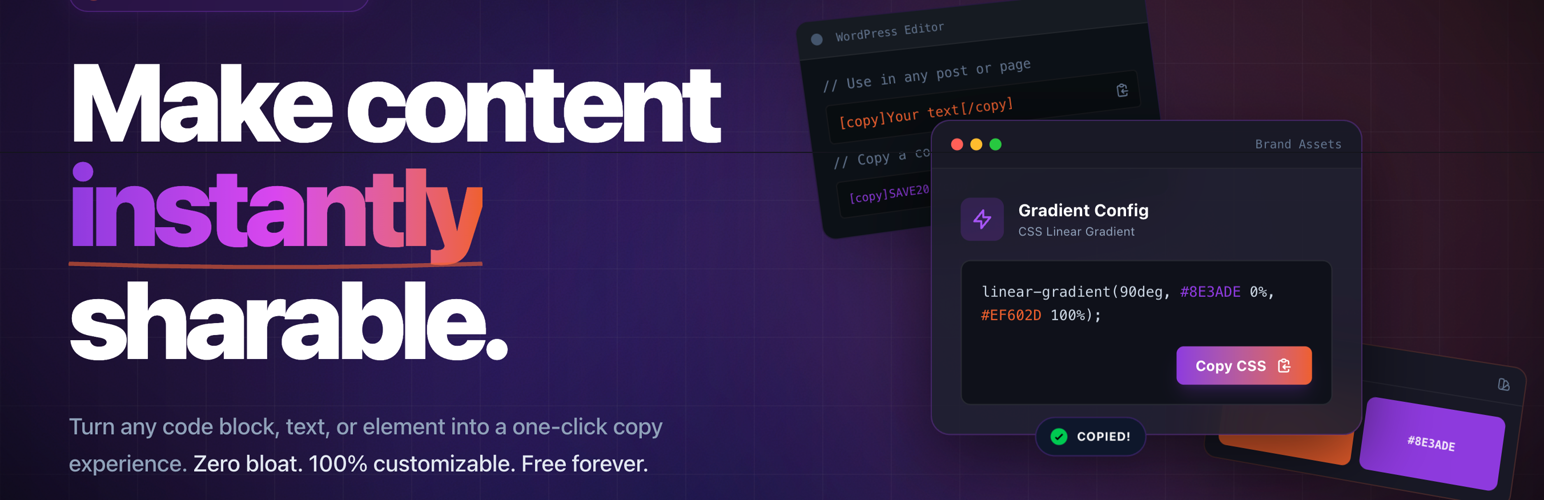
Copy Anything to Clipboard 外掛幫助訪客輕鬆複製文本、連結、優惠碼等內容,無需繁瑣的文本選取,提升用戶體驗,特別是在行動裝置上。
【主要功能】
• 一鍵複製文本、連結及代碼片段
• 支援 WooCommerce 和教學網站
• 自動化按鈕注入,靈活配置
• 提供多種佈局選項和小工具
• 與 Elementor 和 Gutenberg 完美整合
外掛標籤
開發者團隊
② 後台搜尋「Copy Anything to Clipboard for WordPress – Copy Button, Copy Text & Copy Code」→ 直接安裝(推薦)
📦 歷史版本下載
原文外掛簡介
Copy Anything to Clipboard helps visitors copy text, links, coupon codes, commands, email addresses, AI prompts, and code snippets in one click—no awkward text selection on mobile, no broken formatting in the clipboard.
Use it on blogs, docs, WooCommerce and deal sites, SaaS landing pages, tutorials, and support hubs where you want fewer “how do I copy this?” questions and smoother sharing of URLs, promos, and technical steps.
Why site owners install it
Better UX – Especially on touch devices, a dedicated copy control beats “long-press to select.”
Higher intent actions – Coupon codes, affiliate links, and checkout snippets convert better when copying is frictionless.
Flexible placement – Target elements automatically, or drop shortcodes/blocks only where you need them.
Integration options
Global Injector – Rules that match CSS selectors (e.g. pre, code, .coupon) plus display conditions and live preview.
Classic CSS selector rules – Site-wide automatic copy buttons for matching markup.
Shortcodes – [copy] (alias: [ctc]) for precise placement in the editor, widgets, and templates.
Elementor – 25+ widgets for common patterns (code, coupon, email, prompt, deal link, and more).
Gutenberg – Native blocks for the block editor.
Highlights
Button, Icon, and Cover presets; copy as plain text or HTML where supported.
Performance-minded – Combine display conditions with how you publish rules so assets run where copy UI is actually used.
Works with typical WordPress stacks – Themes, builders, and caching setups; mobile and modern desktop browsers.
How to use
You can add copy buttons anywhere on your WordPress site using one of the following methods:
EASY: Shortcodes
Manually add copy controls with [copy] anywhere in your content.
AUTOMATIC: Global Injector
Automatically inject copy buttons into any element using CS selectors like pre, code, blockquote, or any custom selector with advanced display conditions.
Elementor Widgets
Add copy buttons visually using dedicated Elementor widgets.
Gutenberg Blocks
Insert copy buttons directly inside the WordPress block editor using Gutenberg blocks.
METHOD 3 – Manually with “Shortcodes”
Use [copy] anywhere you want an explicit copy control (Classic editor, Shortcode block, widget areas, patterns, or PHP templates via do_shortcode()). [ctc] is the same shortcode with a shorter name—use either.
How it works (matches the plugin code)
Default layout is the inline preset (clickable text + icon). Switch with preset="button", preset="icon", or preset="cover".
text="…" (or text wrapped between [copy] and [/copy]) is what lands on the clipboard.
display="…" overrides the visible label when it must differ from the copied string (masked secrets, mailto links, etc.).
Legacy pair: text="…" + content="…" — content is copied, text is what visitors see (handy for hiding long URLs behind a short CTA).
Try it on a fresh install — add a Shortcode block (or switch the block editor to Code editor), paste one snippet, Update, view the page, and tap the control.
Example 1 – Datetime inside a sentence
Next live workshop: [copy]2030-03-19 10:00 America/New_York[/copy] — copy the full value for your calendar tool.
Example 2 – Email inside a sentence
Billing questions? Email [copy][email protected][/copy] and include your order ID.
Example 3 – Show the mailbox, copy a ready-made mailto link
[copy display="[email protected]"]mailto:[email protected]?subject=Question%20from%20website[/copy]
Visitors see [email protected]; the clipboard receives the full mailto: string with the subject line.
Example 4 – Mini support block (swap in your real IDs)
Before you open a ticket, include:
- Order ID: [copy]WC-104592-UK[/copy]
- Line item SKU: [copy]BM-HOODIE-M-NVY[/copy]
- Return auth: [copy]REF-88C0A921[/copy]
Example 5 – Coupon inside marketing copy
Launch week only — use [copy]SPRINGLAUNCH26[/copy] at checkout for 25% off your first year.
Example 6 – Long store URL, short friendly label
[copy text="https://www.amazon.com/dp/B0D1EXAMPLE/ref=nosim?tag=clipboard0d-20"]Copy our Amazon pick[/copy]
The visitor reads Copy our Amazon pick; the clipboard gets the full tagged URL.
Example 7 – Carrier-style tracking number
Track this shipment: [copy]1Z999AA10123456784[/copy]
Example 8 – Developer onboarding (framework installer)
Run this once: [copy]npx create-next-app@latest my-shop --typescript --eslint --tailwind --app[/copy]
Example 9 – One-line WP-CLI maintenance
Safe cache flush: [copy]wp cache flush && wp rewrite flush[/copy]
Example 10 – API key visible on screen vs clipboard
Production key (rotate after testing): [copy text="sk_live_51QxYzAbCdEfGhIjKlMnOpQrStUvWx0123456789" display="sk_live_…6789"]
Visitors only see the shortened mask; the full secret is still copied once for trusted teammates.
Example 11 – Guest Wi‑Fi card
SSID: [copy]Guest-Office-5G[/copy] · Passphrase: [copy text="WinterLake#2026!" display="••••••••••••"]
Example 12 – Teams / Meet style link
Join the stand-up: [copy]https://teams.microsoft.com/l/meetup-join/19%3ameeting_EXAMPLE%40thread.v2/0?context=%7b%22Tid%22%3a%22...%7d[/copy]
Example 13 – Conference hashtag or emoji drop
Share photos with [copy]#ClipboardAgencyLive2026[/copy] — we monitor that tag all week.
Example 14 – Button preset (big tap target, copies a long shell line)
[copy preset="button" button-text="Copy Docker install" text="curl -fsSL https://get.docker.com | sh"]
Example 15 – Icon-only control in a tight layout
Docker CE (Ubuntu): [copy text="sudo apt-get install docker-ce docker-ce-cli containerd.io" preset="icon" tooltip="Copy apt install line"]
Example 16 – Optional open-after-copy URL (great for coupons)
[copy preset="button" text="SAVE20" button-text="Copy code & checkout" redirect="https://clipboard.agency/checkout/?coupon=SAVE20"]
Example 17 – Cover preset for a code/card preview
[copy preset="cover" text="body { margin: 0; font-family: system-ui, sans-serif; }" button-text="Copy CSS"]body { margin: 0; … }[/copy]
The visible card shows the shortened preview; the overlay copies the full CSS string.
Example 18 – Legacy `text` + `content` pair (same idea as Example 6)
[copy text="Open the parking map" content="https://maps.app.goo.gl/dQw4w9WgXcQ"]
Example 19 – Bank-style reference (dummy data)
SEPA reference: [copy]RF18539007547034[/copy]
Example 20 – Plain JSON snippet for API testers
Paste this body: [copy]{ "event": "signup", "plan": "pro", "trial_days": 14 }[/copy]
METHOD 2 – Global Injector (NEW in v5.0.0)
The Global Injector is the most powerful way to automatically add copy buttons anywhere on your website.
It allows you to target elements using CSS selectors and control exactly where the copy buttons appear.
Key Capabilities
Display Conditions – Show copy buttons only on specific pages, posts, categories, or custom conditions.
Multiple Style Presets – Choose from Button, Icon, or Cover styles with live preview.
Advanced Targeting – Precisely target elements using CSS selectors such as pre, code, blockquote, and more.
Performance Optimized – Plugin assets load only on pages where copy buttons are used.
How to Use Global Injector
Go to Copy to Clipboard → Global Injector in your WordPress dashboard.
Click Add New Injector.
Enter the CSS selector you want to target (for example: pre, code, or blockquote).
Select a style preset – Button, Icon, or Cover.
(Optional) Configure Display Conditions to control where the copy button appears.
Click Save and preview the changes on your site.
METHOD 2 – Automatically with “CSS Selector”
This is the quickest and most commonly used method. It automatically adds copy buttons to all elements that match a specific CSS selector.
Use this method when you want copy buttons to appear automatically across your entire website without manually adding them to each element.
Examples
Example 1 – Code Snippets
If your posts contain code snippets inside the
tag, simply set the selector to pre (without the angle brackets < and >).
The plugin will automatically add a copy button to everyelement, allowing visitors to copy code snippets with one click.
Example 2 – Blockquotes
If you want users to copy quotes from your blog posts, set the selector to blockquote (without the angle brackets < and >).
A copy button will automatically appear for all blockquote elements on your site.
You can target any HTML element or custom class using CSS selectors such as:pre – If your posts contain code snippets inside the
tag.
code – If your posts contain code snippets inside thetag.
blockquote – If you want users to copy quotes from your blog posts.
.coupon-code – If your posts contain coupon codes.
.email-address – If your posts contain email addresses.
.copy-this – If you want to copy specific content.How to Use with CSS Selector
Go to Copy to Clipboard in your WordPress dashboard.
Click the Add New button.
Enter the CSS selector you want to target (for example: pre or blockquote).
Click Create to save the selector.
Visit your page and you will see the copy button automatically added to the targeted elements.For more detailed guides:
Add copy buttons to blockquotes
Add copy buttons to code snippetsMETHOD 4 – Manually with “Elementor Widgets”
The plugin includes multiple Elementor widgets that allow you to easily add copy buttons to specific content on your page.
Simply drag and drop a widget and configure the content you want visitors to copy.
These widgets are useful for many types of content including:Emails
ChatGPT / AI prompts
Coupon codes
Deals and affiliate links
Inspirational quotes
Contact information
Addresses
Social media posts
Commands and technical code
Passwords and secure values
Notes, reminders, and checklists
Blog content and educational materials
Hashtags and social media resources
Research notes and documentation
Travel information and packing lists
Personal messages and quotesYou can explore live examples for all widgets here:
View Elementor widget demos
How to Use Elementor WidgetsInstall and activate the Elementor plugin.
Open a page and click Edit with Elementor.
Search for the widget (for example: Copy).
Drag and drop the widget onto the page.
Enter the content you want users to copy.
Publish the page and test the copy button.For full examples and widget demos:
See all live demos
Key benefitsGlobal Injector – Selector-based rules, display conditions, and live preview from the admin.
One-click copy – No manual selection; clearer affordances for code, coupons, and contact fields.
Multiple presets – Button, Icon, and Cover layouts to fit dense UI or minimal docs.
Builder-native – Deep Elementor coverage plus Gutenberg blocks for modern sites.
Shortcodes – [copy] / [ctc] for surgical placement in the classic editor, widgets, and templates.
Mobile and cross-browser – Tested behavior on common phones and current Chrome, Firefox, Safari, and Edge.
Lightweight by design – Pair rules with conditions so you are not loading UI where it is unused.
PRO – Extra customization, behavior options, and analytics when you need to scale or brand the experience.PRO adds advanced customization and analytics. Compare plans:
https://clipboard.agency/pricing/
Trusted by thousands of WordPress sites
10,000+ active installs rely on Copy Anything to Clipboard for docs, deals, dev blogs, and support content. It is built to cooperate with popular themes and page builders (including Elementor) instead of fighting your layout.
Feature requests
Ideas and edge cases help the roadmap. Share yours:
https://clipboard.agency/contact/
Installation, Elementor, Gutenberg, performance, and HTML vs plain text are covered in the FAQ tab on this plugin page.
Google Chrome Extension
We also provide a Google Chrome Extension that allows users to quickly copy content from any website.
Chrome Web Store
The extension works perfectly alongside the Copy Anything to Clipboard WordPress plugin, making it easy to copy text, links, commands, code snippets, and more across the web.
Further readingWebsite
Documentation
Live demos
Support
More plugins on WordPress.orgIf the plugin saves you time, you can support ongoing development here:
Support development on PayPal
Blocks
This plugin provides 4 blocks for the WordPress block editor:
Copy Icon
Add a small icon that lets users quickly copy text or code to the clipboard.
Copy Button
Add a visible button that allows users to copy content with one click.
Term Title
Display the title of the current taxonomy term such as category or tag.
Social Share
Allow visitors to quickly share content across social media platforms.延伸相關外掛
