外掛標籤
開發者團隊
② 後台搜尋「CodingBunny Bulk Edit for WooCommerce」→ 直接安裝(推薦)
原文外掛簡介
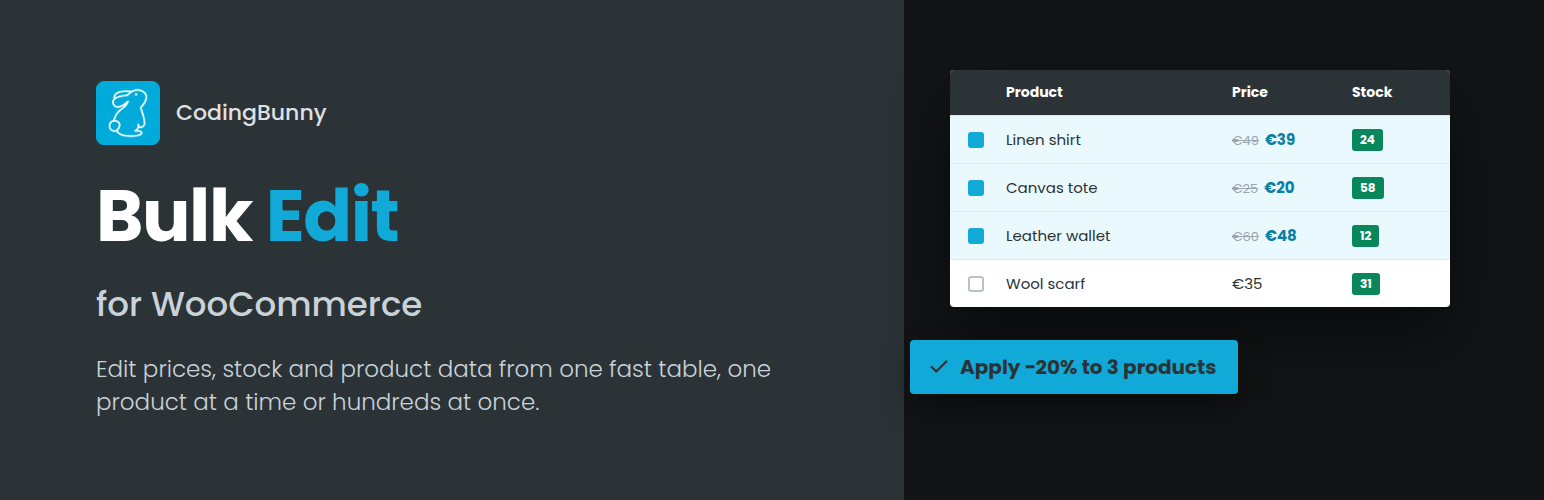
CodingBunny Bulk Edit for WooCommerce lets you manage your whole catalog from a single table in the WordPress admin. Edit products and variations inline, apply changes to hundreds of products at once and find exactly what you need with advanced filters.
Starting from version 2.2.0 all the features of the former PRO version are included for free, with no license required.
Product table
Inline editing of simple, variable and external products, with variations shown under their parent product.
Only the rows you actually modified are saved.
Choose which columns to show and reorder them with drag & drop.
Adjustable number of products per page and table height.
Sort the table by name, ID, prices, SKU, GTIN, stock, weight, dimensions, date, menu order and custom fields.
Pages, sorting and filters load instantly, without reloading the page.
Spreadsheet-like keyboard navigation: Enter and the arrow keys move between cells, Escape restores the original value.
Paste blocks of cells copied from Excel, Google Sheets or LibreOffice: values fill the cells to the right and below.
Ctrl+Enter copies a value to the same column of all the selected rows, Ctrl+D copies the value from the row above, Ctrl+S saves.
Immediate validation while you type: invalid or negative numbers, sale prices not lower than the regular price, sale end dates before the start date and duplicate SKUs (on the page and in the whole store) are highlighted, and errors block saving.
Add new products (simple, variable, downloadable) directly from the table.
Change the product type (simple, variable, grouped, external) from the table or in bulk. The variations of a variable product are kept and come back if it becomes variable again.
“Grouped products” column to choose the products of each grouped product.
Duplicate, trash or bulk-trash selected products.
“Split Variations”: turn the variations of a variable product into standalone simple products, named after their attribute terms.
Available columns
Prices: regular price, sale price, sale start and end dates, cost of goods.
Inventory: SKU, GTIN/UPC/EAN/ISBN, stock quantity, stock management, stock status, back-orders, low stock threshold, sold individually.
Shipping and tax: weight, length, width, height, shipping class, tax status, tax class.
Content: image, gallery, description, short description, variation description, purchase note.
Organization: categories, tags, brands, upsells, cross-sells, every global product attribute.
Other: status, publication date, visibility, featured, available for POS, reviews, menu order, ID, product URL and button text for external products.
Bulk edit
Set, increase or decrease regular and sale prices by a fixed amount or a percentage (e.g. 10 or 10%).
Apply a discount percentage to generate sale prices.
Change stock quantity, stock status, stock management, back-orders, low stock threshold and sold individually.
Change weight, dimensions, shipping class, tax status and tax class.
Add or remove categories, tags, brands, global attributes and any other public product taxonomy.
Add or remove upsells and cross-sells.
Change status, featured, available for POS, reviews, menu order, purchase note, product URL, button text, cost of goods and custom fields.
Choose which bulk fields are enabled and in which order they appear, or hide the bulk edit section entirely.
Preview the changes before saving: current and new values for every selected product.
Undo the last bulk edit with one click.
Also apply price, stock, shipping and sale date changes to the variations of the selected variable products.
Find and replace text in product names, descriptions, short descriptions and SKUs.
Set or remove the sale schedule (start and end dates).
Round prices to the nearest .99, .95, .90, .50 or whole amount.
Set prices with a formula, e.g. {cost} * 1.6 + 2 or {regular} – 15%, using the regular price, sale price, cost of goods and weight.
Large selections are saved in batches with a progress bar, so big catalogs do not time out.
Export and import
Export the filtered products and the visible columns to CSV, variations included.
Import a CSV to update existing products, found by SKU or ID: column recognition, preview of every change, batch processing and undo.
Catalog audit
Twelve checks to find common problems: products without image, description, short description, category, price, SKU or weight, sale prices not lower than the regular price, duplicate SKUs, negative stock, published products out of stock and variable products without variations.
Each check shows how many products are affected and lists them in the table with one click.
Filters
Search by product name or ID.
Filter by product type, category, tag, brand, attribute and term, status, stock availability, featured, available for POS and shipping class.
Filter by regular price and sale price with comparison operators.
Custom fields
Add any product meta key as a column, picking it from the detected meta keys or typing it manually.
Supported types: text, textarea, integer, decimal (1, 2 or 3 digits), image, taxonomy, URL, email, true/false, date and date-time.
Custom fields can be edited inline and in bulk.
AI content generation (optional)
Generate product descriptions and short descriptions for the selected products with OpenAI, Anthropic (Claude) or Google (Gemini), using your own API key.
Fill only empty fields or rewrite existing texts, with optional instructions for each batch.
Choose language, tone and description length, and add store guidelines that apply to every text.
The AI uses only the product data (name, categories, tags, brand, attributes, weight, dimensions and current texts) and is instructed not to invent specifications.
Generated texts are written in the table as unsaved changes: nothing is saved until you review them and click “Save Changes”.
SEO title and meta description for Yoast SEO, Rank Math and SEOPress, written in the table for review.
Suggested categories and tags, chosen among the existing ones and only added, never removed.
Natural language filters: describe the products to show (e.g. “red t-shirts out of stock under 20 euros”) and the AI sets the filters.
Natural language bulk edit: describe the changes in your own words (e.g. “increase prices by 10% and mark them as featured”), the AI fills in the Bulk Edit form and shows a preview with the current and new values of each product. Click “Save Changes” to apply them.
For developers
cbbe_before_update_product and cbbe_after_update_product actions, fired around every product update with the product object, its ID and the submitted data.
cbbe_sponsor_url filter to change the URL of the sponsor link.
cbbe_ai_product_data filter to change the product data sent to the AI service.
CBBE_AI_API_KEY constant to define the AI API key in wp-config.php.
Third-party libraries
SortableJS 1.15.7 (https://github.com/SortableJS/Sortable), MIT License, used for drag & drop sorting of columns and fields.
External services
This plugin can connect to an AI service to generate product texts, suggest categories and tags, and fill in the Bulk Edit or Search & Filter forms from instructions written in natural language. This happens only if you enter an API key in the AI Settings and start a generation with the “AI Generate” button, click “Prepare changes” in the Bulk Edit window, click “Find products” in the Search & Filter window, or click “Test connection”. No data is sent otherwise.
For each product processed, the plugin sends to the selected provider: the product name and type, categories, tags, brand, attributes, weight and dimensions, the current description and short description, the site name, and the language, tone and instructions set in the AI Settings. No customer or order data is sent. The provider returns the generated texts, which are shown in the product table and saved only when you click “Save Changes”. When categories and tags are requested, the list of the store’s category and tag names is sent too. For “Find products”, the plugin sends your description and the filter fields with their options (category, tag, brand, attribute and term names). For “Prepare changes”, the plugin sends your instructions, the number of selected products, the store currency and units, and the list of bulk edit fields available on your site with their options (for example category, tag, brand, attribute and shipping class names). The provider returns the values for the form, which is applied only when you click “Save Changes”. “Test connection” only requests the list of models available with your API key. Each request is billed by the provider on your account.
OpenAI API (api.openai.com) – used when “OpenAI” is selected. Terms of use: https://openai.com/policies/terms-of-use – Privacy policy: https://openai.com/policies/privacy-policy
Anthropic API (api.anthropic.com) – used when “Anthropic (Claude)” is selected. Terms of service: https://www.anthropic.com/legal/commercial-terms – Privacy policy: https://www.anthropic.com/legal/privacy
Google Gemini API (generativelanguage.googleapis.com) – used when “Google (Gemini)” is selected. Terms of service: https://ai.google.dev/gemini-api/terms – Privacy policy: https://policies.google.com/privacy