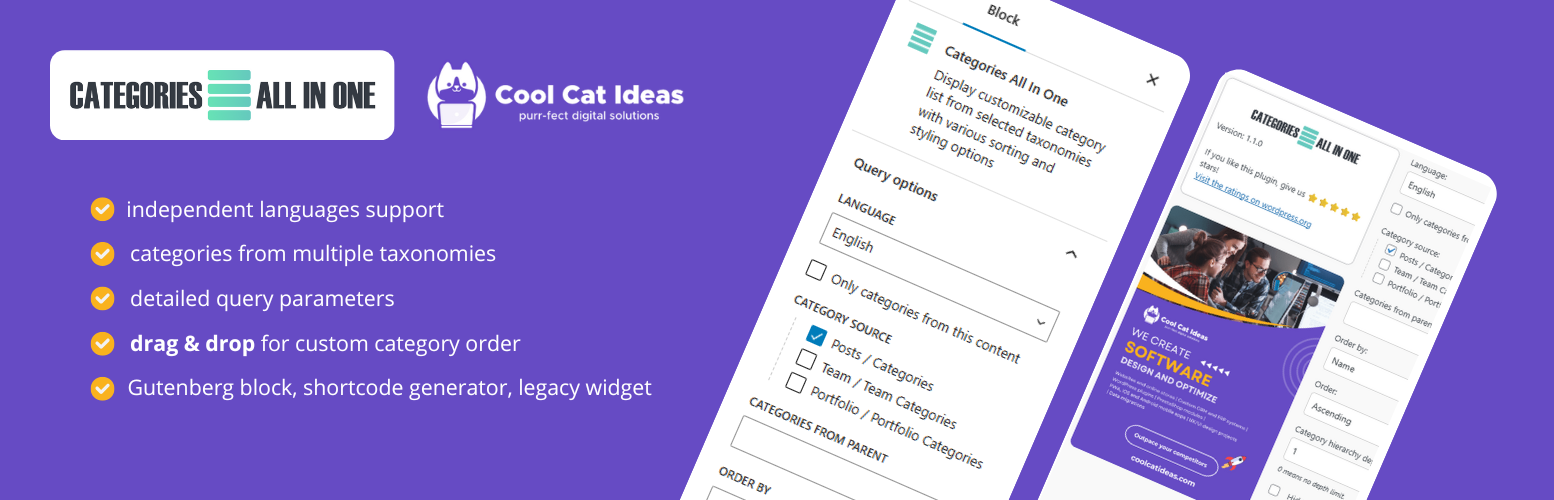
內容簡介
Categories All In One 外掛幫助訪客輕鬆選擇主題或產品分類,無需在冗長的選單中搜尋。它將現有的 WordPress 分類轉換為可連結的列表、欄位或卡片,提升使用者體驗。
【主要功能】
• 將分類顯示為列表、欄位或卡片
• 支援 WooCommerce 產品分類顯示
• 自訂顯示的分類及其順序
• 隱藏空的分類項目
• 顯示分類的內容數量和簡短描述
外掛標籤
開發者團隊
原文外掛簡介
Help visitors choose a topic or product category without searching through a long menu. Categories All In One turns your existing WordPress categories into a list, a set of columns or cards that link to category archives.
Use it for blog topics, WooCommerce product categories or another public hierarchical taxonomy. Add the category section with a block, widget or shortcode.
Use it when a plain menu or sidebar list is not enough. Add blog categories above a post list, show nested categories on a page with many articles, or display WooCommerce product categories with images and short descriptions before the product archive.
You decide which categories appear, how deep the list goes and which details should be visible. Keep parent and child categories together, hide empty terms, show content counts and set your own order without renaming categories in WordPress.
You can also:
use any public hierarchical taxonomy registered by WordPress or another plugin;
arrange categories as a list, columns or cards;
order categories by name or post count;
drag categories into your preferred order;
leave out categories that should not appear;
show short category descriptions;
show WooCommerce category images or provide an image through a public filter;
add the same category section with a block, widget or shortcode;
copy a shortcode matching the current block settings directly from the Gutenberg sidebar.
Get the Free ZIP from GitHub Releases and ask questions in GitHub Discussions.
Read the documentation or open the product page.
Examples
Show blog categories in three columns:
[categories_all_in_one taxonomy="category" layout="columns" columns="3" hide_empty="true" show_count="true"]
Show WooCommerce product categories as cards with their category images:
[categories_all_in_one taxonomy="product_cat" layout="cards" columns="3" show_image="true" hide_empty="true"]
WooCommerce must be active for product_cat. Images appear when a category has an assigned image. To show only the children of one category, add parent_category="123" and replace 123 with that category’s ID.