內容簡介
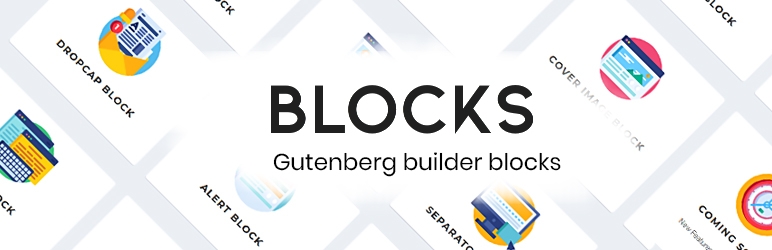
Blocks Builder 外掛為 Gutenberg 編輯器 提供了新的自訂內容區塊。除了內容區塊之外,還有一些區塊能夠讓你在任何需要的位置放置社交媒體圖示。
這是一個輕量級外掛,讓你創建具有吸引力和豐富多彩的內容區段。靈活的 Blocks Builder 外掛為基本區塊(如文字區塊或標題區塊)添加了更多自定義選項。
每個區塊的自訂設置
Blocks Builder 的每個區塊均附帶一些簡單直觀的選項,可用於管理區塊和內容。基本設置包括更改文字顏色、大小、背景色管理等。
Blocks Builder 包括以下區塊
個人資料區塊:個人資料區塊可讓你在博客上創建作者介紹部分。它允許你更新作者圖像和個人簡介。使用 Blocks Builder 的作者個人資料區塊,你甚至可以為作者添加自訂社交媒體圖示。
區塊示範
警示區塊:這是一個用於突顯內容的警示框區塊。你可以更改標題和文字顏色、設置兩者的背景並更改邊框顏色,以及選擇警示框類型。
區塊示範
首字下沉區塊:創建具有著色背景和首字下沉的文本區域。本區域讓你更改文本顏色、背景顏色、字體大小並啟用首字下沉。
區塊示範
社交媒體區塊:讓你在 WordPress 博客或頁面的內容區域中插入社交媒體圖示。該區塊允許你從 Facebook、Twitter、Instagram 和 LinkedIn 中進行選擇。它允許你設置社交圖示和背景顏色、設置圓形或方形圖示、並設置指向你的社交媒體個人資料的 URL。
區塊示範
分隔線區塊:一個簡單的線條區塊,可區分兩個不同的文本部分。你可以選擇分隔線是實線還是虛線,還可以調整分隔線的厚度和設置其顏色。此外,你還可以選擇橫跨內容寬度的全寬度分隔線。
區塊示範
封面圖像區塊:該區塊可讓你創建帶有背景圖像的絕佳區段。你甚至可以更改此區段的覆蓋色,管理文本顏色並更改文本大小。
區塊示範
標題區塊:標題區塊可讓你為博客/頁面內容設置帶有顏色的標題。你可以選擇標題級別、標題對齊方式(靠左、靠右、置中)以及標題文字的顏色。
區塊示範
文字區塊:該區塊可讓你創建具有背景顏色的精美文本區域。你可以調整文本字體大小、更改文本顏色以及設置所需的背景顏色。
區塊示範
外掛標籤
開發者團隊
② 後台搜尋「Blocks – Ultimate Page Building Blocks for Gutenberg」→ 直接安裝(推薦)
原文外掛簡介
Blocks Builder add new & customizable content blocks to the Gutenberg editor. Besides content blocks, there are blocks that lets you place the social media icons anywhere you need.
This is a lightweight plugin to let you create attractive & colorful content sections. The flexible Blocks Builder adds more customization possibilities to the basic blocks like the text block, or the heading block.
Custom settings for each block
Each of the Blocks of Blocks Builder come with some simple and intuitive options to manage the block and the content. The basic settings include changing the color of the text, size, background color management, etc.
Blocks Builder block includes the following blocks
Profile Block: The profile block, lets you create an author profile section on your blog. It lets you update the author image and biographical text. With the Blocks Builder Author profile block, you can even add customizable social media icons for the author.
Block Demo
Alert block: This is a block for creating alert box, for highlighted content on your page. You can change the heading and the text color, set background for both, change the border color and choose the kind of alert box.
Block Demo
Drop cap block: Create a text section with colored background and a drop cap. This section lets you change the text color, background color, font size and enable drop cap.
Block Demo
Social Media block: Lets you insert social media icons within your content area in a WordPress blog or page. The blocks lets you choose from Facebook, Twitter, Instagram, and LinkedIn. It lets you set the social icon and background color, set round or square icons, & set the URL to link to your social media profile.
Block Demo
Separator block: A simple line separator to differentiate two different text sections. You can choose if you want the separator to be a solid line or a dashed one. Also, you can adjust the thickness of the separator and set its color. Also, you can opt for a full width separator that spans across the content width.
Block Demo
Cover Image block: This block lets you create gorgeous section with a background image. You can even change the overlay color of this section, manage the text color and change the text size.
Block Demo
Heading block: The heading block lets you set a colored heading for your blog/page content. You can choose the heading level, the alignment of the heading (left, right, centered) and the color of the heading text.
Block Demo
Text block: This block lets you create beautiful text sections with background color. You can adjust the text font size, change the text color and set a background color of your choice.
Block Demo
Map Block: This is a block for creating Maps on your site. You can add map with location and set its zoom as per your requirement. You can also set the height and width of the Map box.
Block Demo
Price Block: This block helps you to create a beautiful price table with just one click. You can add price tables as per your requirements with the color of your choice.
Block Demo
Button Block: Button block to create attractive buttons on your website. The button block is completely customizable and lets you choose the colors, style and size of your buttons.
Block Demo
Tweet Block: The Click to tweet block allows you to integrate the “Click & tweet” feature on your page/block. Enter the clickable text in the box and the user will be able to click it instantly when he clicks over it.