
內容簡介
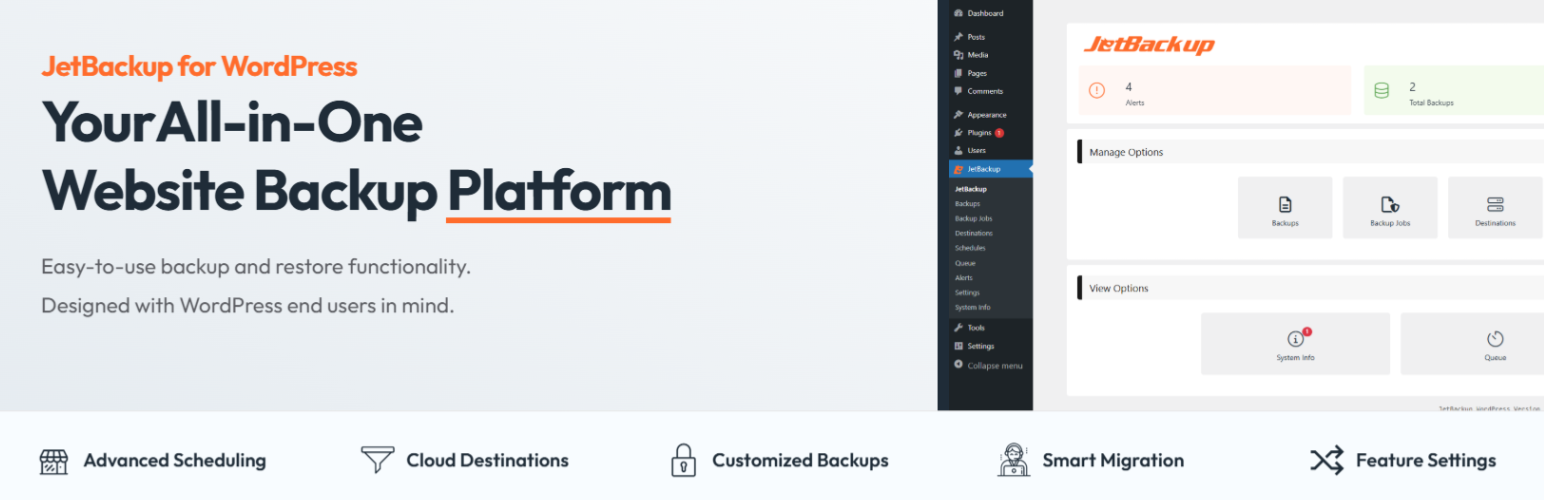
JetBackup 是一款強大且易於使用的 WordPress 備份和遷移外掛。用戶可以輕鬆創建完整或部分備份,並在需要時一鍵恢復,支持跨域名或主機遷移,並提供自動化功能。
【主要功能】
• 免費雲端儲存 - 提供 2 GB 免費雲端儲存空間
• 無限備份 - 創建任意數量的備份
• 一鍵恢復 - 輕鬆恢復備份文件
• 網站遷移 - 跨主機或域名遷移網站
• 定時備份 - 設定自動備份的頻率和時間
• 多站點支持 - 支持選擇性子站點恢復
外掛標籤
開發者團隊
② 後台搜尋「JetBackup – Backup, Restore & Migrate」→ 直接安裝(推薦)
📦 歷史版本下載
原文外掛簡介
JetBackup is a powerful, easy-to-use WordPress backup and migration plugin. Create full or partial backups, restore in 1 click, and migrate across domains or hosts. Supports TAR format, cloud storage, and full automation.
Download JetBackup premium versions here: https://www.jetbackup.com/jetbackup-for-wordpress.
See JetBackup in Action Here!
Free Features
Free Cloud Storage – 2 GB of free off site premium cloud storage
Unlimited backup – create as many backups as you want, there is no limit
Backup files, database or both – you can backup your database or files, or both
Unlimited restore – restore any backup file whenever needed
Download backup – download your backup files for migration
Import backup – upload your backup file to restore it right away
Backup cancellation – cancel the backup process while it is not finished yet
Manage backups – delete backups, view backup or restore log
Backup customization – you choose which folders you want to backup
Live progress – precise progress of the current backup and restore process
Export Backups – Export backups to hosting control panels (supports cPanel & DirectAdmin)
MultiSite – Multisite support with selective subsite restore.
Website migration – migrate your website from one hosting/domain to another one
Scheduled backup – set the frequency and time to perform automatic backup
Multiple scheduled profiles – schedule your database and files to backup with different frequencies
Backup retention – specify the number of backups you want to keep on your server
Premium Features
Off Site Backups – Support for offsite remote backup destinations: Amazon S3 (and compatible), FTP, SFTP, Google Drive, One Drive, DropBox, Box, pCloud
– 24/7 Premium Support – Industry-leading support with a 15-minute SLA.
Documentation
The documentation can be found here: https://www.jetbackup.com/jetbackup-for-wordpress.
Why JetBackup?
– No extra libraries required
– Supports large websites
– Uses TAR archives for efficient storage
– Optimized for low-memory & shared hosting
– Seamless migration with serialized data refactoring
Minimum Requirements
– WordPress: 6.0 or higher
– PHP: 7.4 or higher (requires zlib & cURL)
Support
https://www.jetbackup.com/jetbackup-for-wordpress/support
Features
One-Click Backup
Perform full or custom backups with a single click.
Reliable Restores
Easily restore backups with a high success rate.
Download & Upload
Download backups or import them via our wizard.
Cloud Storage (Pro)
Automatically store backups on cloud platforms.
Automated Backups
Schedule automatic backups to run at set intervals.
Custom Backup Settings
Select specific files/folders for backup.
Server-Level Integration
Restore backups created by your hosting provider via JetBackup.
Background Mode
Run backups in low-priority mode for better performance.
Email Notifications
Receive alerts on backup success or failure.
Documentation
Perform manual backup
If you want to create a backup manually, follow these steps:
Go to “Backup jobs” page
Click “Run now” on the default backup job.
Import backups from local computer
If you have an exported backup file in your PC and you want to import it into your website, follow these steps:
Go to “Backups” page
Click on “Import & Restore” and select your file from your local computer
Go to the kitchen, prepare a cup of coffee and watch the screen 🙂
Restore
Restoring is as easy as backing up. Just follow these instructions:
Go to “Backups” page
Choose your backup and click on the “Restore” button.
Full documentation