內容簡介
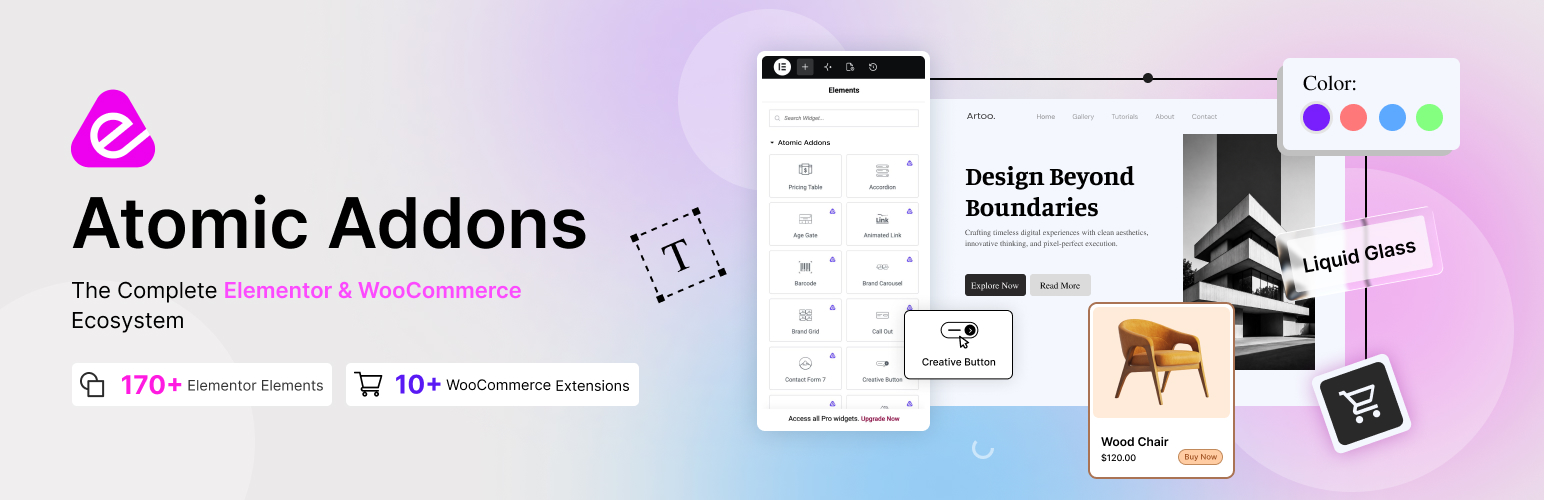
Atomic Addons 是一款專為 Elementor 設計的 WordPress 外掛,提供額外的小工具、可重用的模板和設計擴展,幫助用戶輕鬆創建商業網站、作品集、登陸頁面和部落格。其 AI-ready 特性更使得用戶能夠利用 AI 代理自動生成 Elementor 頁面。
【主要功能】
• 提供 78 種免費小工具,涵蓋內容、佈局和導航等
• 五種免費擴展,增強互動性和視覺效果
• 可編輯的模板庫,方便導入佈局
• 實時複製粘貼功能,跨頁面或網站重用內容
• 內建 MCP 伺服器,連接 AI 代理生成頁面
• 可選的 Pro 小工具,支援動態內容和 WooCommerce
外掛標籤
開發者團隊
② 後台搜尋「Atomic Addons for Elementor – AI-Ready Elementor Addons, Widgets, Templates & WooCommerce Builder」→ 直接安裝(推薦)
📦 歷史版本下載
原文外掛簡介
Atomic Addons is an Elementor addons plugin for WordPress that brings extra widgets, reusable templates and design extensions into the Elementor editor. Create business websites, portfolios, landing pages and blogs with familiar drag-and-drop controls. When your project needs dynamic content, custom theme layouts or advanced store features, Atomic Addons Pro adds tools for those workflows.
Start with the free WordPress.org plugin for content widgets, creative layouts, navigation tools and useful design extensions. The free package also includes the Template Library, Live Copy Paste, Duplicator and optional SVG Support. Enable the modules you need in the plugin settings, then use them while designing your pages.
Atomic Addons is also AI-ready: connect Claude, Cursor, Codex or Elementor’s Angie through the built-in MCP server and let an AI agent build Elementor pages for you.
Atomic Addons Pro is a separate premium upgrade. Pro widgets, the Theme Builder, Dynamic Tags, Display Conditions and WooCommerce tools are not included in the free download. The sections below explain what each version offers so you can choose the right tools before installing or upgrading.
Elementor Addons for Your Everyday Design Work
An Elementor widget is an individual content element, such as an accordion, carousel or button. An extension adds behavior or styling to an existing element, section or container. Atomic Addons combines both types of tools with reusable templates, giving you several ways to adapt a layout without recreating every detail manually.
For a service website, use feature boxes, brand logos and clear calls to action to explain your offer. For a portfolio, present selected work through image compositions, sliders and comparison layouts. For a blog or online store, the Pro collection provides dedicated post and product widgets that work with your existing WordPress content.
The editor remains your main workspace. Adjust typography, spacing, colors and responsive settings alongside the rest of your Elementor design. You can start with a small selection of elements and activate additional tools as the project develops.
78 free widgets for content, creative layouts, navigation, forms, marketing and reviews.
Five free extensions for interactive and visual details.
A Template Library for importing editable layouts.
Live Copy Paste for reusing Elementor content across pages or sites.
An MCP server that lets AI agents build and edit Elementor pages.
Optional Pro widgets for mega menus, dynamic post content and WooCommerce stores.
Widget and extension controls for disabling tools you do not use.
Download Atomic Addons for Free
AI Agents and MCP Server for Elementor
Atomic Addons MCP connects AI agents to your website through the Model Context Protocol (MCP), an open standard for giving AI assistants access to tools. Describe a page in plain language and the agent builds it with Elementor and Atomic Addons widgets in your site’s colors and fonts, as a normal Elementor layout you can keep editing.
Its 31 abilities cover three kinds of work:
Build: Create draft pages, build full layouts, insert widgets, edit their settings, and move or remove elements.
Manage: Publish pages, move them to the trash and back, and switch widgets on or off.
Read: Page structures, widget settings and your Elementor kit’s colors, fonts and spacing.
It works with Claude Code, Claude Desktop, Cursor, Codex, VS Code and other MCP clients, plus Elementor’s Angie inside the editor. The AI screen prepares the setup for your client and tests the connection.
You stay in control: AI access is off by default and starts read-only, each client gets its own revocable application password limited to its WordPress user’s permissions, any ability can be switched off, and the last AI layout change on a page can be undone. The AI features need WordPress 6.9 or later; see Installation and the FAQ for details.
Free Elementor Widgets Included in the Plugin
The free Elementor addons download includes the 78 widgets below. These are the named widgets in the current WordPress.org free inventory. Premium widgets are described separately so you do not mistake a Pro feature for something included in the free package.
Content Widgets
Accordion: Organize questions, service details or supporting information into collapsible panels. Use it when visitors need a concise overview with the option to read more.
Advanced Counter: Present important numbers with animated counters.
Advanced Icon Box: Combine icons and text in customizable feature boxes.
Advanced Progress Bar: Visualize progress or skills with styled bars.
Animated Link: Give text links a distinct hover treatment while keeping them part of your page typography. Use descriptive link text so visitors know where each link leads.
Barcode: Display barcodes within your page layout.
Brand Carousel: Present client, partner or brand logos in a sliding layout. This is useful when a static row would take up too much horizontal space.
Brand Grid: Arrange logos in a structured grid for an easy-to-scan partner or client section. Choose this format when every logo should remain visible together.
Business Hours: Present opening hours in a clear schedule.
Call Out: Draw attention to an announcement, offer or next step with a dedicated content box and call to action.
Changelog: Organize product updates and release notes.
Document Viewer: Display documents within your page.
Fancy List: Present benefits, services or checklist items with custom visual styling. Keep each item focused on one useful point.
Featured Box: Combine a heading, description, icon and link to introduce a feature or service. Repeat the layout to create a consistent overview section.
Image Stack: Arrange overlapping images for a layered composition. This can help present a collection of screens, project previews or supporting photographs.
Interactive Tabs: Organize related content into interactive tabs.
Logo Carousel: Showcase logos in a sliding presentation.
Logo Grid: Display company logos in a structured grid.
Member: Introduce team members with profile cards.
Modal: Present supporting content in a popup window.
Open Street Map: Display a location using OpenStreetMap.
Price Carousel: Present manually prepared product or pricing cards in a carousel.
Price Grid: Arrange manually prepared product cards in a grid.
Price List: Present services or products with their prices.
Progress Pie: Show progress using circular visual indicators.
Reading Progress: Indicate how far visitors have read.
Search: Place a search interface in your layout.
Static Carousel: Display a set of manually prepared slides in a carousel. Choose this when you want direct control over each slide rather than a feed of posts.
Static Grid Tab: Organize manually selected content in tabbed grids.
Step Flow: Explain a process through a sequence of steps.
Creative and Media Widgets
Advanced Image Gallery: Organize images into customizable gallery layouts.
Audio Player: Add audio playback to your Elementor pages.
Creative Button: Style a call-to-action button with visual effects and icon options. Match the button treatment to the importance of the action.
Dual Button: Place two related actions together, such as viewing a demo and reading more information, without designing separate button layouts.
Flip Box: Display front and back content in flipping cards.
Hover Box: Reveal supporting text or links through an interactive box. Review the experience on touch devices as well as desktop screens.
Hover Video: Use a video preview in a portfolio or product presentation. Choose concise media and check its effect on page loading.
Image Accordion: Turn a group of images into expanding panels. Use it to introduce a small collection of categories, destinations or projects.
Image Compare: Place two images in a before-and-after comparison with a draggable divider. Use comparable images so the difference is easy to understand.
Image Expand: Create an expanding image presentation.
Interactive Card: Present content in an interactive card layout.
Interactive Links: Give navigation links an interactive visual treatment.
Lightbox: Open media in an overlay for closer viewing.
Lottie Image: Display Lottie animations within your design.
Marker: Highlight points of interest on an image.
Marquee: Present content in a scrolling marquee.
Remote Arrows: Place arrow navigation controls outside supported sliders.
Remote Fraction: Display fraction-style navigation for supported sliders.
Remote Pagination: Position pagination controls for supported sliders.
Remote Thumbs: Use thumbnails to navigate supported slides.
Slider: Present slides with supporting captions and buttons. Keep essential information easy to access instead of relying on visitors to see every slide.
Video Gallery: Organize multiple videos in a gallery.
Menu and Navigation Widgets
Circle Menu: Arrange navigation options in a circular menu.
Dropbar: Reveal additional content in a dropdown panel.
Mobile Menu: Add a mobile navigation layout with a menu toggle. Check labels, spacing and tap targets as part of your responsive review.
Navbar: Add a navigation bar to your page.
Off Canvas: Show supporting content in an off-canvas panel.
Scroll Button: Add a button for page scrolling.
Scrollnav: Connect a one-page menu to sections on the same page. This suits service pages and portfolios with clearly defined content areas.
Vertical Menu: Arrange navigation links in a vertical list.
Form and User Widgets
Contact Form: Add an enquiry form to your page.
Contact Form 7: Style forms from the Contact Form 7 plugin.
Everest Forms: Display and style existing Everest Forms.
Forminator Forms: Display and style forms created with Forminator inside Elementor. The Forminator plugin is needed for the underlying form functionality.
Mailchimp: Present a Mailchimp newsletter signup form.
Ninja Forms: Style forms created with Ninja Forms.
User Login: Add a user login form to your design.
User Register: Provide a registration form for new users.
WPForms: Display and style forms created with WPForms.
Marketing and Social Widgets
Countdown: Display a countdown for an event or offer.
Google Reviews: Display Google reviews in your website layout.
Review Card Carousel: Display review cards in a carousel.
Review Card Grid: Arrange review cards in a grid.
Social Proof: Present social-proof content in your layout.
Social Share: Add sharing options for your content.
Total Count: Highlight totals with a count display.
Twitter Grid: Present Twitter content in a grid.
Special Widgets
Age Gate: Display an age-confirmation prompt before selected content. An age prompt is not a substitute for any verification process your business may require.
Five Free Elementor Extensions
Extensions help you add detail to an existing layout instead of introducing another standalone widget. The free package includes these five options for supported Elementor elements and layout containers.
Backdrop Filter: Apply visual treatments such as blur and brightness to the area behind an element. Review text contrast when using translucent surfaces.
Grid Line: Add decorative grid lines to complement a structured page design. Use them selectively so they support the content rather than compete with it.
Ripple Effects: Add a ripple interaction to selected elements. A small response can help make an interaction feel more noticeable.
Tooltip: Provide short supporting information through a tooltip. Keep essential instructions visible in the main page content rather than hiding them only in tooltips.
Wrapper Link: Make a supported container or section clickable. Use it for a clearly defined destination and avoid confusing combinations of overlapping links.
Reusable Templates and Free Workflow Tools
Elementor Template Library
The Template Library gives you a starting point for page and section layouts. Import an available template, replace the sample content and adjust its appearance in Elementor. You can change text, images, colors, spacing and other editable settings to match the website you are creating.
Templates are starting layouts, not finished websites. Review each imported section for your own content, branding and responsive needs. Check whether a selected template uses premium widgets before relying on it in a free-only project. Template and widget availability should match the version you have installed.
Live Copy Paste
Reuse Elementor content across pages or supported sites with Live Copy Paste. Copy an existing design and place it where you need the same structure, rather than manually rebuilding its layout and styling. Enable the feature in settings before using the workflow.
Cross-site reuse is particularly helpful for repeated sections such as service summaries and calls to action. After pasting, review destination-specific text, links and images. Also check that the destination has the widgets and dependencies used by the original design.
Duplicator and SVG Support
Duplicator supports a repeatable workflow for posts, pages and templates. Use a duplicate as the starting point for a related page, then replace the content that should be unique. Before publication, check titles, links and any copied information that belongs to the original page.
Optional SVG Support allows SVG handling within the plugin’s supported workflow. SVG files are useful for scalable graphics such as icons and logos. Only upload files from sources you trust and review your site’s upload permissions before enabling additional file types.
Atomic Addons Pro: More Control for Complex Projects
The premium version expands the collection with 84 Pro Elementor widgets, 17 Pro design extensions and site-building features. Choose Pro when your project needs functionality beyond the free tools, such as dynamic post layouts, a visual theme builder or dedicated WooCommerce page elements.
You do not need to activate every premium feature at once. Select the modules relevant to the website, configure them and test the resulting pages. This keeps the editing workspace focused and makes it easier to understand which features a project actually depends on.
Advanced Content and Creative Widgets
Pro content widgets include Advanced Heading, Circle Info, Comparison List, Content Switcher and Price Table. Pro creative options include Animated Heading, Creative Gallery, Stacker and SVG Blob. Use them where a visual treatment helps explain or present the content.
Navigation and Mega Menu Builder
Atomic Addons Pro includes the Mega Menu, Sub Menu and Table of Content widgets. Create navigation that reflects how your website is organized, from a simple list of pages to a larger dropdown with multiple content areas.
The Elementor mega menu builder supports visual dropdown layouts. Use it to group related destinations and make a larger website easier to browse. After designing the desktop menu, review its mobile behavior and make sure important destinations remain easy to find.
Forms and Marketing Widgets
Pro includes the Webhook Form and the Facebook and Instagram feeds. Where an integration uses an external service, review its account requirements and configuration before adding it to a page.
Post Widgets and Dynamic Content
Present WordPress content through Post Grid, Post Carousel, Post List, Post Slider, timelines and other dynamic layouts. Instead of maintaining a separate manual card for every article, use post-based widgets to display content from your website.
Single-post elements include Post Title, Post Content, Post Featured Image, Post Info and Post …