內容簡介
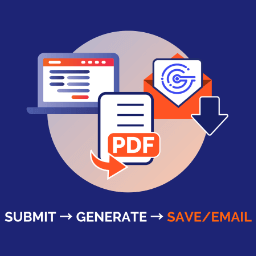
Shift8 Integration for Gravity Forms and SAP Business One 是一款安全的 WordPress 外掛,能夠將 Gravity Forms 與 SAP Business One 進行整合,並自動從表單提交中創建商業夥伴記錄。
【主要功能】
• 無縫整合:直接整合 SAP Business One Service Layer API
• 欄位對應:靈活的 Gravity Forms 與 SAP 商業夥伴欄位對應
• 自動創建報價:基於勾選項的自動報價生成
• 重複檢測:防止重複商業夥伴的生成
• 實時驗證:提交前即時驗證 SAP 欄位限制
• 用戶友好介面:直觀的設定與配置介面
外掛標籤
開發者團隊
② 後台搜尋「Shift8 Integration for Gravity Forms and SAP Business One」→ 直接安裝(推薦)
📦 歷史版本下載
原文外掛簡介
A secure WordPress plugin that integrates Gravity Forms with SAP Business One, automatically creating Business Partner records from form submissions.
For a complete setup guide and technical walkthrough, see our blog post: How to integrate SAP B1 (Business One) into WordPress Gravity Forms
Features
Seamless Integration: Direct integration with SAP Business One Service Layer API
Field Mapping: Flexible mapping between Gravity Forms fields and SAP Business Partner fields
Contact Person Support: Map form fields to Contact Persons tab in SAP B1
Sales Quotation Creation: Automatically create Sales Quotations with checkbox-based line item mapping
Duplicate Detection: Prevent duplicate Business Partners using email OR name+address matching
Automatic Form Validation: Real-time validation against SAP field limits before submission
Security First: Password encryption, input validation, and secure API communication
Real-time Testing: Built-in connection and integration testing tools
WP-CLI Testing: End-to-end testing and SAP B1 query commands for developers
Comprehensive Logging: Detailed debug logging with sensitive data protection
User-Friendly Interface: Intuitive settings and configuration interface
Error Handling: Robust error handling with detailed feedback
Features
Seamless Integration: Direct integration with SAP Business One Service Layer API
Field Mapping: Flexible mapping between Gravity Forms fields and SAP Business Partner fields
Security First: Password encryption, input validation, and secure API communication
Real-time Testing: Built-in connection and integration testing tools
Comprehensive Logging: Detailed debug logging with sensitive data protection
User-Friendly Interface: Intuitive settings and configuration interface
Error Handling: Robust error handling with detailed feedback
Requirements
WordPress Environment
WordPress: 5.0 or higher
PHP: 7.4 or higher
Gravity Forms: Latest version required
SAP Business One Environment
SAP Business One: Version 9.3 or higher
Service Layer: Properly configured and accessible
User Permissions: SAP user with Business Partner creation rights
Numbering Series: Configured for Business Partners in SAP B1
Configuration
Step 1: Configure SAP Connection
Navigate to WordPress Admin > Shift8 > Gravity SAP
Enter your SAP connection details:
SAP Service Layer Endpoint: https://your-sap-server:50000/b1s/v1/
Company Database: Your SAP company database name
Username: SAP user with Business Partner permissions
Password: SAP user password (automatically encrypted)
Enable Debug Logging if needed for troubleshooting
Click Save Settings
Click Test SAP Connection to verify connectivity
Step 2: Configure Gravity Forms Integration
Go to WordPress Admin > Forms and select a form
Click Settings > SAP Integration
Check Enable SAP Integration
Enter a Feed Name for identification
Select Business Partner Type (Customer, Vendor, or Lead)
Map form fields to SAP Business Partner fields
Click Update Settings
Step 3: Test Integration
Click Test Numbering Series to verify SAP configuration
Enter test data and click Test Integration
Verify Business Partner creation in SAP Business One
Field Mapping
Main Business Partner Fields
SAP Field
Description
Required
Max Length
CardName
Business Partner Name
Yes
~100 chars
EmailAddress
Email Address
No
Email format
Phone1
Telephone 1
No
~20 chars
Phone2
Telephone 2
No
~20 chars
Cellular
Mobile Phone
No
~20 chars
Fax
Fax Number
No
~20 chars
Website
Website URL
No
URL format
FreeText
Remarks/Notes
No
~254 chars
Address Fields (BPAddresses – appears in General tab)
SAP Field
Description
Required
Max Length
BPAddresses.Street
Street Address
No
~100 chars
BPAddresses.City
City
No
~25 chars
BPAddresses.State
State/Province
No
3-4 chars (codes only!)
BPAddresses.ZipCode
Zip/Postal Code
No
~20 chars
BPAddresses.Country
Country
No
2-letter code
Contact Person Fields (ContactEmployees – appears in Contact Persons tab)
SAP Field
Description
Required
Max Length
ContactEmployees.FirstName
Contact First Name
No
~50 chars
ContactEmployees.LastName
Contact Last Name
No
~50 chars
ContactEmployees.Phone1
Contact Phone
No
~20 chars
ContactEmployees.E_Mail
Contact Email
No
Email format
ContactEmployees.Address
Contact Address
No
~254 chars
Important:
– SAP has strict field length limits. Use state codes (“CA” not “California”) and country codes (“US” not “United States”)
– BPAddresses data appears in the General tab of the Business Partner in SAP B1
– ContactEmployees data appears in the Contact Persons tab of the Business Partner in SAP B1
– You can map address data to either BPAddresses, ContactEmployees, or both depending on your needs
Troubleshooting
Field Length Errors
If you get “Value too long in property” errors:
1. Check that State field uses codes (“CA”, “NY”, “TX”) not full names
2. Verify Country field uses 2-letter codes (“US”, “CA”, “GB”)
3. Keep phone numbers under 20 characters
4. Keep street addresses under 100 characters
5. Keep city names under 25 characters
Connection Issues
Verify SAP Service Layer is running
Check endpoint URL format
Test credentials in SAP Business One
Review debug logs for detailed error information
Numbering Series Issues
Configure numbering series in SAP B1 Administration
Go to Administration > System Initialization > Document Numbering
Set up series for Business Partners
Ensure default series are configured
Security Features
Password Encryption: All passwords encrypted using WordPress salts
Input Validation: All data sanitized and validated
Secure Communication: HTTPS API communication
Access Control: Admin-only access with capability checks
Debug Protection: Sensitive data automatically redacted from logs
How It Works
User submits Gravity Form with mapped fields
Plugin validates form has SAP integration enabled
Data mapping occurs between form fields and SAP fields
SAP authentication using encrypted credentials
Duplicate detection (if enabled): checks SAP for existing BP matching Email OR (Name + Country + Postal)
Existing BP found: reuses the BP, checks for existing Contact Person, adds new contact if needed
No match found: creates a new Business Partner with Contact Person
Sales Quotation created and linked to the BP and Contact Person
SAP identifiers (CardCode, DocEntry, InternalCode) stored in GF entry meta
Success/error logging, entry notes, and status column updated
Support
For support and documentation:
– Review debug logs for error details
– Use built-in connection testing tools
– Check SAP Service Layer documentation
– Contact: https://www.shift8web.ca
License
GNU General Public License v3.0 or later